How-tos
Perimeter
How to create a new Perimeter
You can create a new perimeter in the Perimeter list page 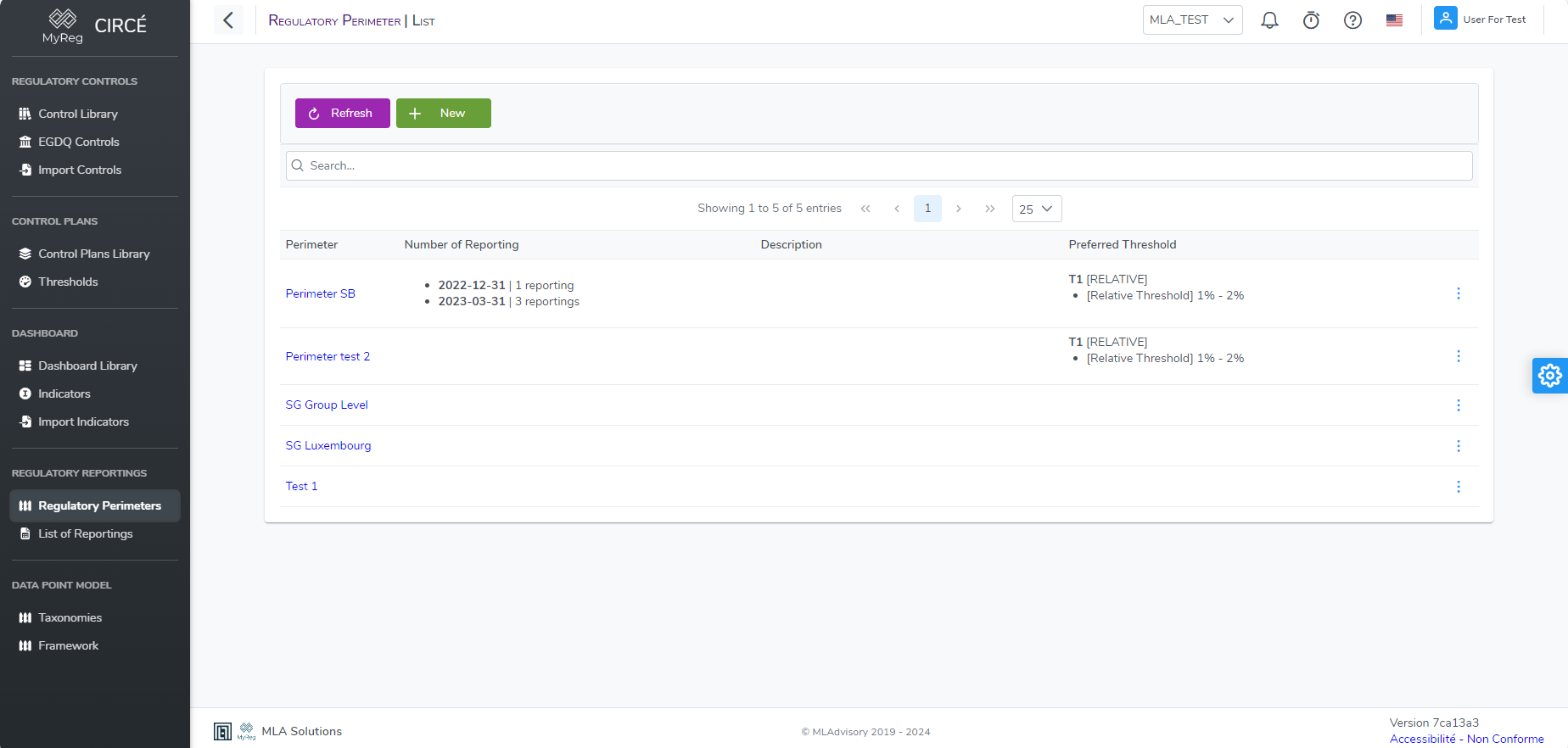
Click on the top left New Button 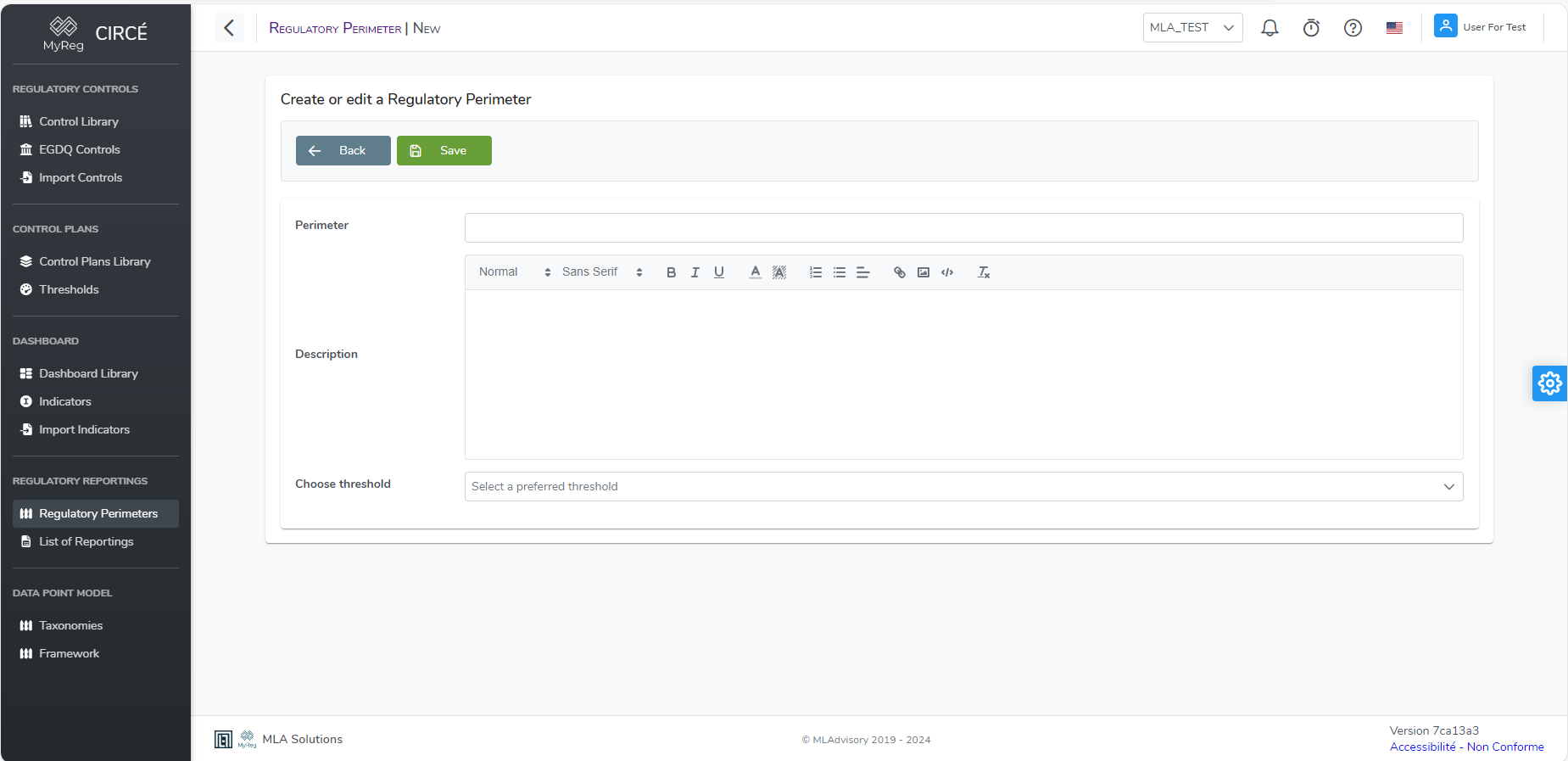
Then enter a name for your parameter (mandatory and unique) a description (optional) and a preferred threshold (optional)
Click on Save on the top left to create your new perimeter
How to edit a Perimeter
Open a perimeter and click on the edit button 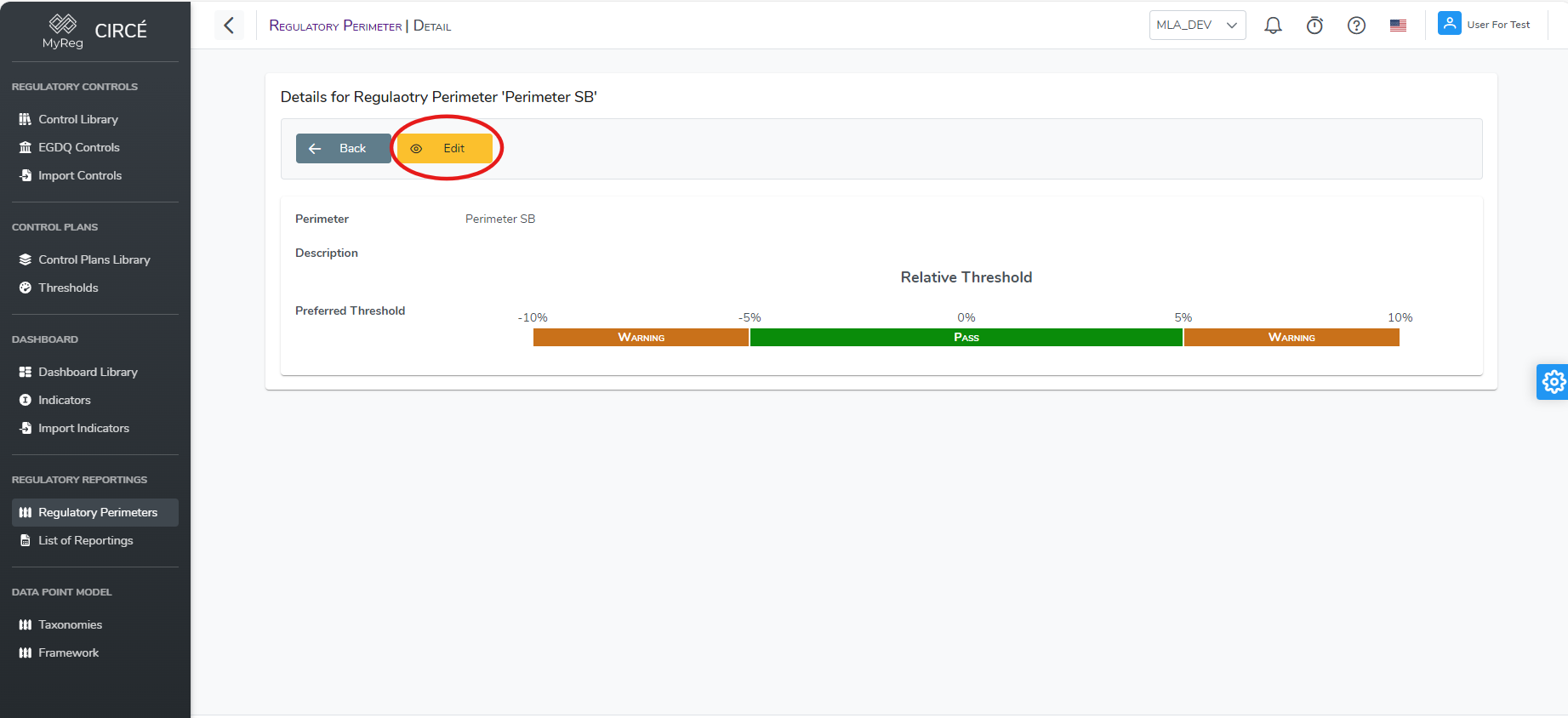
You can also click on the action button on the right of each perimeter and click on Edit button in the perimeter list page. 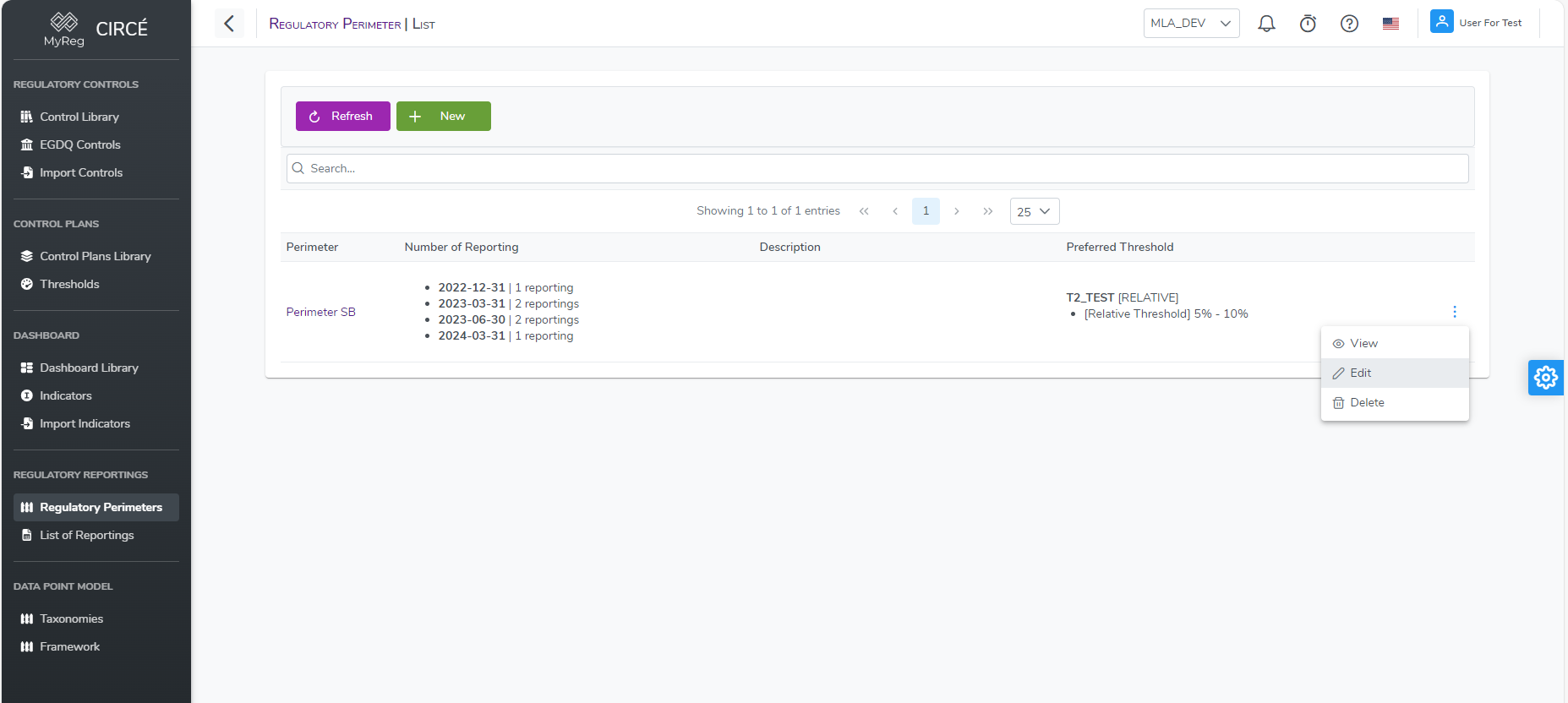
Make your changes and then click on save to edit your perimeter. 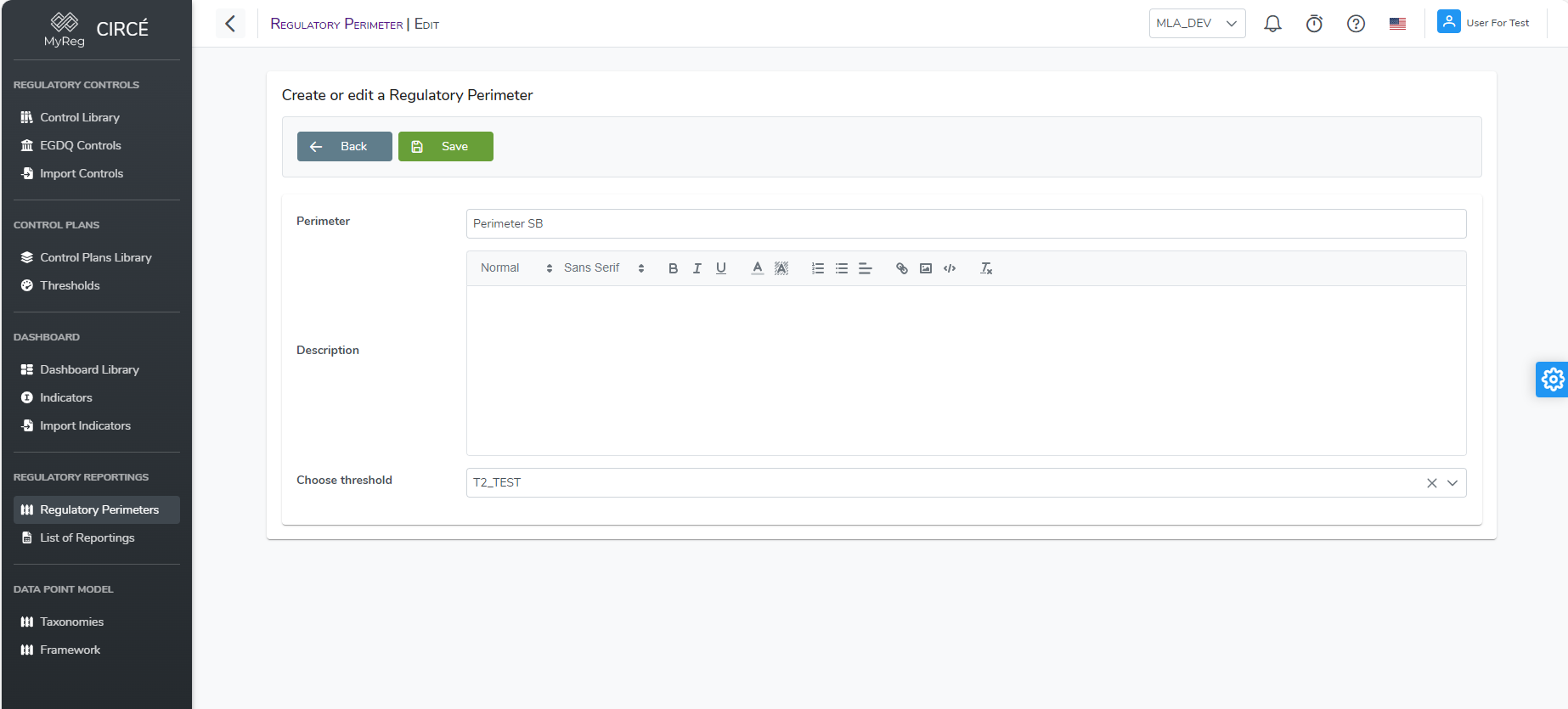
You can click on the Back button to return to the previous page without taking your changes into account.
How to delete a Perimeter
In the perimeter list page, you can delete a perimeter by clicking on the action button on the right of each perimeter and click on the Delete button. 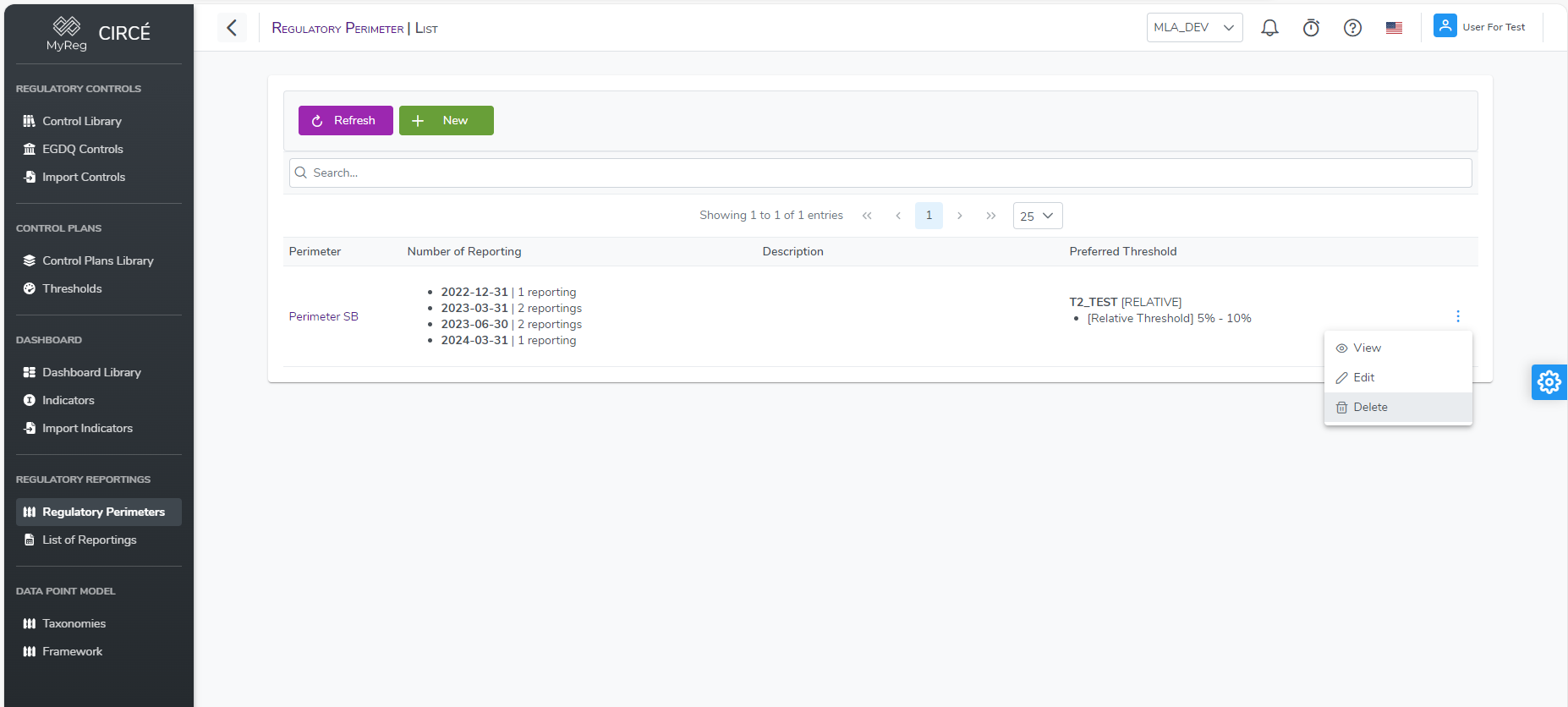
A confirmation box will appear to confirm or cancel your action. 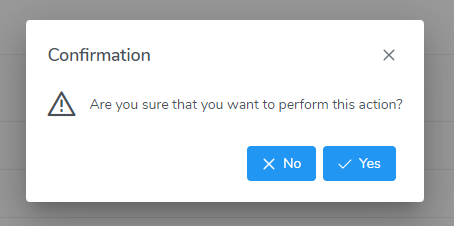
N.B : You cannot delete a perimeter that contains one or more reporting files. You will have to delete all reporting files first. 
Reporting files
How to add a reporting file
You can add a new reporting file by the following procedure 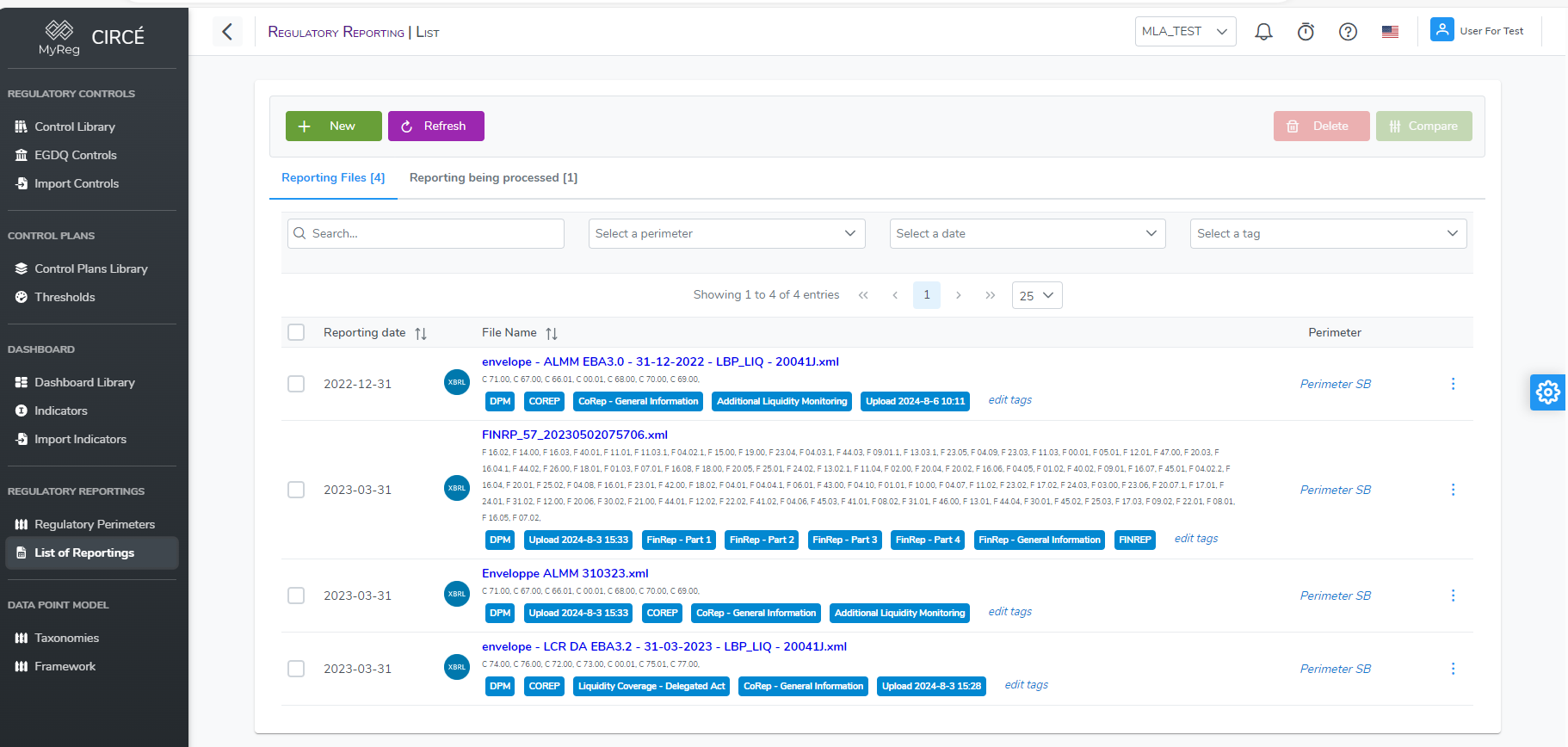
Click on New button on top left to go to the new reporting file page 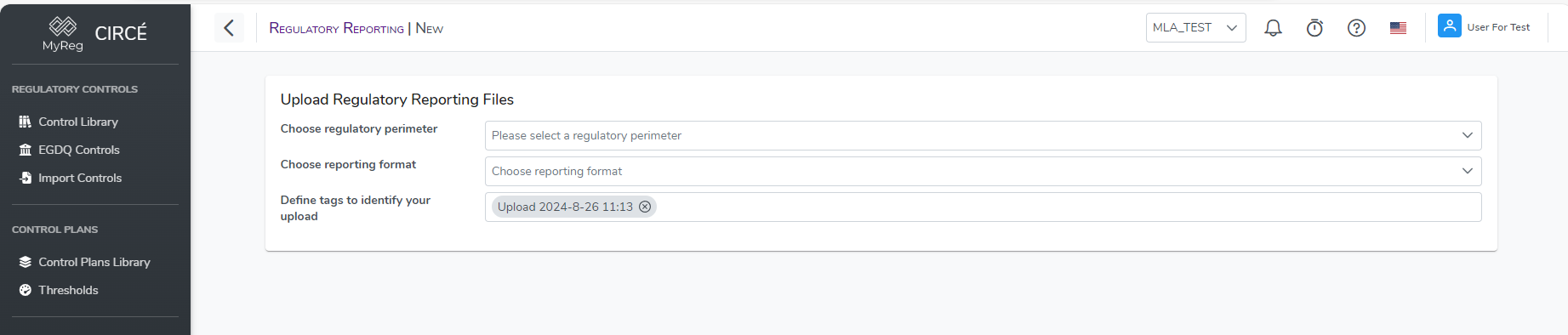
How to navigate through a reporting file
You can directly access to the template of each reporting file. To do so you on the reporting file list page you need to click on the name of the reporting file or on the View Button in the Action Button list 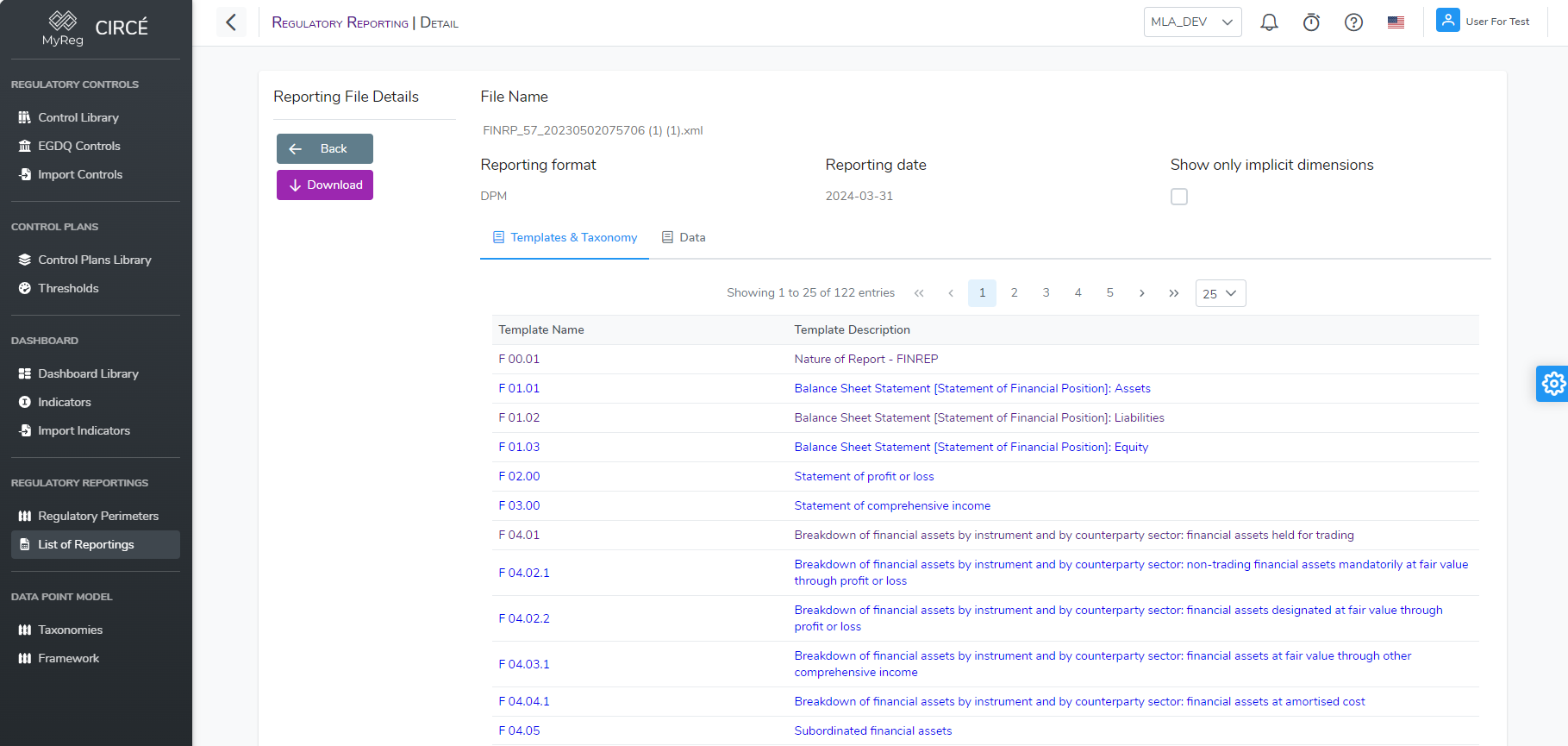
You are now on the Detail Page of a reporting file with the list of all templates in this reporting file. You can access to each template by clicking on the name or on the description. This will open the Template detail view page with data on each cell 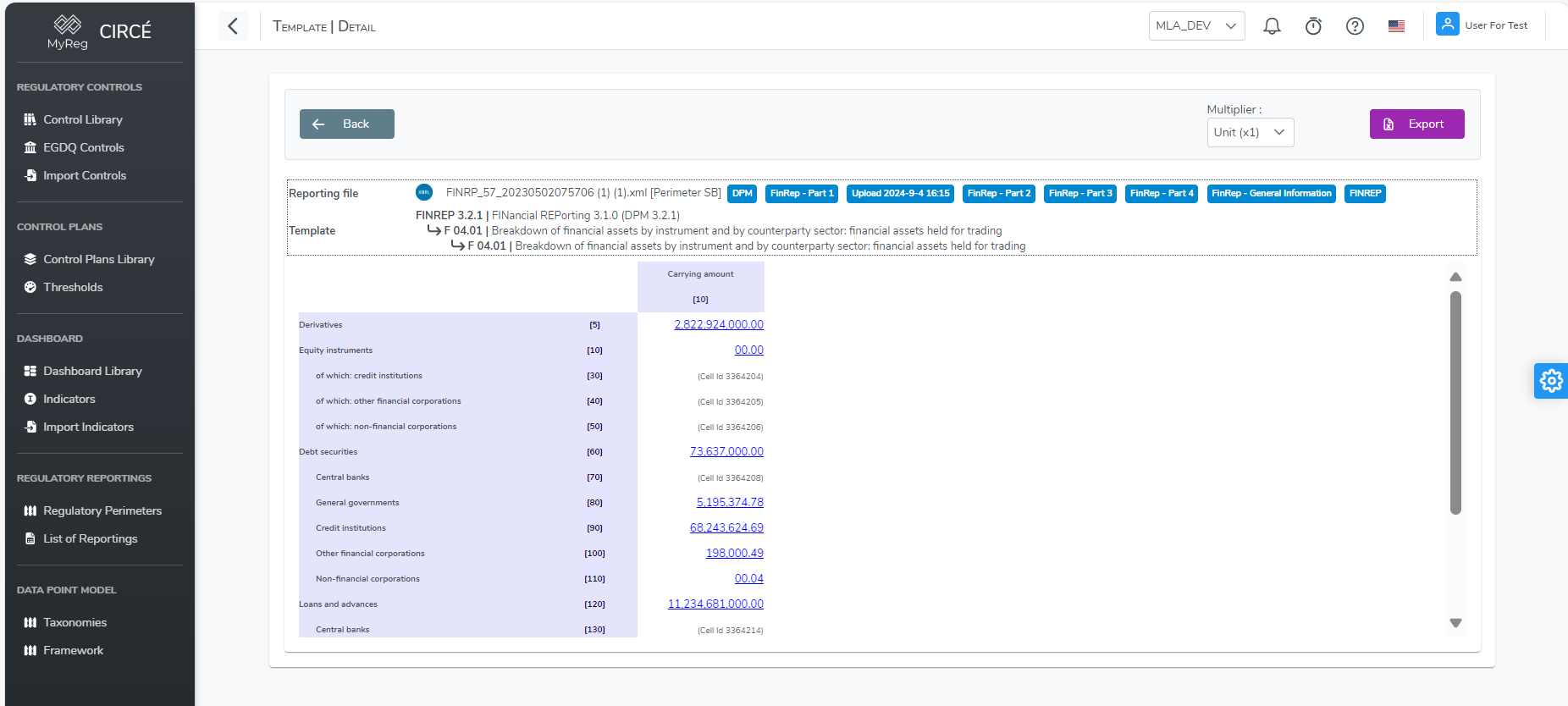
You can have more detail on each value by clicking on it. It will open a popup with all the details for this specific cell 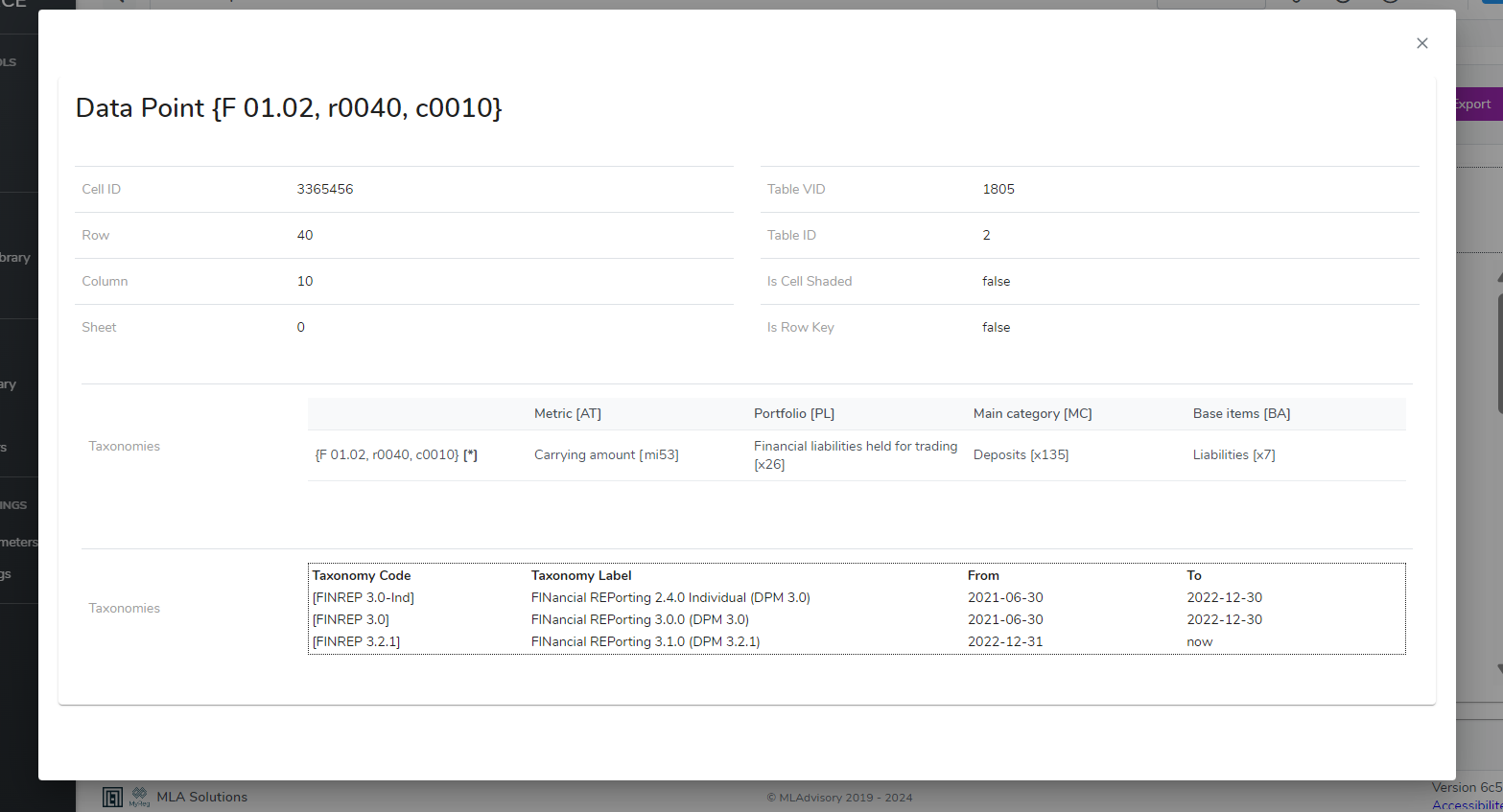
How to delete one or more reporting files
In the Regulatory Reporting list page, you can delete a reporting file by clicking on the action button on the right of each reporting file and click on the Delete button. 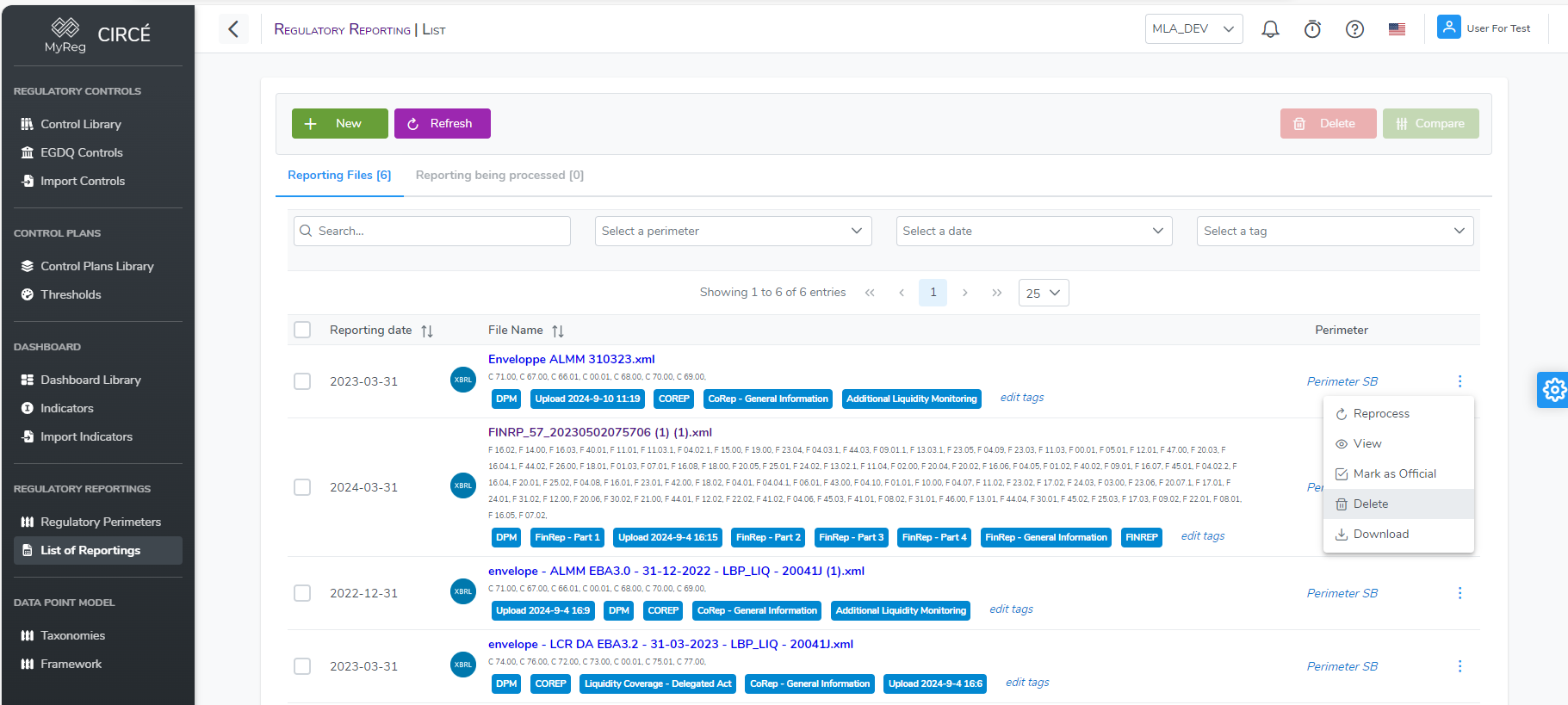
A confirmation box will appear to confirm or cancel your action. 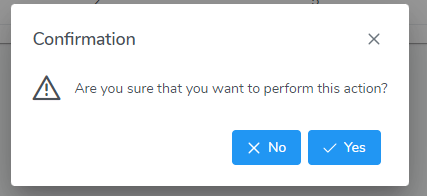
You can also delete multiple reporting files at once on the reporting list page by selecting reporting files and then click on top right Delete Button. 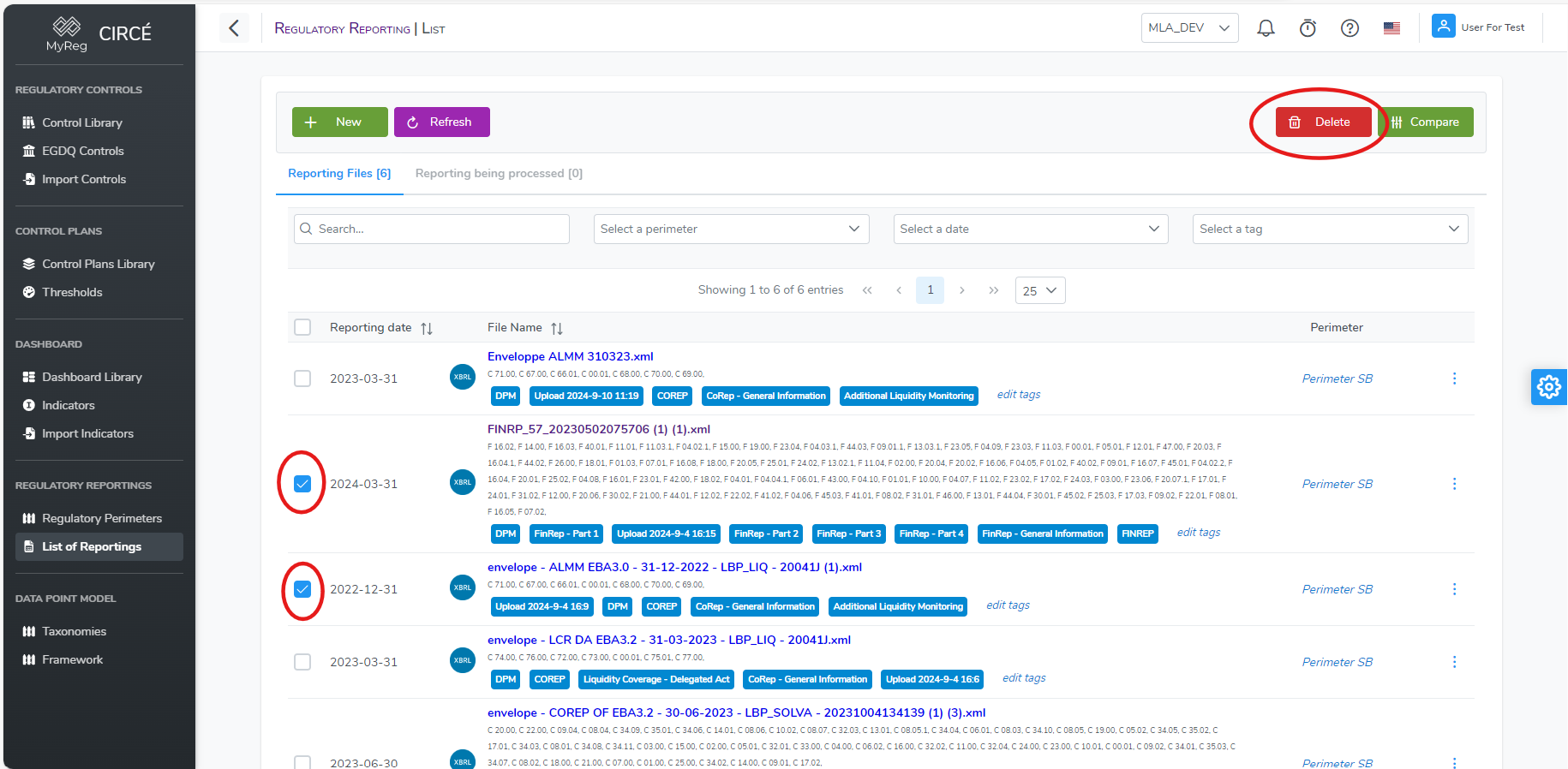
How to compare two to four reporting files
In the Regulatory Reporting list page, you can compare up to 4 reporting files by selecting them and click on the top right Compare button. Please note that the button will be clickable only if you select two, three of four files. 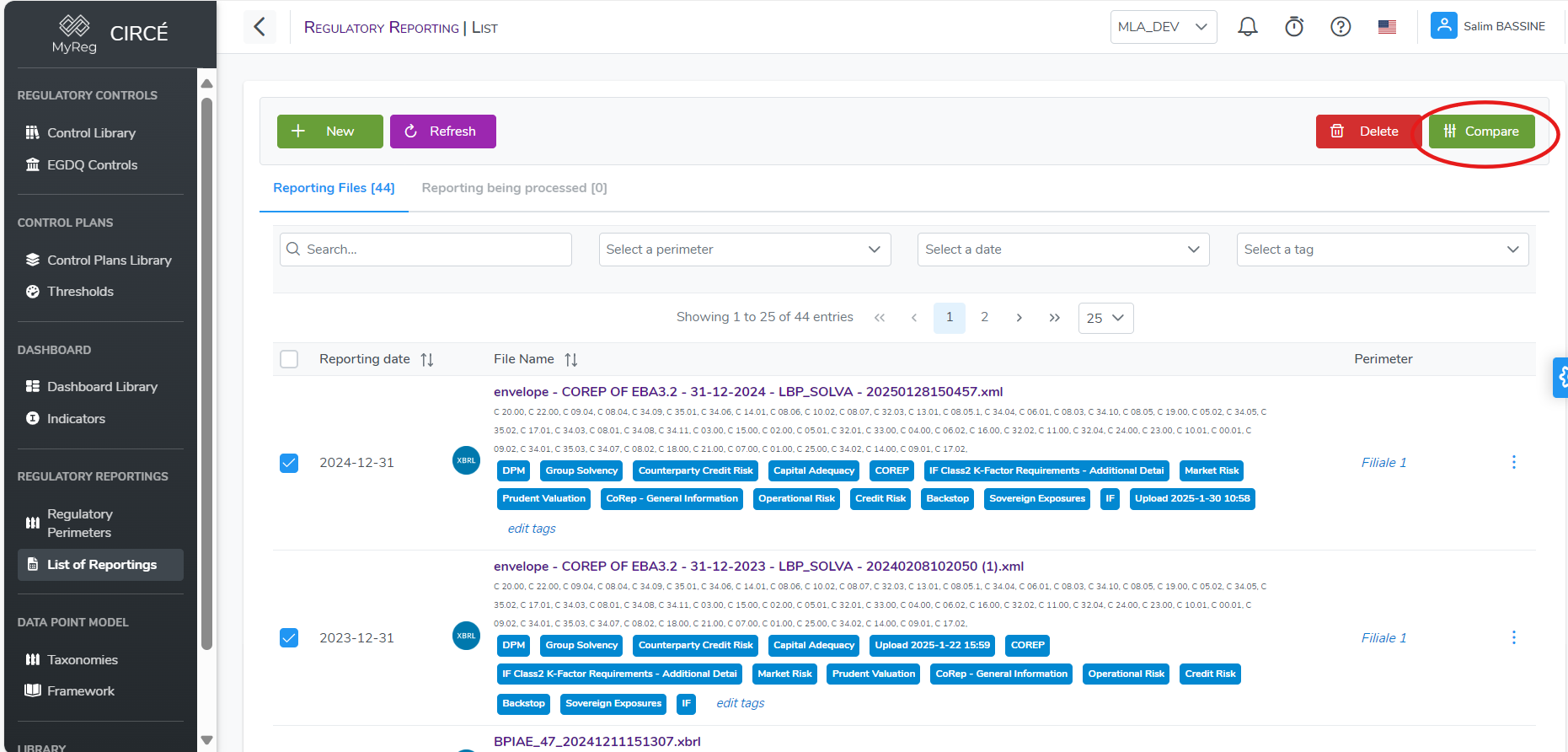
It will open a page with the following information about the compared reporting files : reference, file name, type, perimeter, reporting date and pivot. Pivot is used to select the main axe you want to compare files to. For instance, if A is data for pivot reporting and B is other file data. Comparison will be (A-B)/A if you switch to file B as a pivot it will be (B-A)/B. You can change the pivot and it will automatically update the data below If you have selected more than two files, you can remove one file of the comparison page by clicking on the bin button. 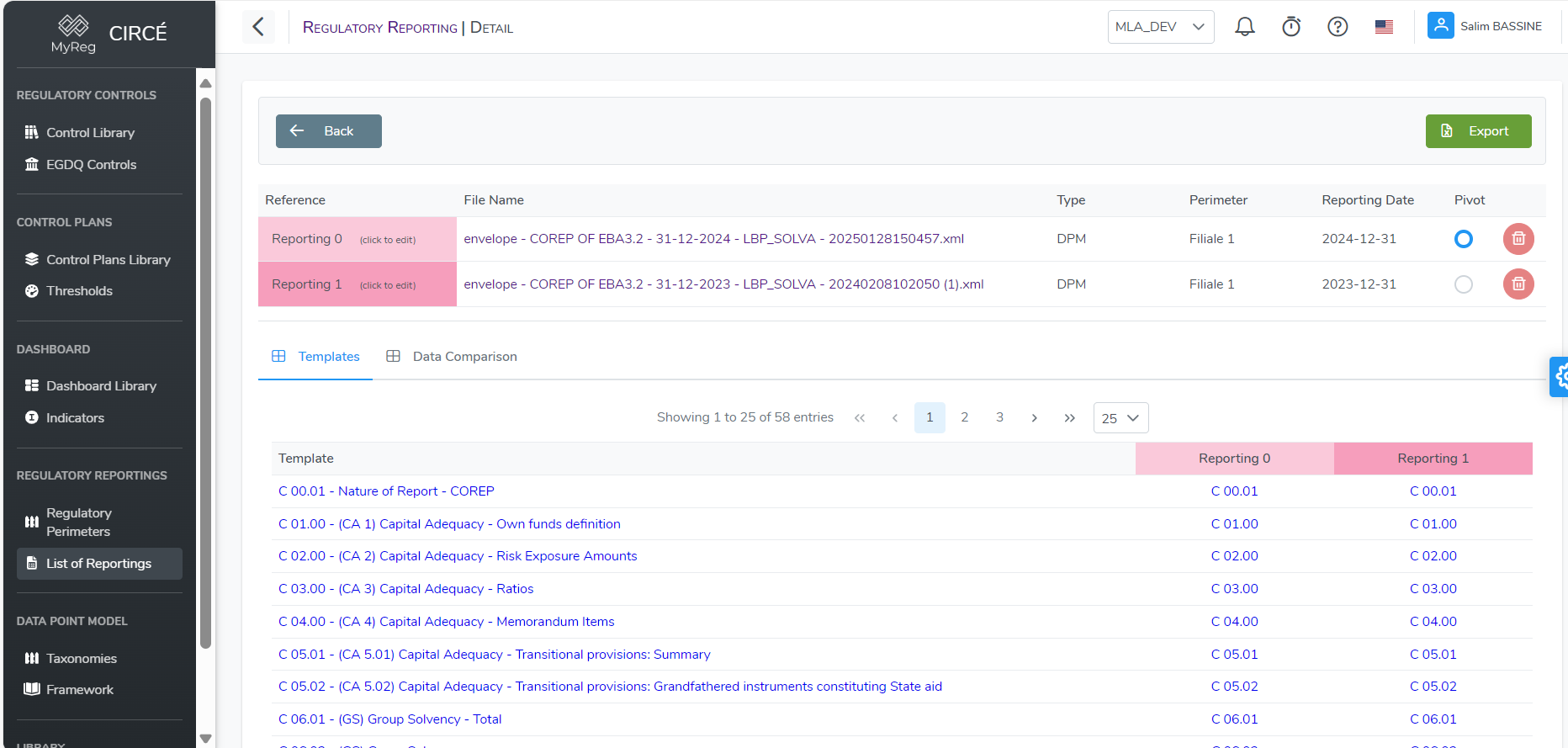
You can also change the reference of each file by clicking on it, change it and validate with the blue check Button. 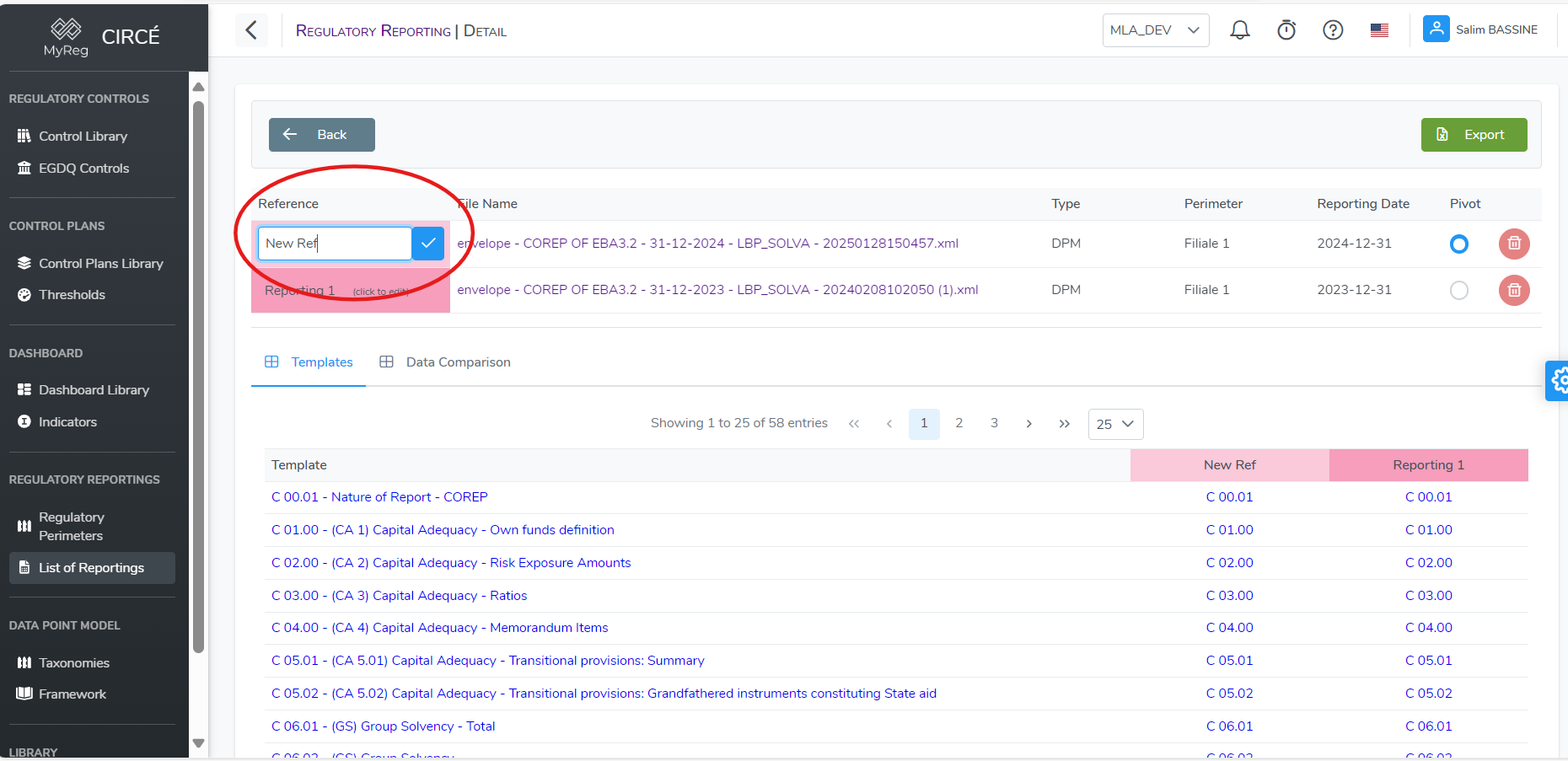
On this page, you can find two tabs, template and data comparison. On the template tab, you can click on one of the template name to open a page with data for each file for this specific template 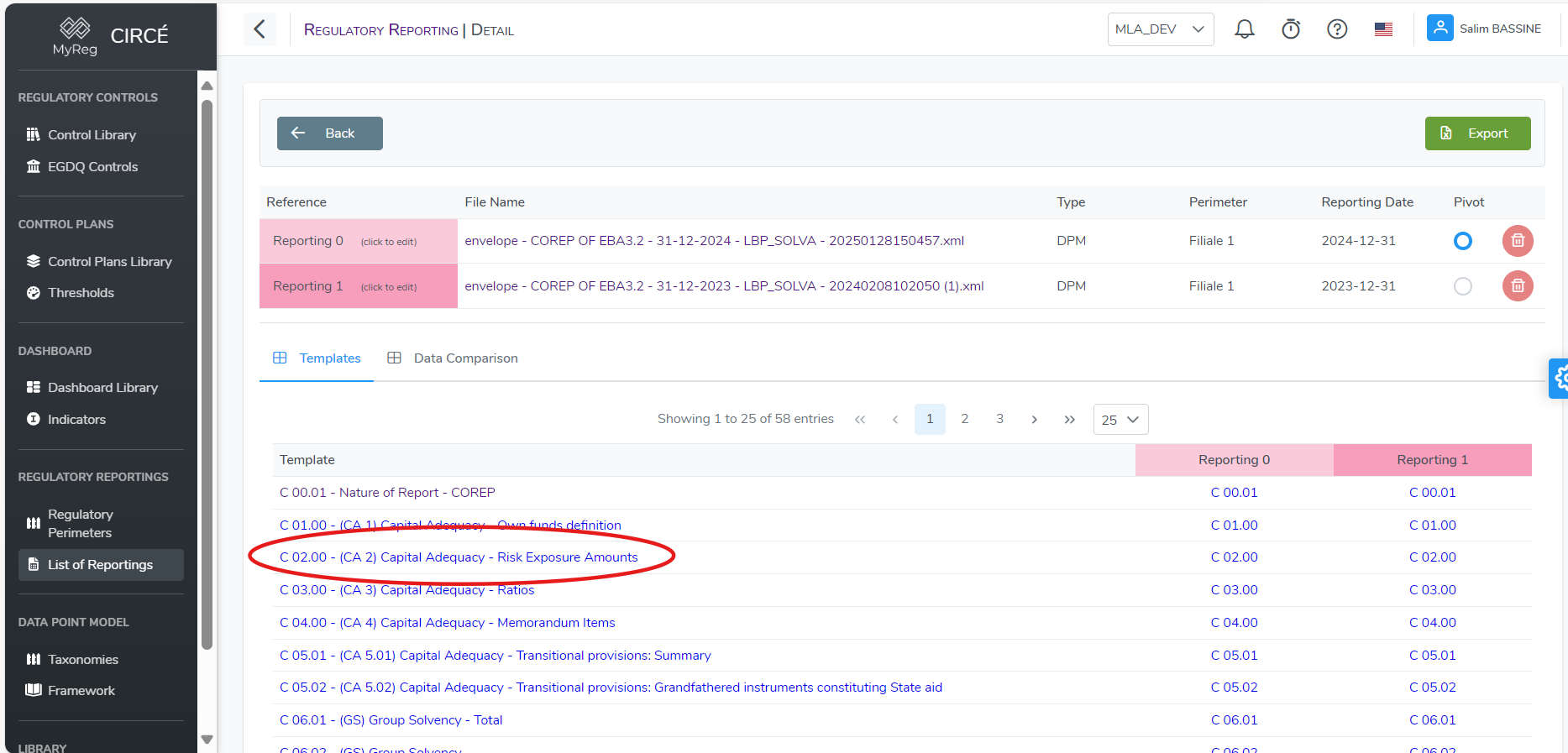
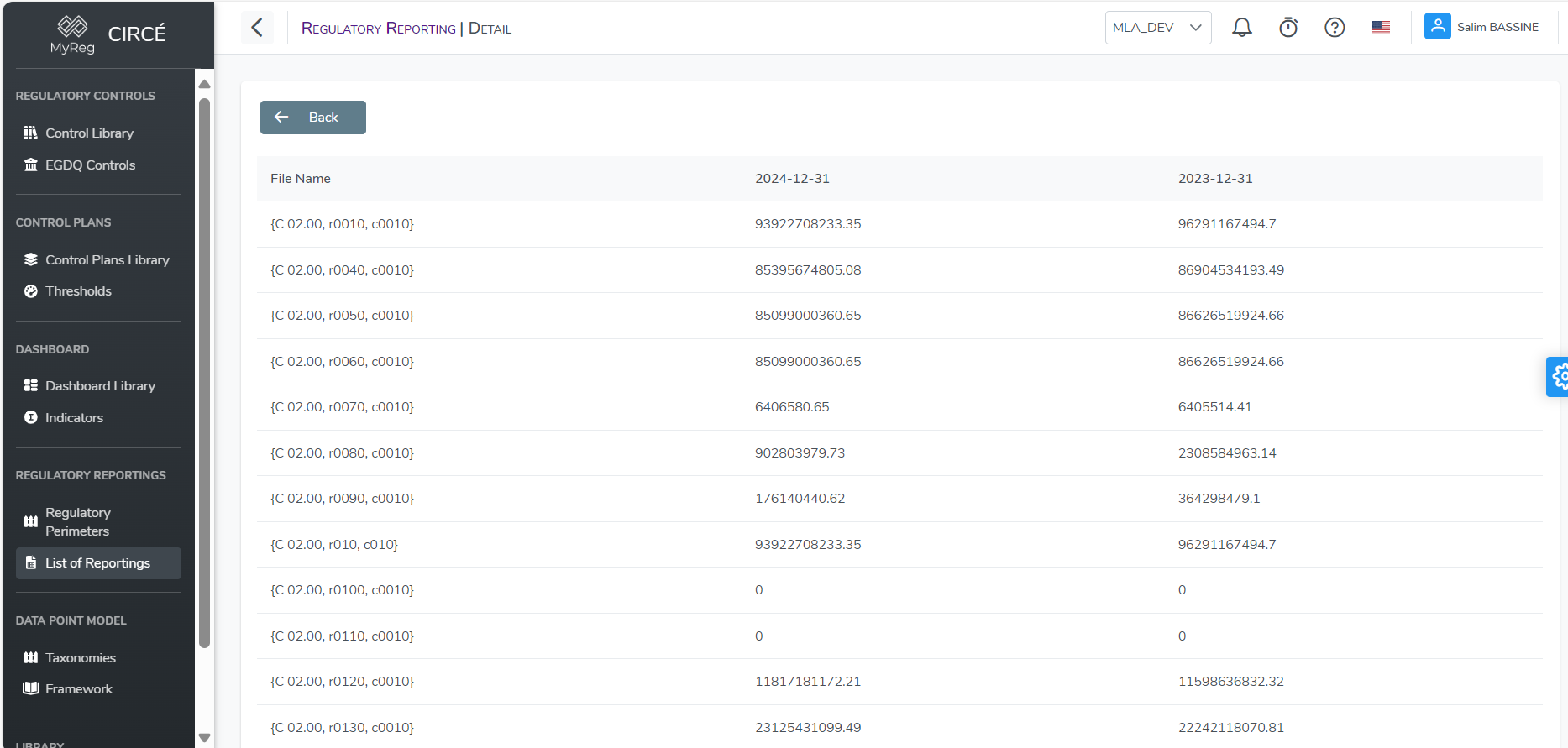
On the data comparison tab, you will find a list of all values present in at least one file. You can filter the data displayed to hide the similar data by checking the "Hide Similar Data" option. Similarly you can hide all the data that are not present in all the files by checking the "Hide non matching references" option. For instance, C01.00 template is not present if all files, all datapoints relative to this template will by hidden. Another filter option is to display only the data with a variation higher than a given number. This number can be either a percentage or an amount. Last filter option is to select the template, row, column and/or sheet that you want by filling the values you want to search 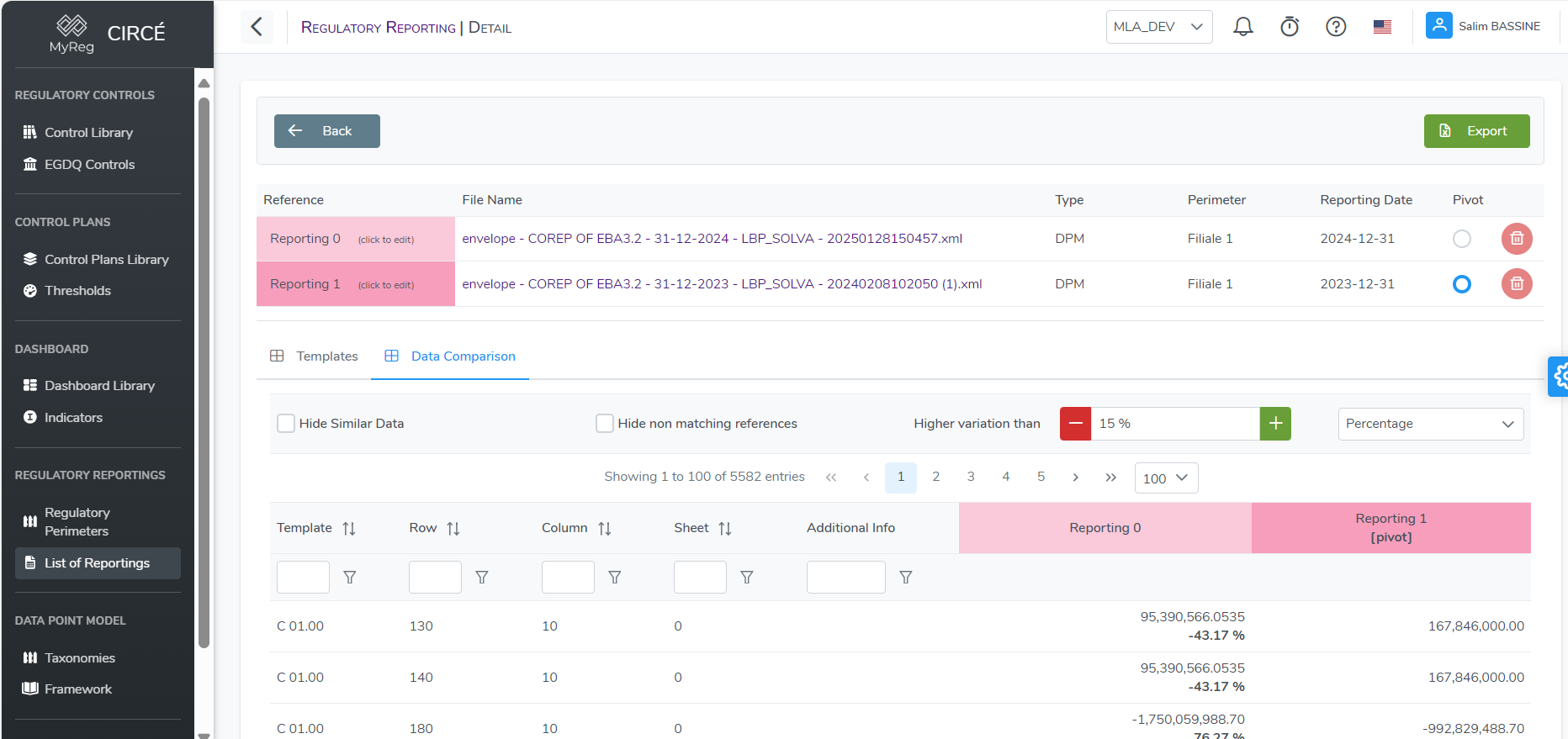
You can export into an Excel file the comparison template tab and data tab by clicking on the top right Export Button.
Controls
How to create a new Control
You can create a new Control on the Control List page 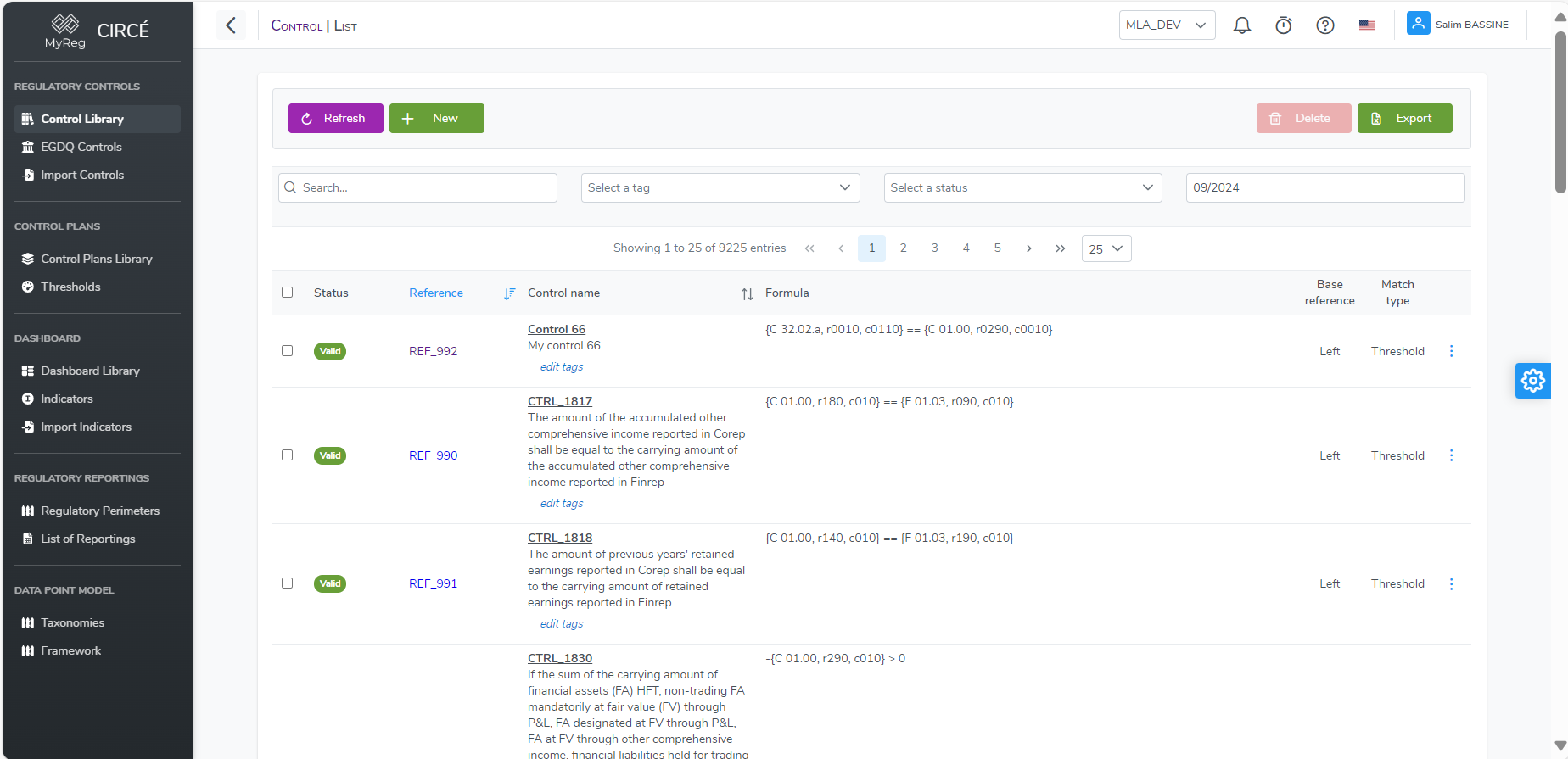
Click on the top left New button 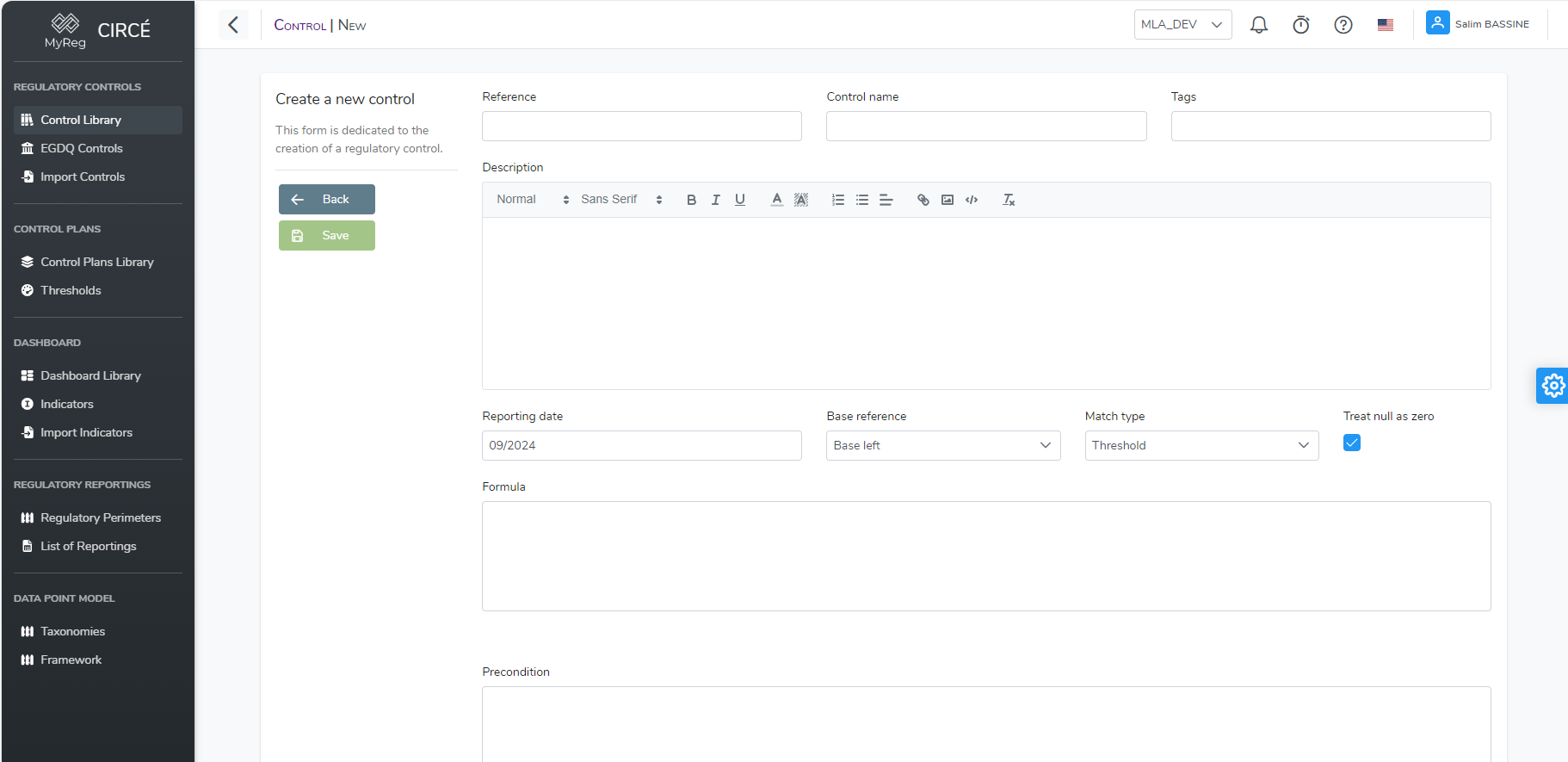
Then enter a reference for your control (mandatory and unique), a name (mandatory), tags (optional), a description (optional) and a formula (mandatory) and a precondition (optional)
Reporting date, Base reference, Match Type and Treat null as zero are already filled in, but you can change the values.
Reporting date is the date used to check the validity of the formula and the precondition
Base reference is the reference part of the control, if Base Left then left part of your control is the pivot, if Base Right, the right part
Match Type defined if you want to use a Threshold for the comparison or if you want to check the Exact value.
Treat null as zero is True by default, it can be useful if you have some Null values and want to consider them as zero to be able to have values for controls with Null values
Click on Save on the top left to create your new Control, please note that Save will not be clickable until you fill all mandatory fields
How to edit a Control
Open a Control and click on the edit button or in list page click on the action button on the right of each control and click on Edit button. 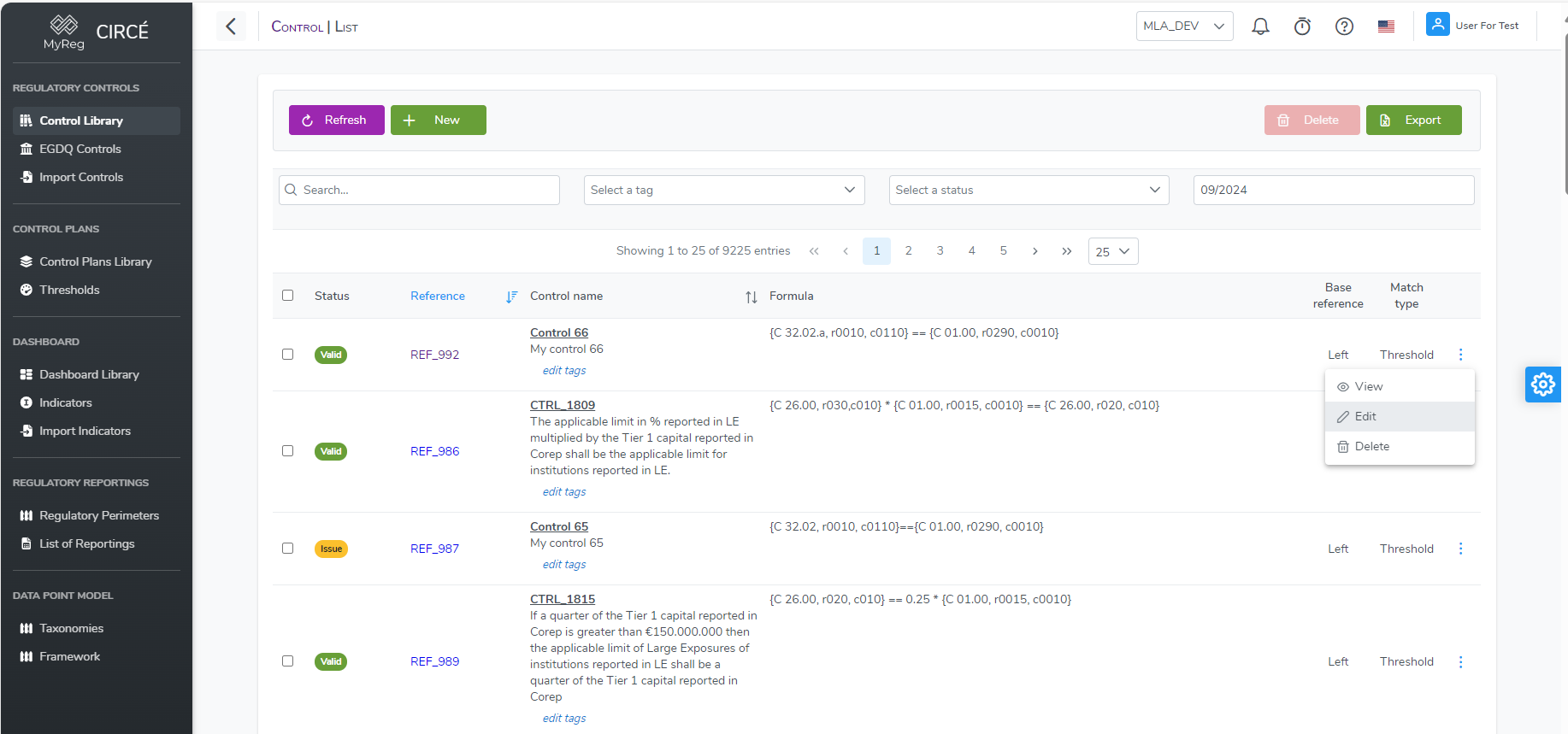
Make your changes and then click on save to edit your control. 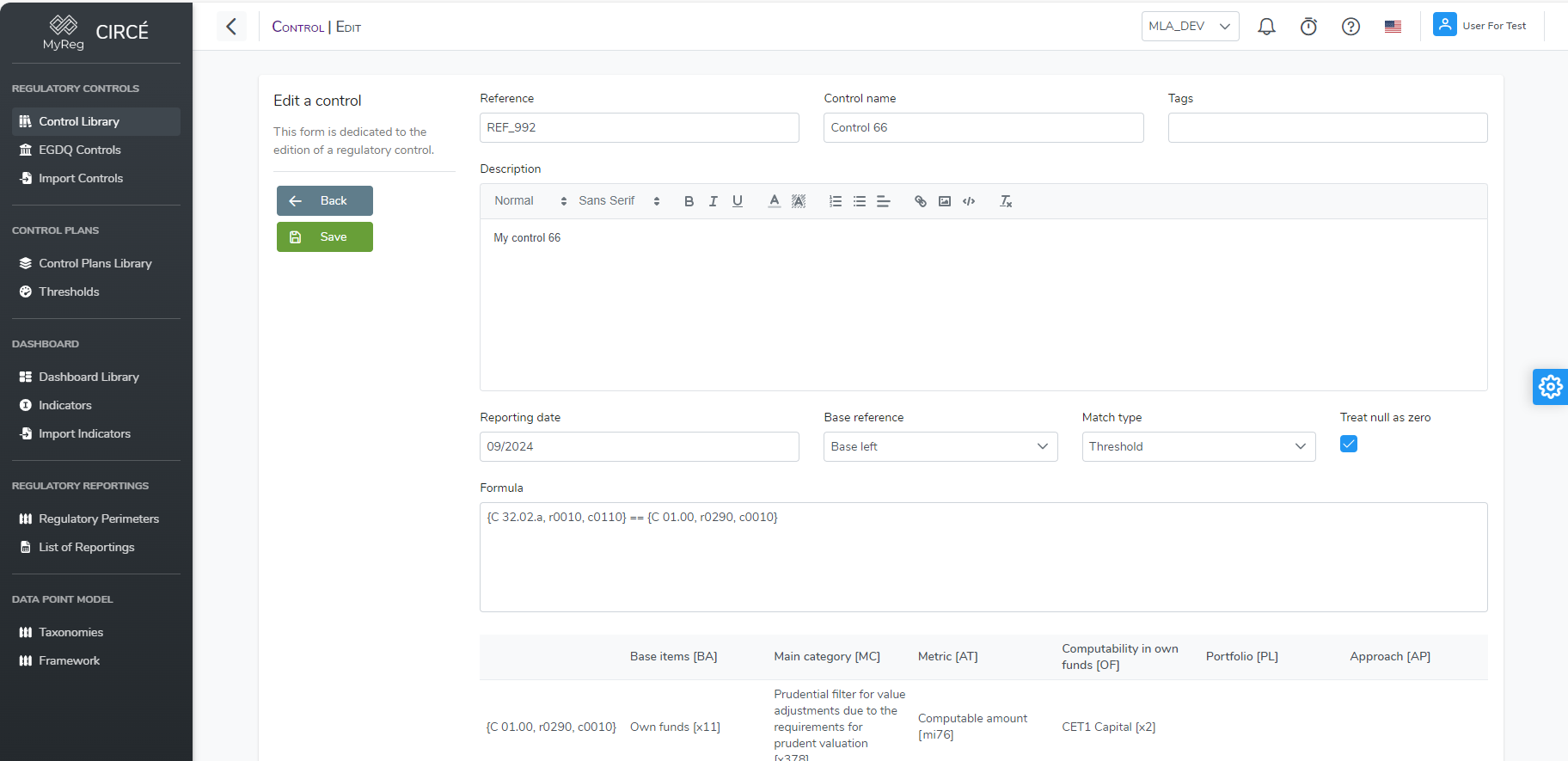
You can click on the Back button to return to the previous page without taking your changes into account.
How to delete one or more Controls
In the controls list page, you can delete a control by clicking on the action button on the right of each control and click on the Delete button. 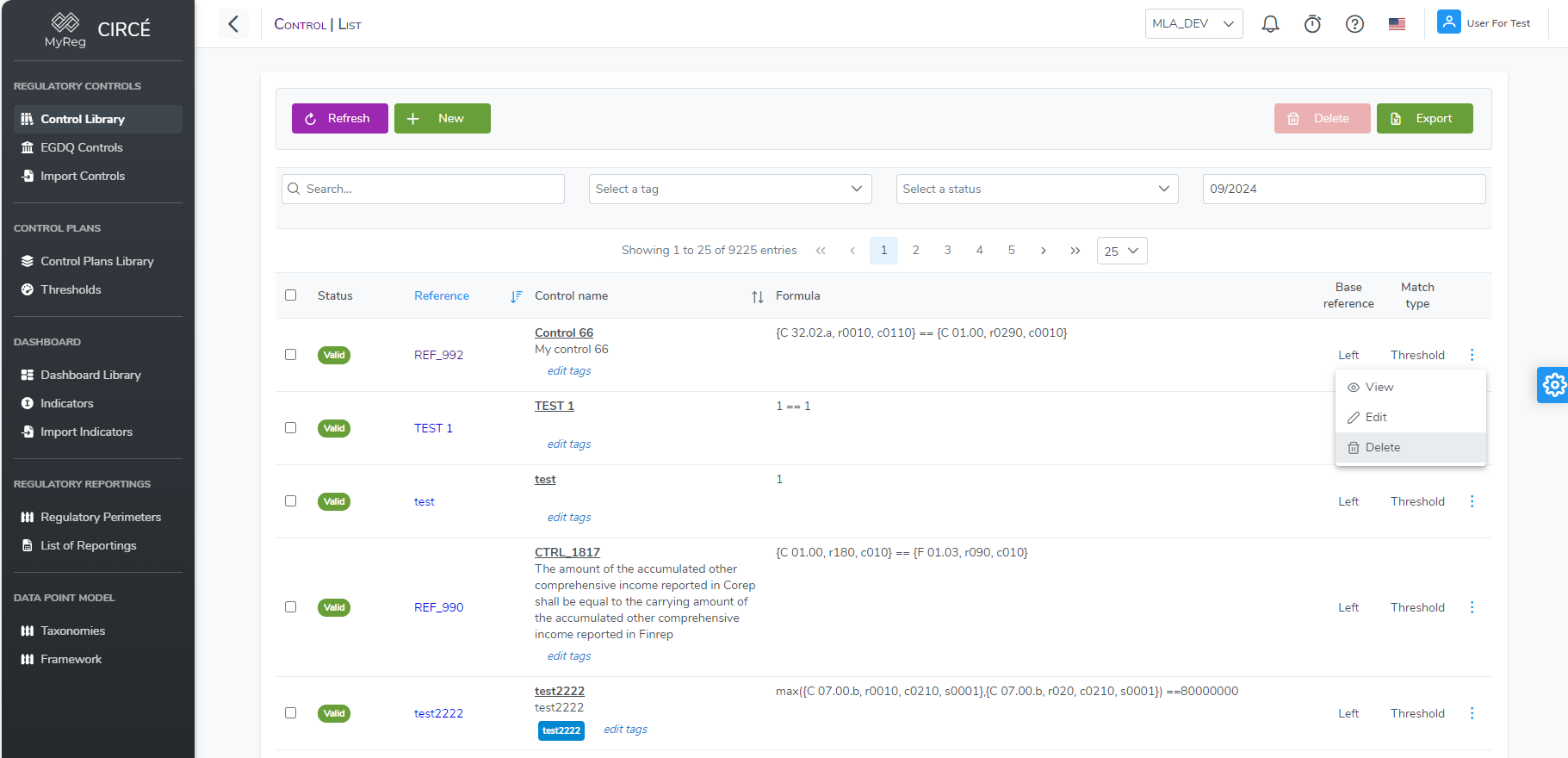
A confirmation box will appear to confirm or cancel your action.
You can also delete multiple controls at once on the control list page by selecting controls and then click on top right Delete Button. 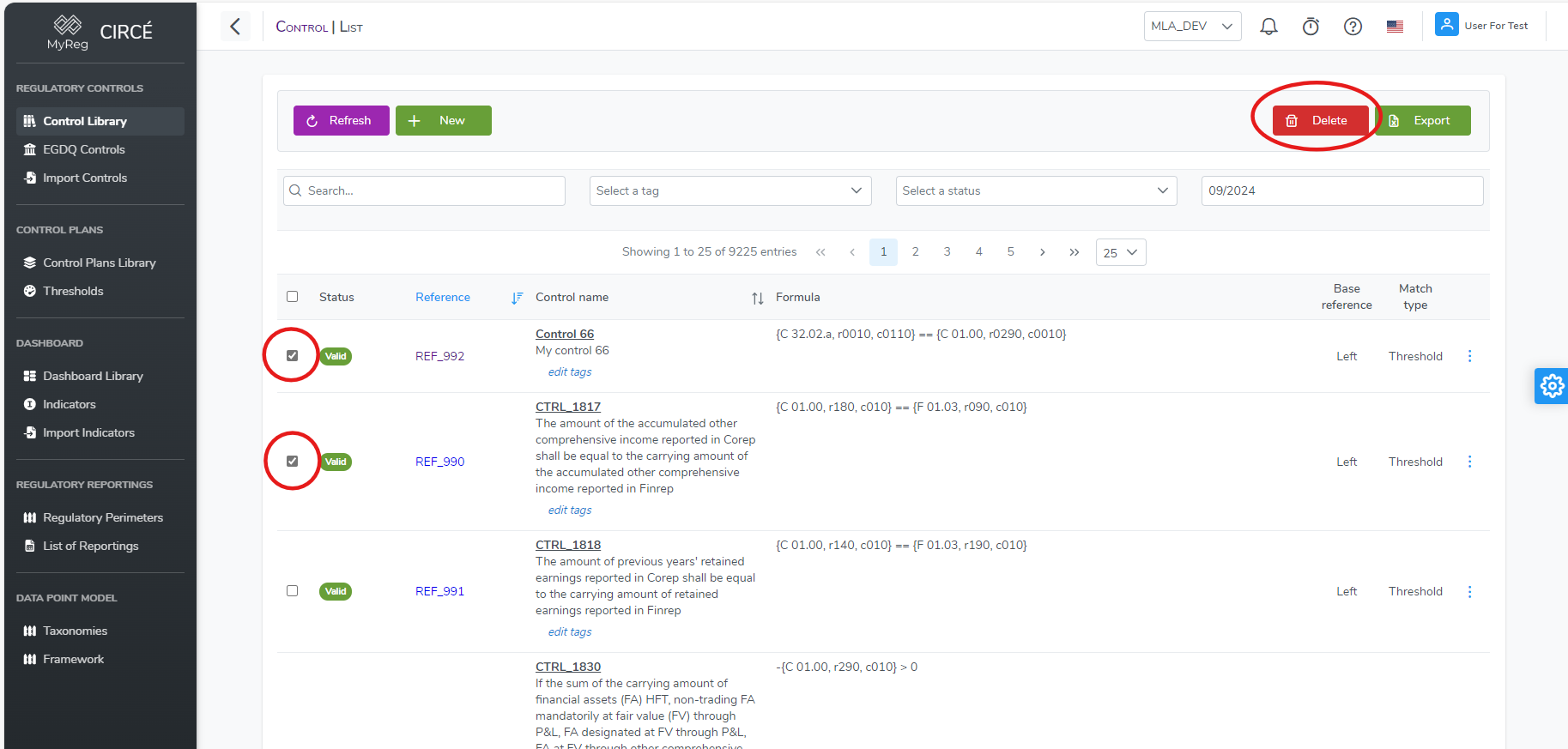
N.B : You cannot delete a control that is used in one or more control plans. You will have to remove it from all control plan first. You don't have to delete the control plan result that used this control
How to export all Controls in an Excel file
In the controls list page, you can export all displayed controls by clicking on the Export button on the top right. All filters applied will be also applied in the export. 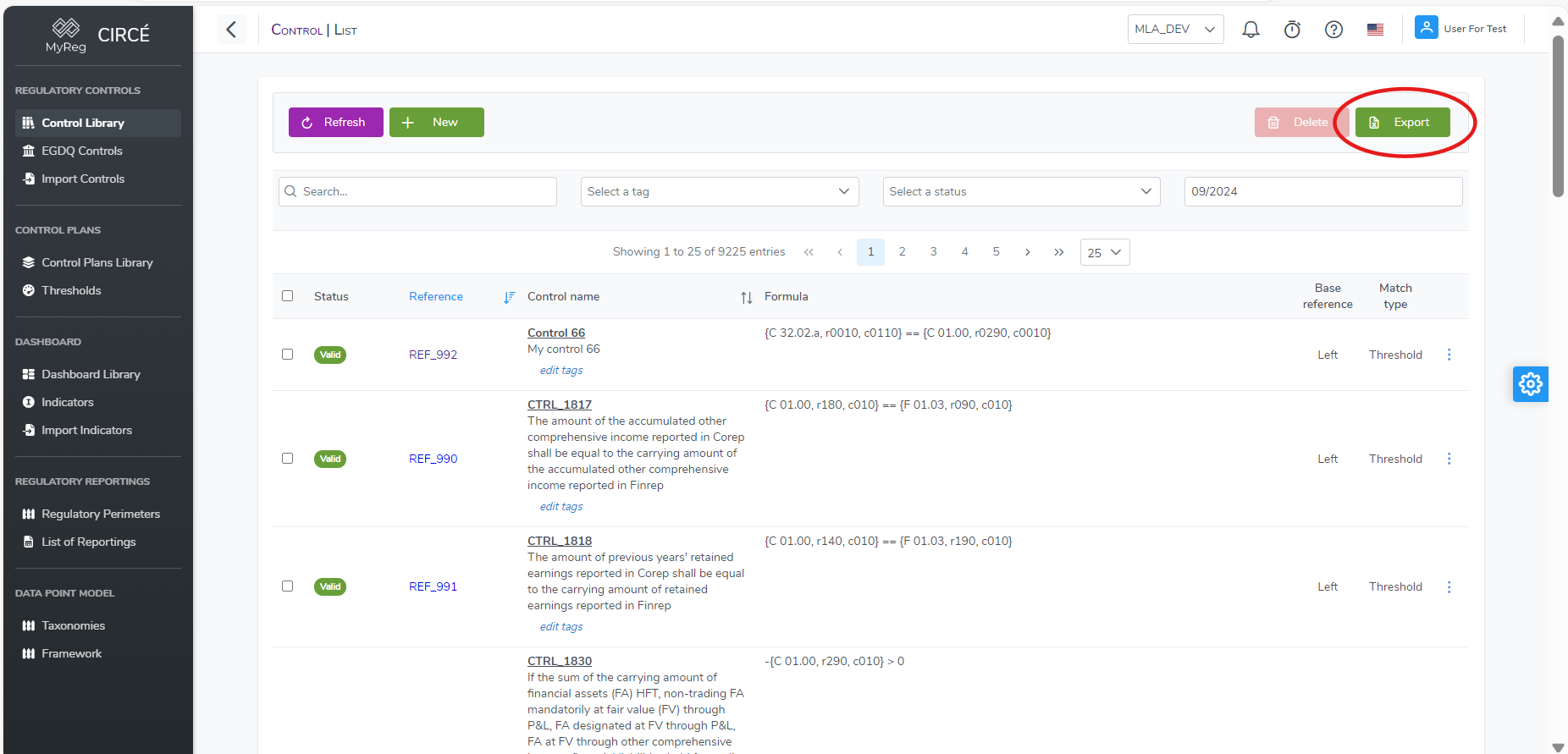
It will create an Excel file named yyyy_MM_dd_hh_mm_ss_controls which contains all controls in your library 
This file can also be directly imported into the database via the import controls feature (see below section)
How to import Controls
You can import a list of controls via an Excel file on the Import Controls page 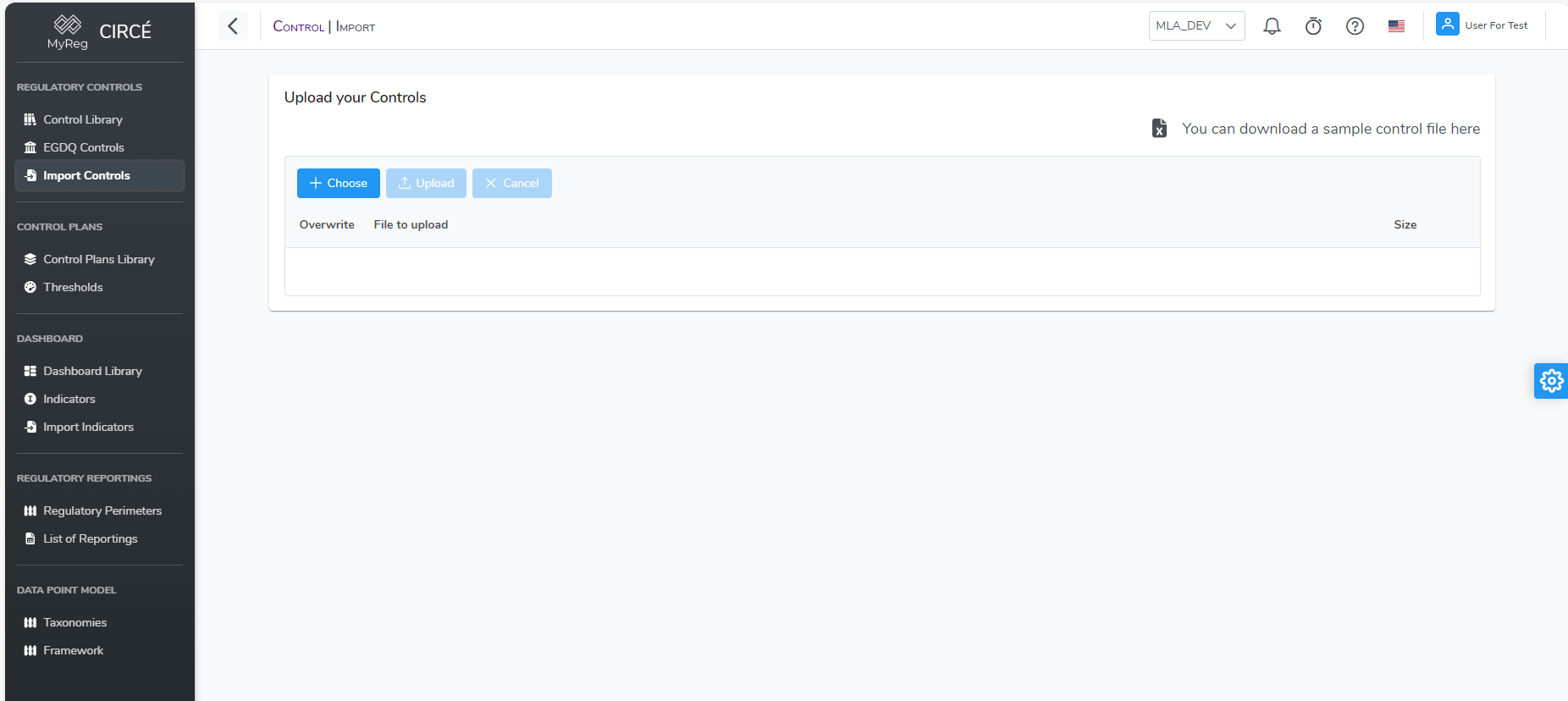
First you will need to download the Excel File Format by clicking on the top right "You can download a sample control file here" button 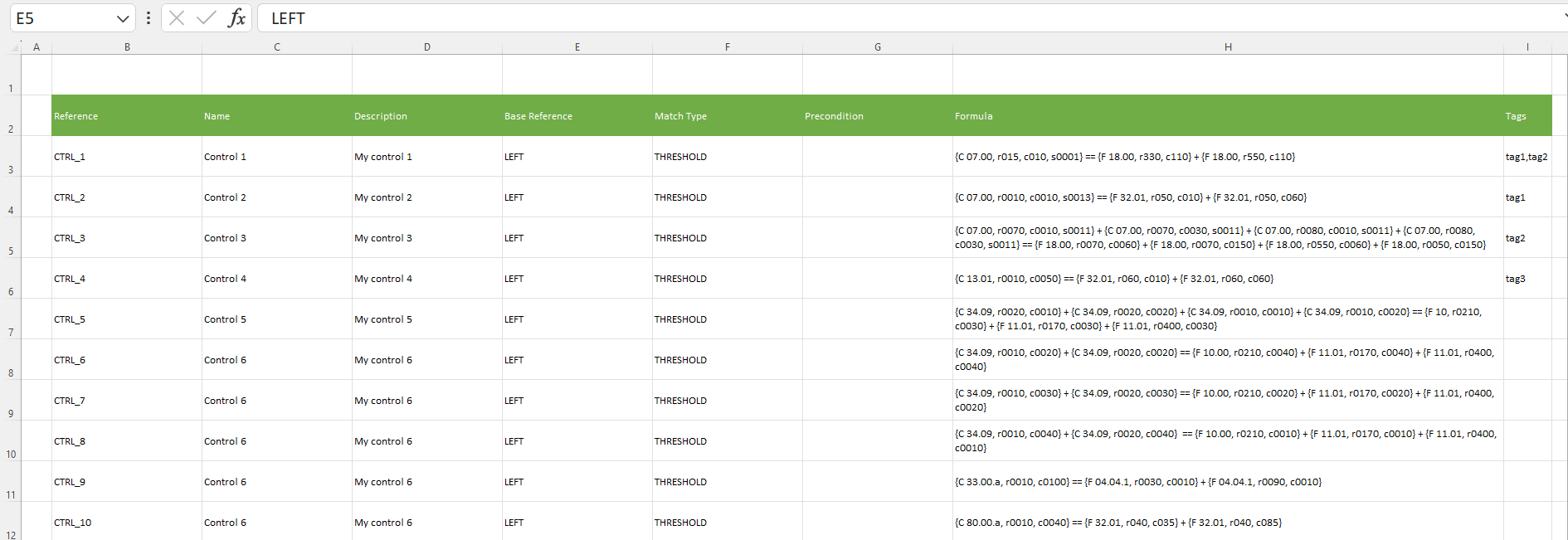
You can edit the Excel file as you wish, please note that Reference, Name, Base Reference, Match Type and Formula are mandatory If one or more of this column is empty for a row, this row will be returned in error. Reference is unique so if you put a reference that is already in database or in a previous row of the file it will be either skipped or overwrite (see overwrite option below) Base Reference can only take the following value : LEFT/RIGHT Match Type can only take the following value : THRESHOLD/EXACT
When your file is ready click on Choose button on top left to select the file you want to upload. A popup page will appear to select a file from your directory. 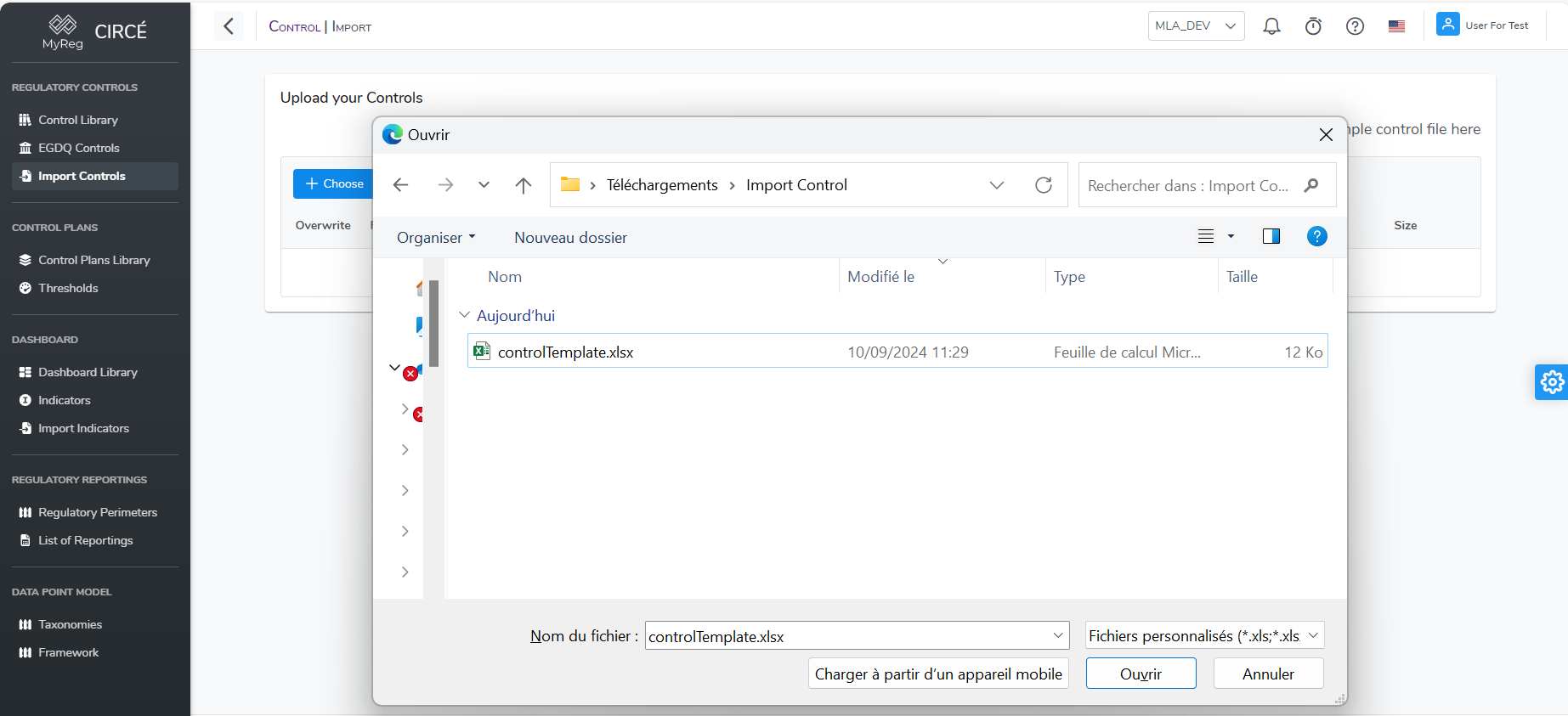
You can click again on Choose button and repeat process if you want to change the file. You can also remove the file if needed by clicking on the Cancel Button
Once you choose it, the file name will be displayed below the buttons. You can choose the option to overwrite the controls with reference matching by checking the Overwrite option next to the name. This will replace the controls that are already in database if the reference in the Excel file match with the reference in the Database. If the option is unchecked it will skip the reference already in Database.
Click on the upload button to start the upload of the Excel file. Once the upload is complete, a summary page will be displayed to show you the imported controls and if any errors occurred. 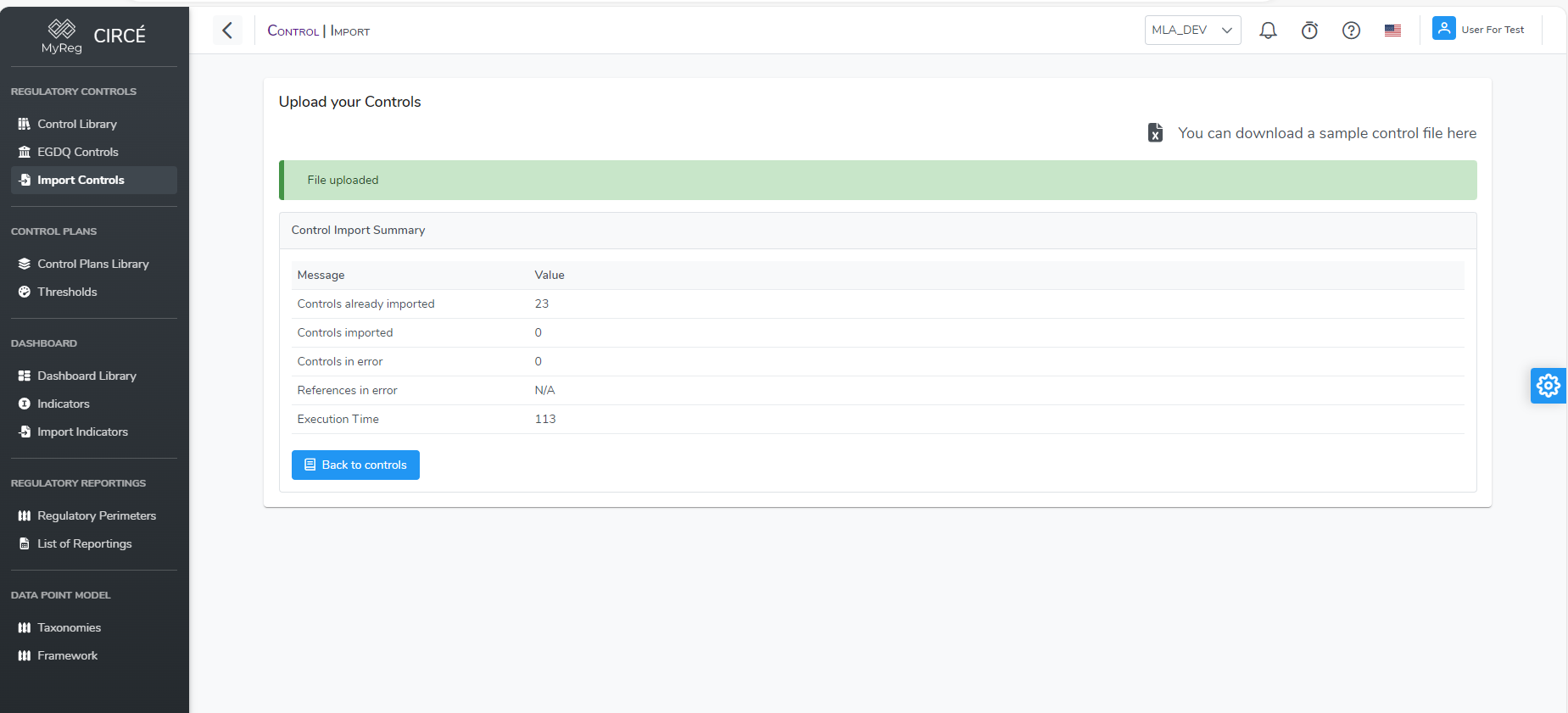
EGDQ Controls
EGDQ Controls are directly imported into the library and you can see them on the EGDQ control library page : 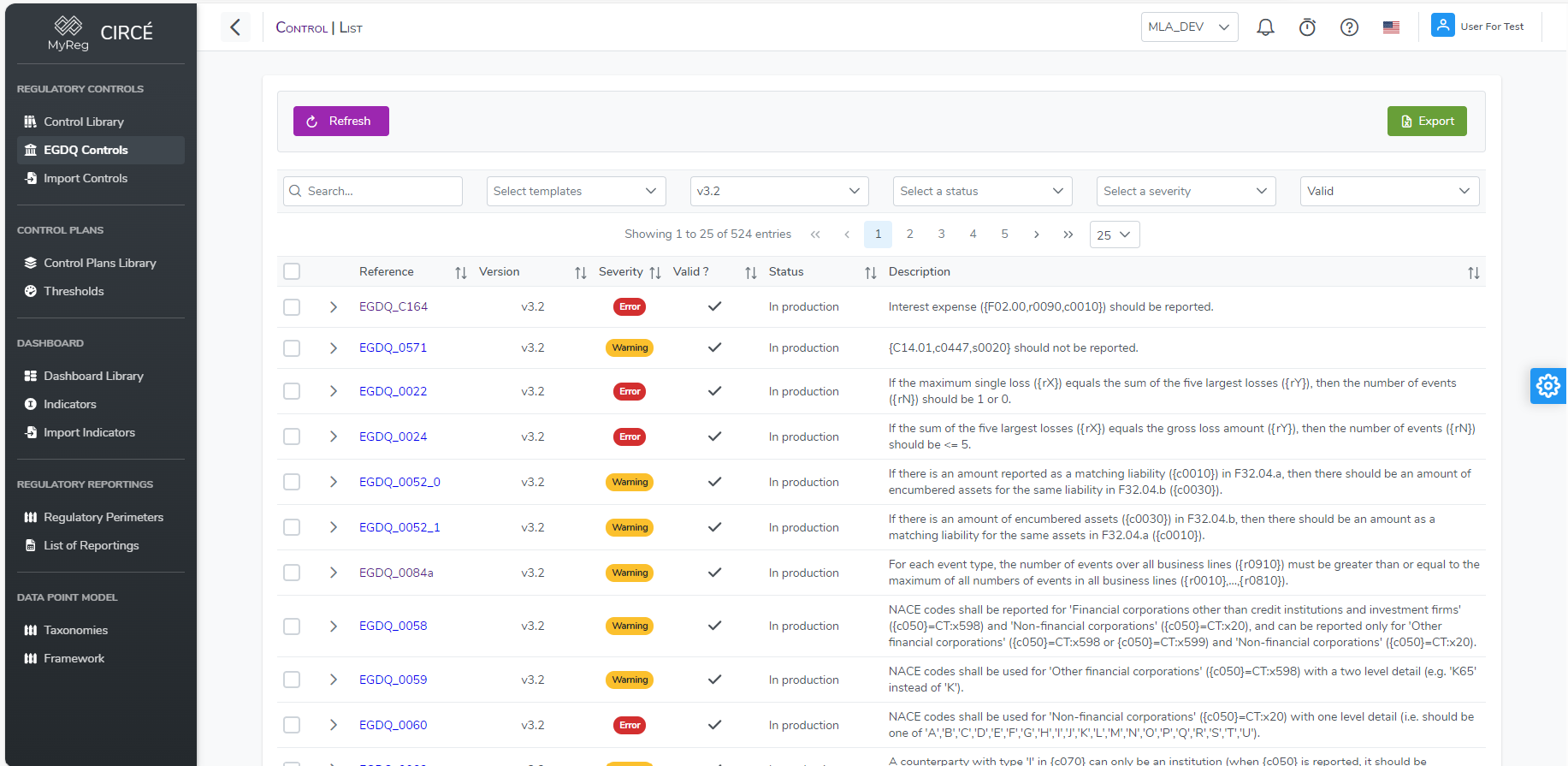
You can filter this page with multiple parameters : template, version, status, severity, validity as well as search directly a name or a description You can also export all EGDQ controls into an Excel file by clicking on the top right Export Button
You can access to the detail of an EGDQ Control by clicking on it 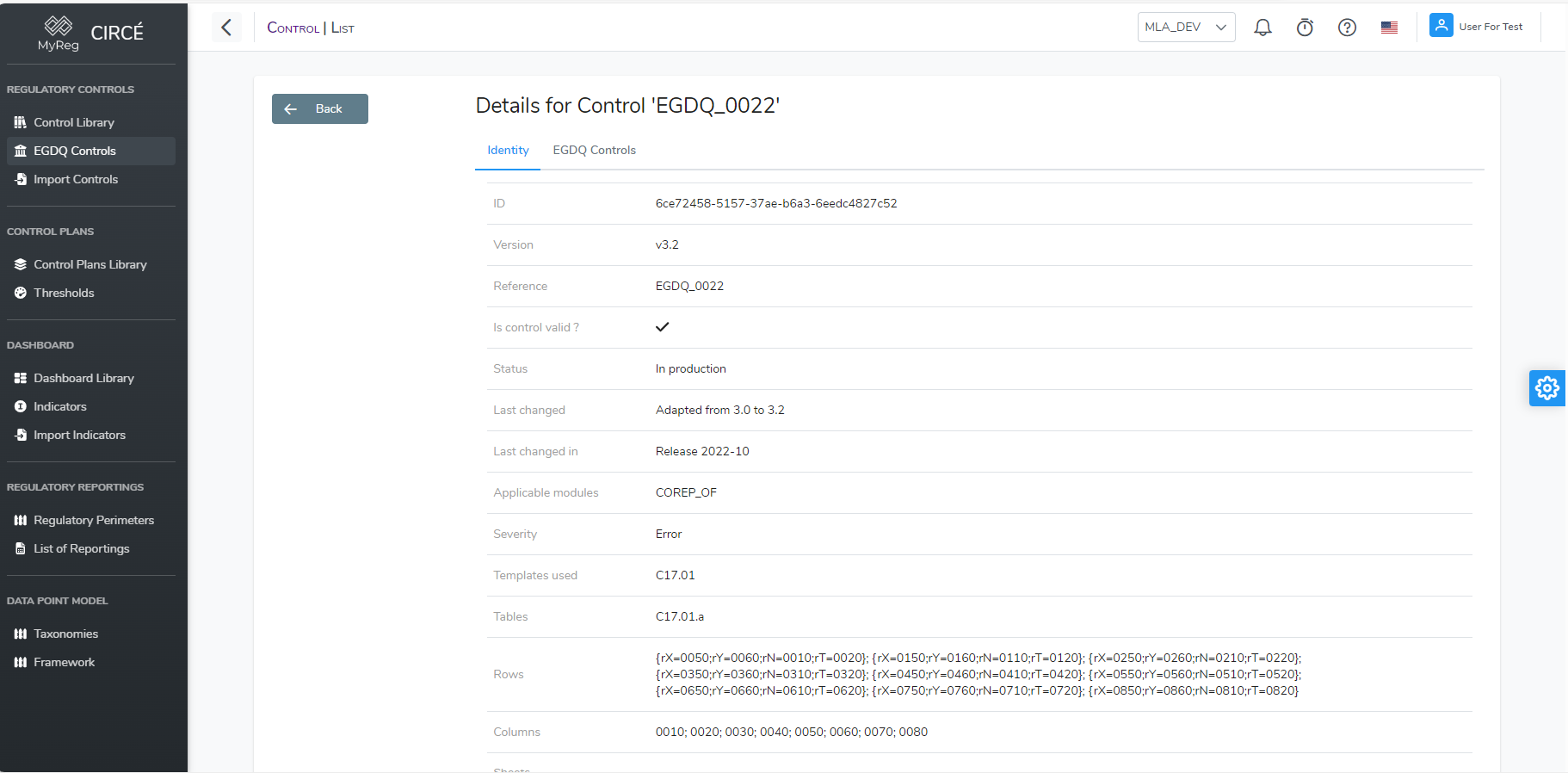
Control Plan
How to create a new Control Plan
You can create a new Control Plan on the Control Plan List Page 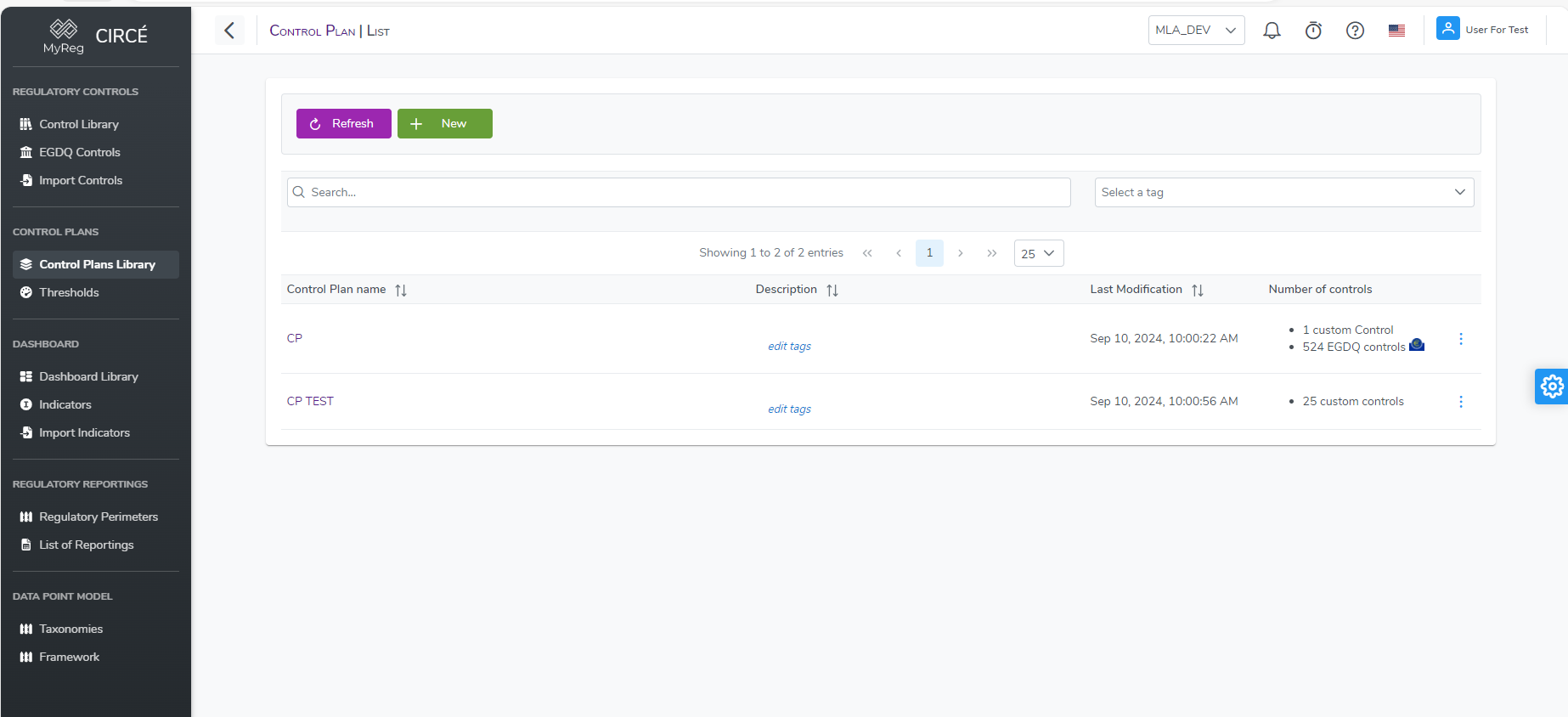
Click on the top left New Button 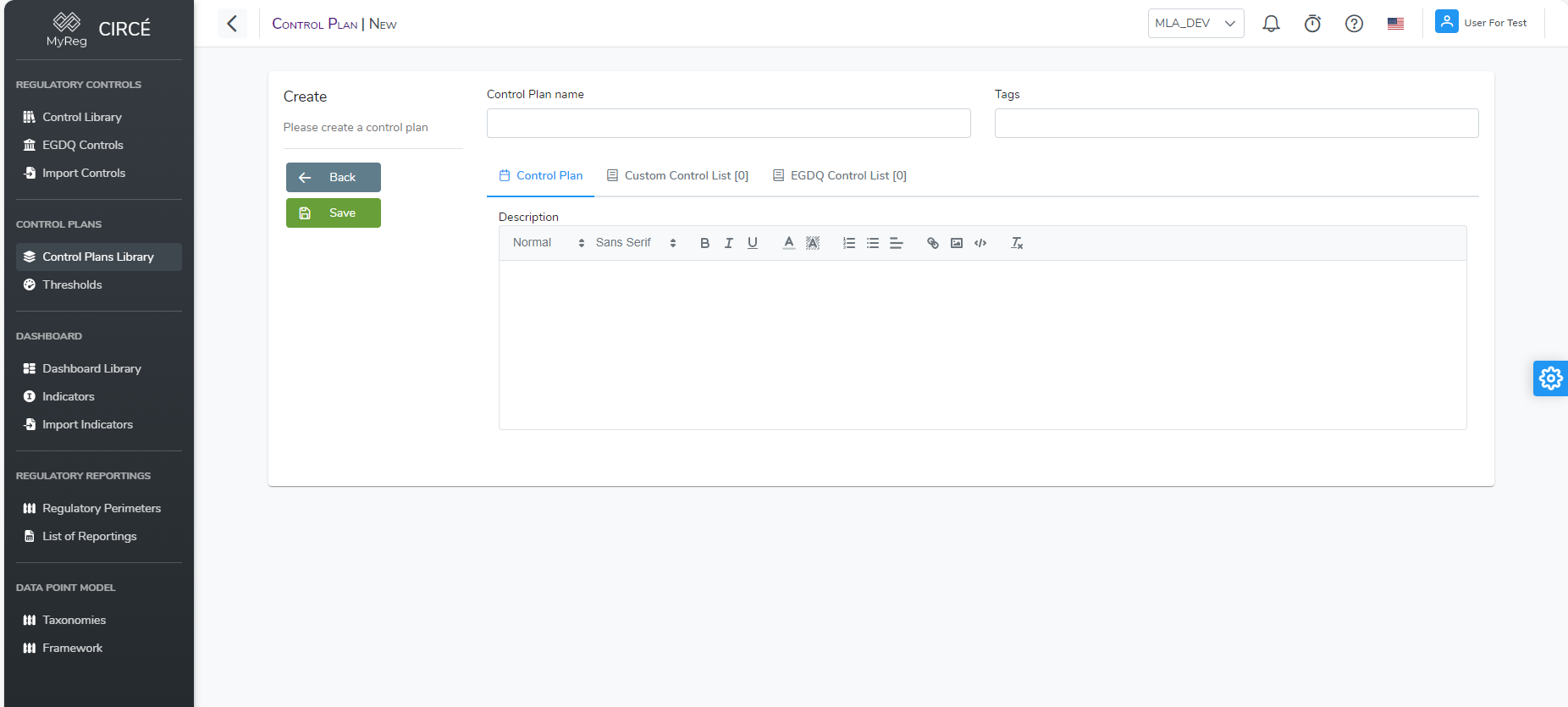
Then enter a name for your control plan (mandatory and unique), tags (optional), a description (optional) and switch to Custom Control List tab to add custom controls if needed 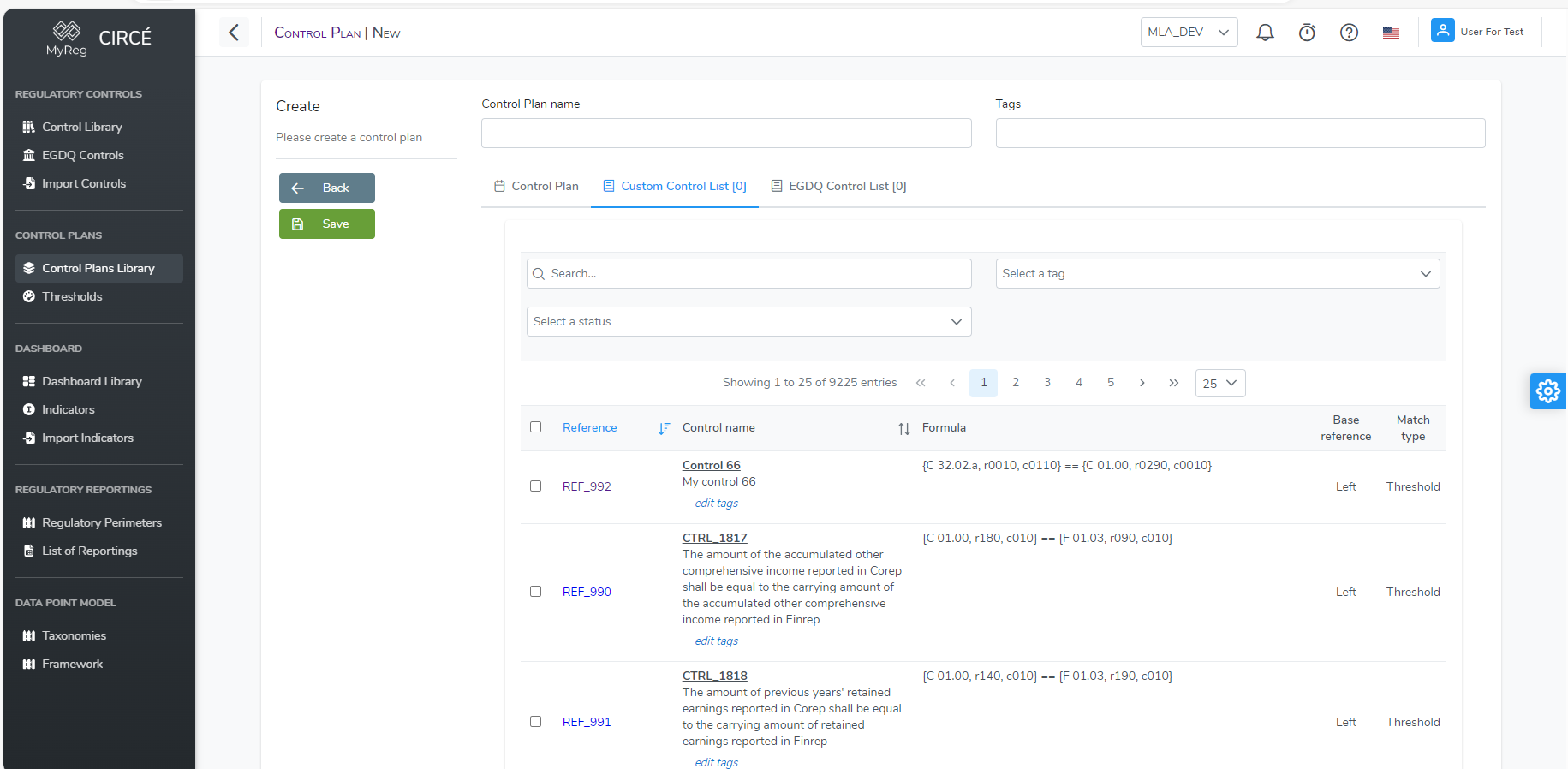
Switch to EGDQ Control list page to add EGDQ Controls if needed 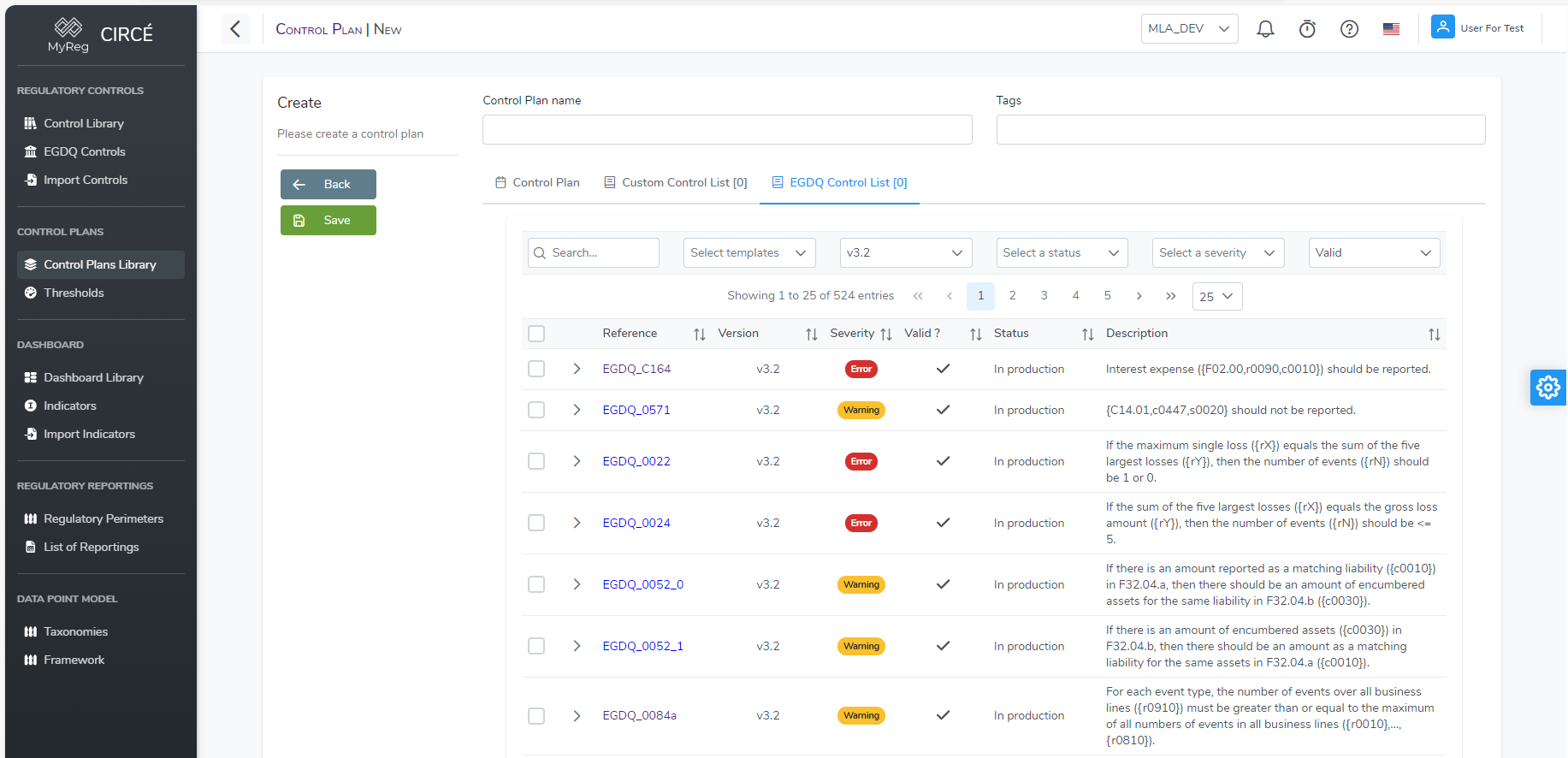
On those two pages, you can filter controls and EGDQ controls like in the lists pages.
Once you selected all the controls and/or EGDQ controls you want in your control plan you can click on save to create it.
How to edit a Control Plan
Open a Control Plan and click on the edit button or in list page click on the action button on the right of each control plan and click on Edit button. 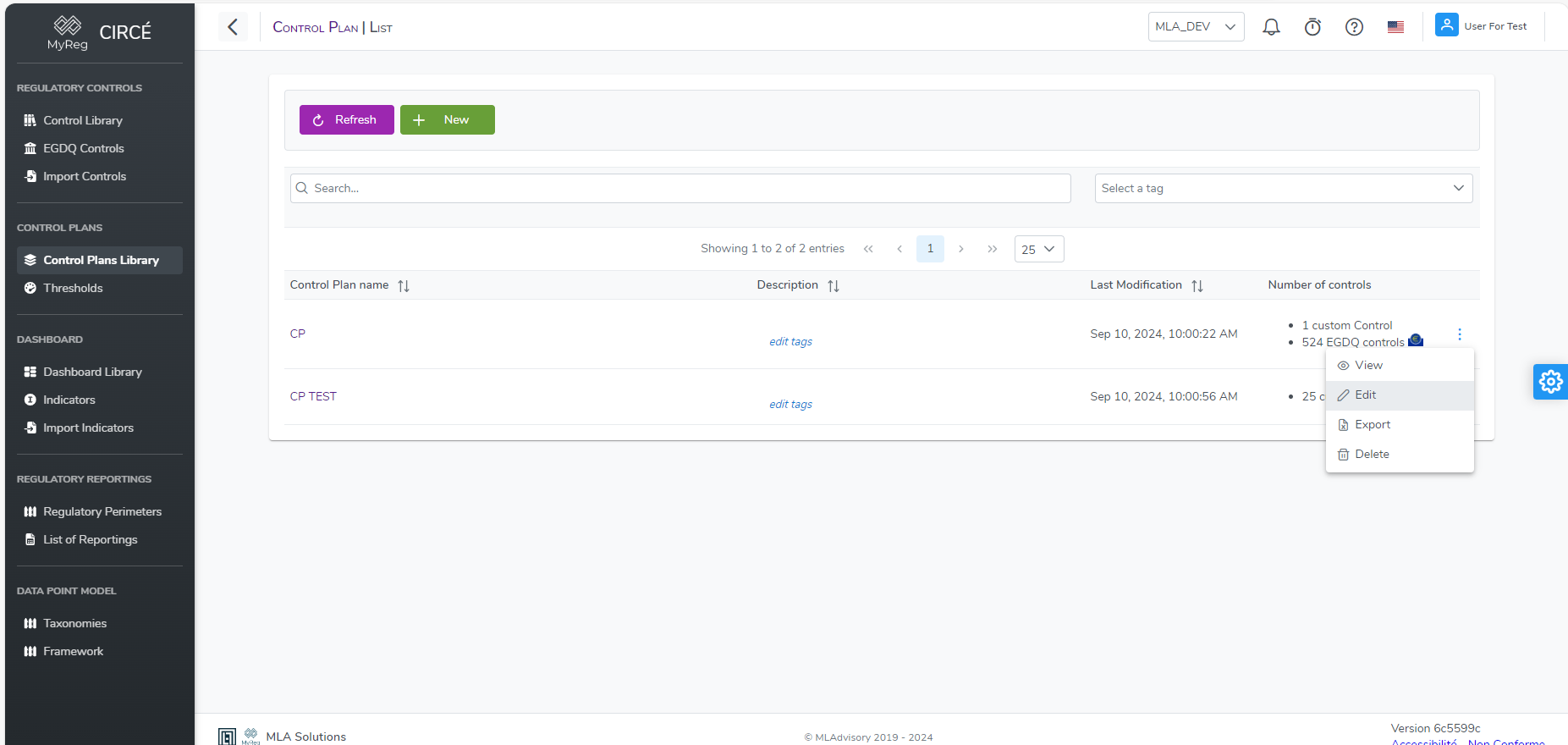
Make your changes in field or add/remove controls by clicking on them in each tab (Custom or EGDQ) then click on save to edit your control plan. 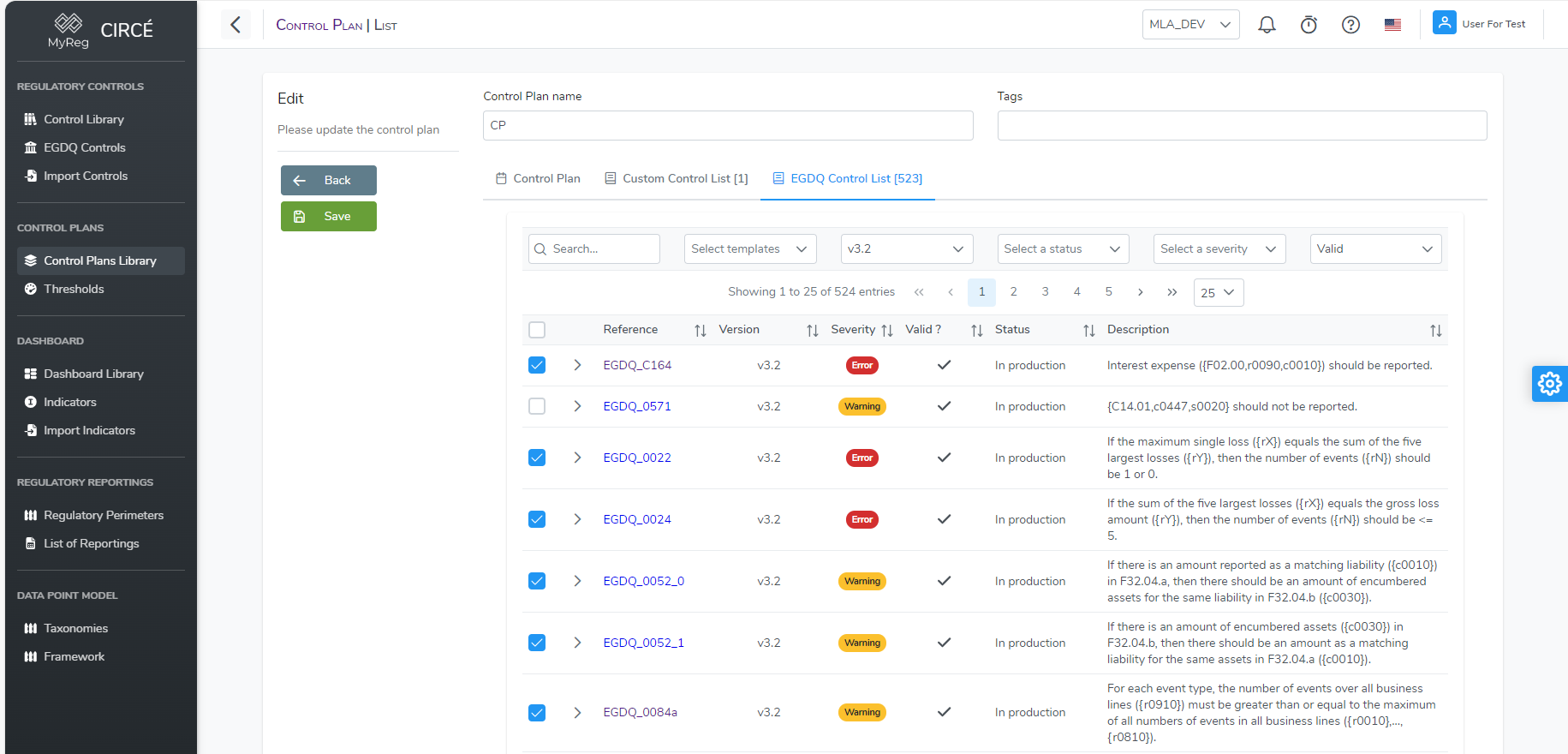
You can click on the Back button to return to the previous page without taking your changes into account.
How to add or remove Controls to a Control Plan
You can add controls to an existing control plan in the edit page as mentioned above but you can also add them directly by clicking on the Add button in the Control Plan Detail Page 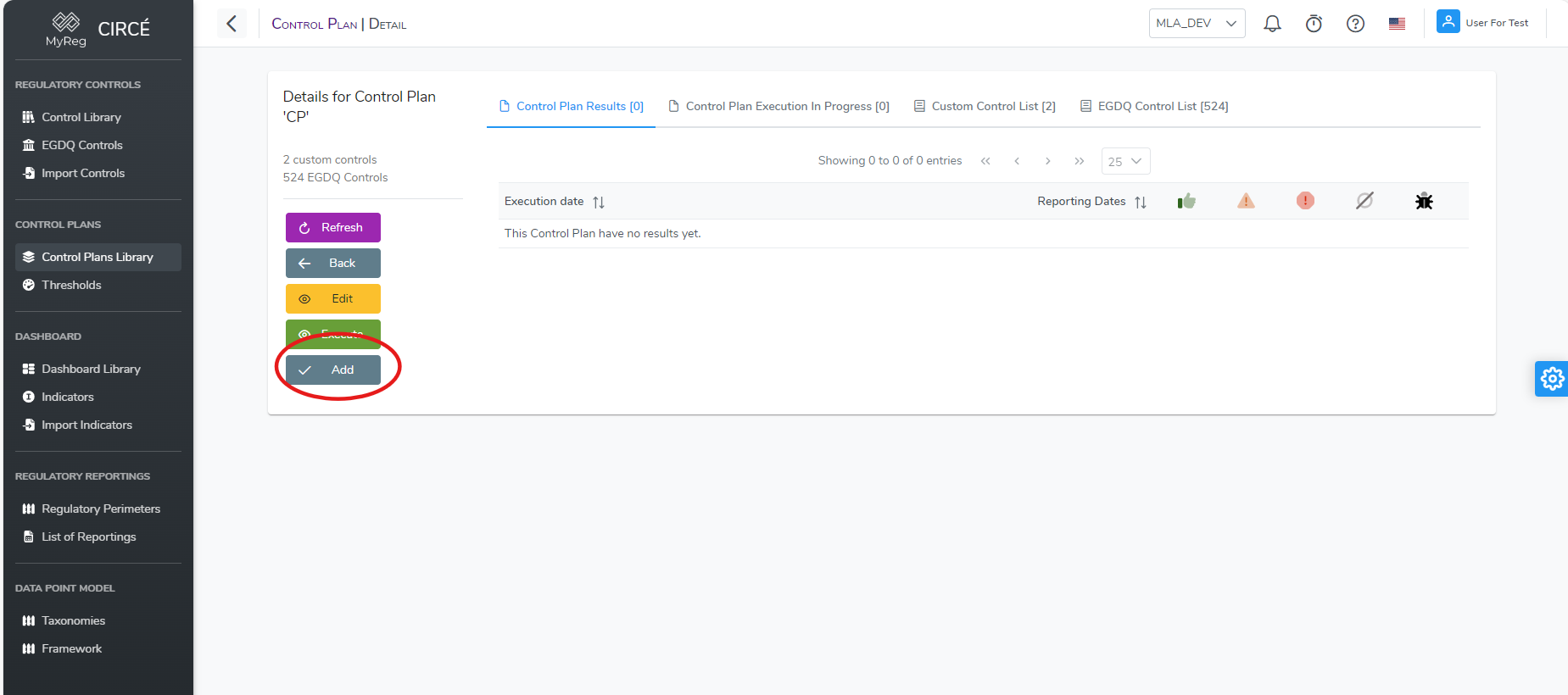
A popup will open with two tabs, one for custom controls, one for EGDQ controls. Already included controls will be automatically checked. You can uncheck them to remove them and you can add more by check the ones you want to add. 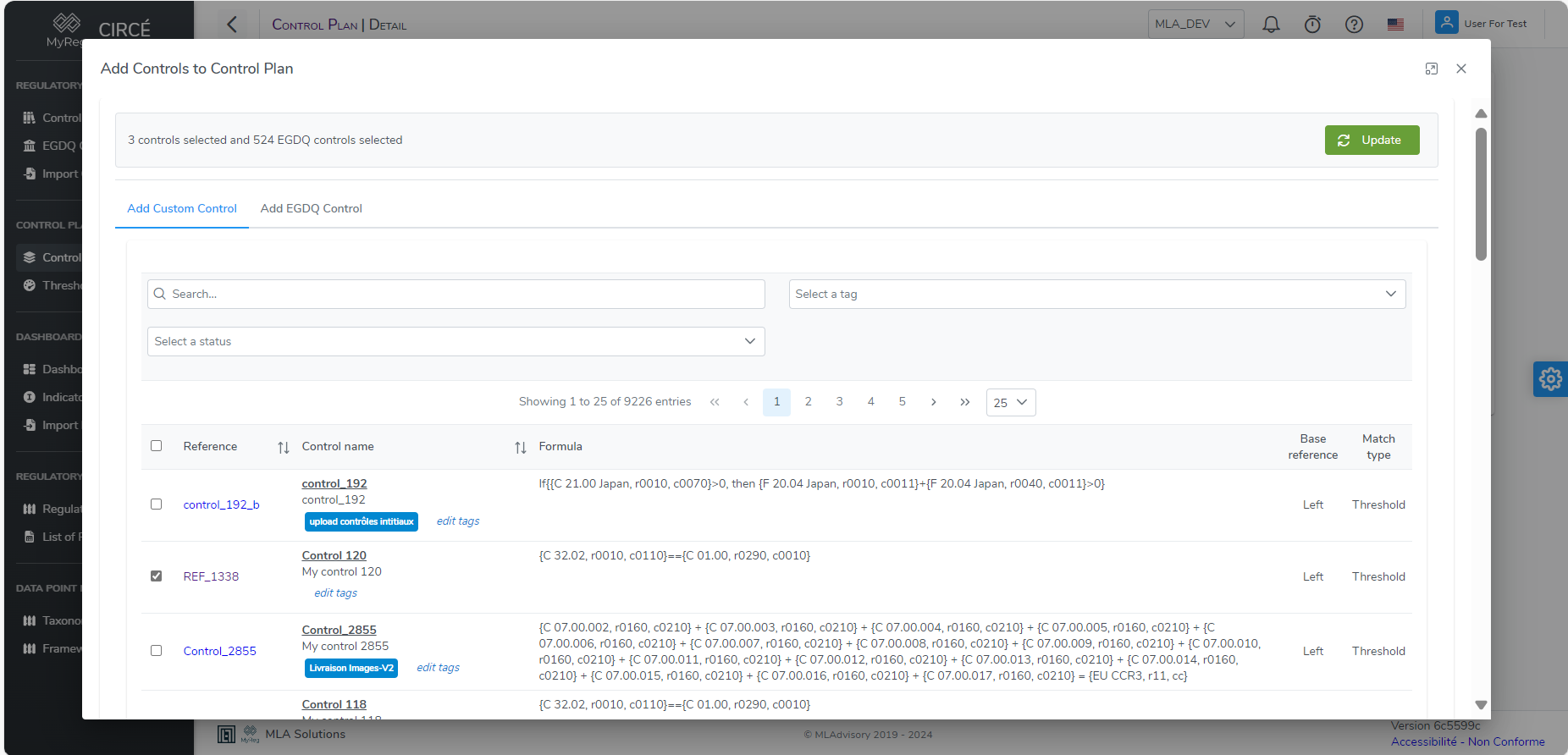
How to delete a Control Plan
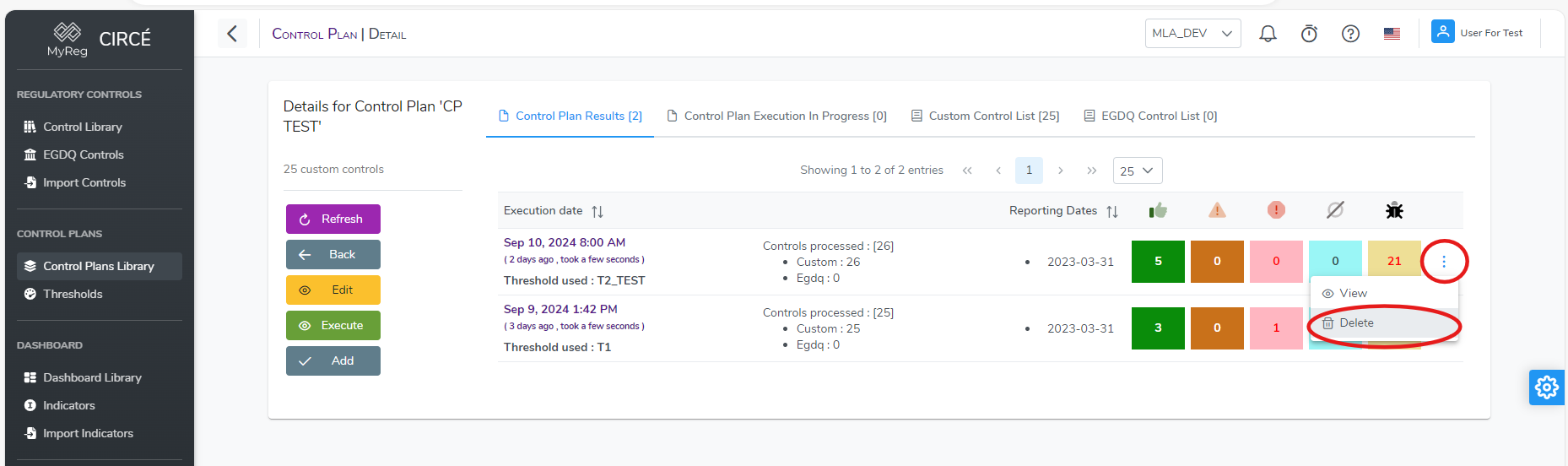
In the control plans list page, you can delete a control plan by clicking on the action button on the right of each control plan and click on the Delete button.
A confirmation box will appear to confirm or cancel your action.
N.B : You cannot delete a Control Plan that contains results. 
How to execute a Control Plan
Once your control plan is ready, you can execute it by clicking on Execute Button in the Control Plan Detail Page. 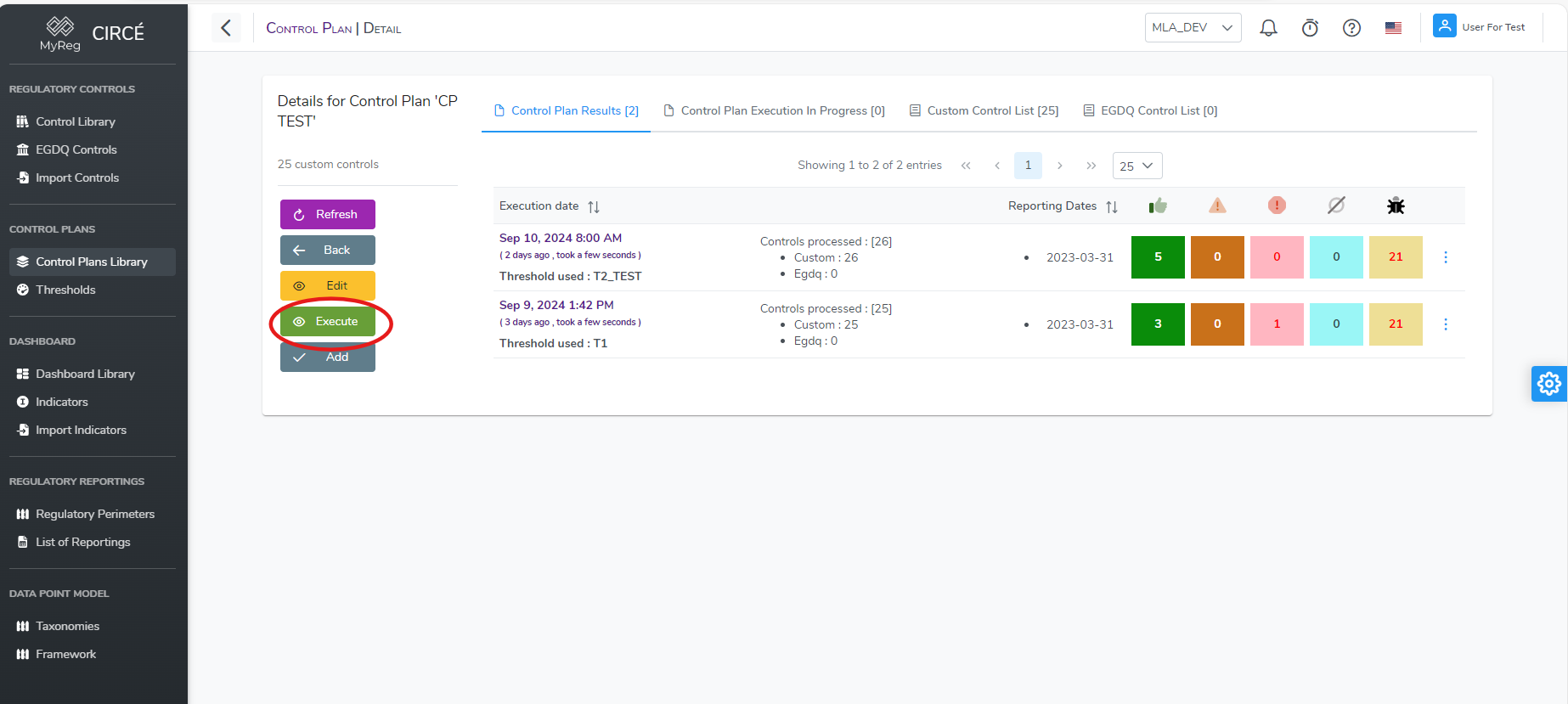
This will open a popup to configure the parameters of the execution. First you will need to select a Perimeter 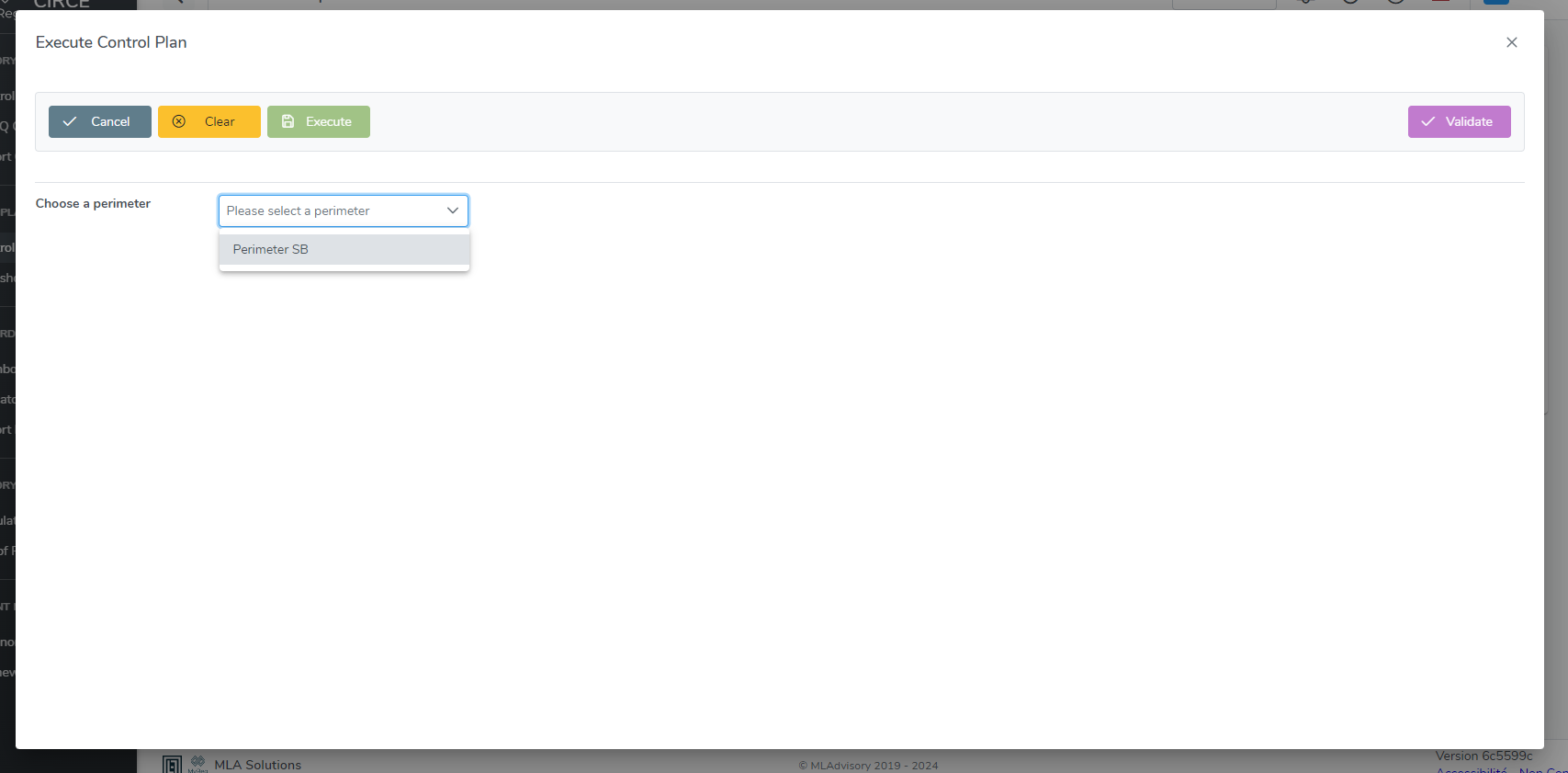
Once the perimeter chosen, the threshold need to be selected, the preferred threshold of the perimeter will be selected by default. You need to select the reporting date of the reporting files you want to execute.
You can select multiple dates. If so you will need to add a reference date and a period type (periodicity between your files) If you selected only one date, reference date and period type are already filed. You can also filter to only show official reporting file
Once you configured the dates, you will need to select the reporting file(s) you want to execute the control plan on and then click on Execute Button.
Before execute your control plan, you can check if you have all required data in your files by clicking on the Validate Button It will tell you if any error or warning before lunching your control plan. 
You can click on Show Detail text to open more detail on the error(s) and/or the warning(s) 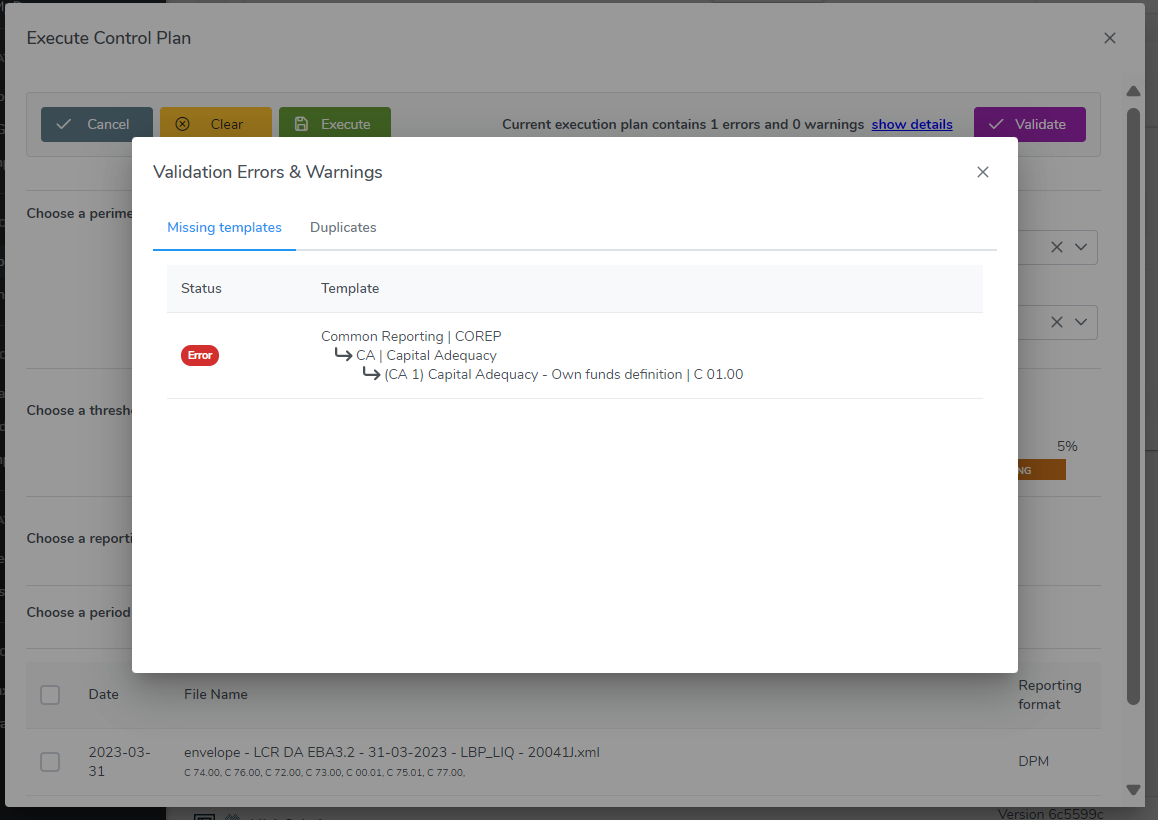
You can check the result of you execution in the control plan detail page 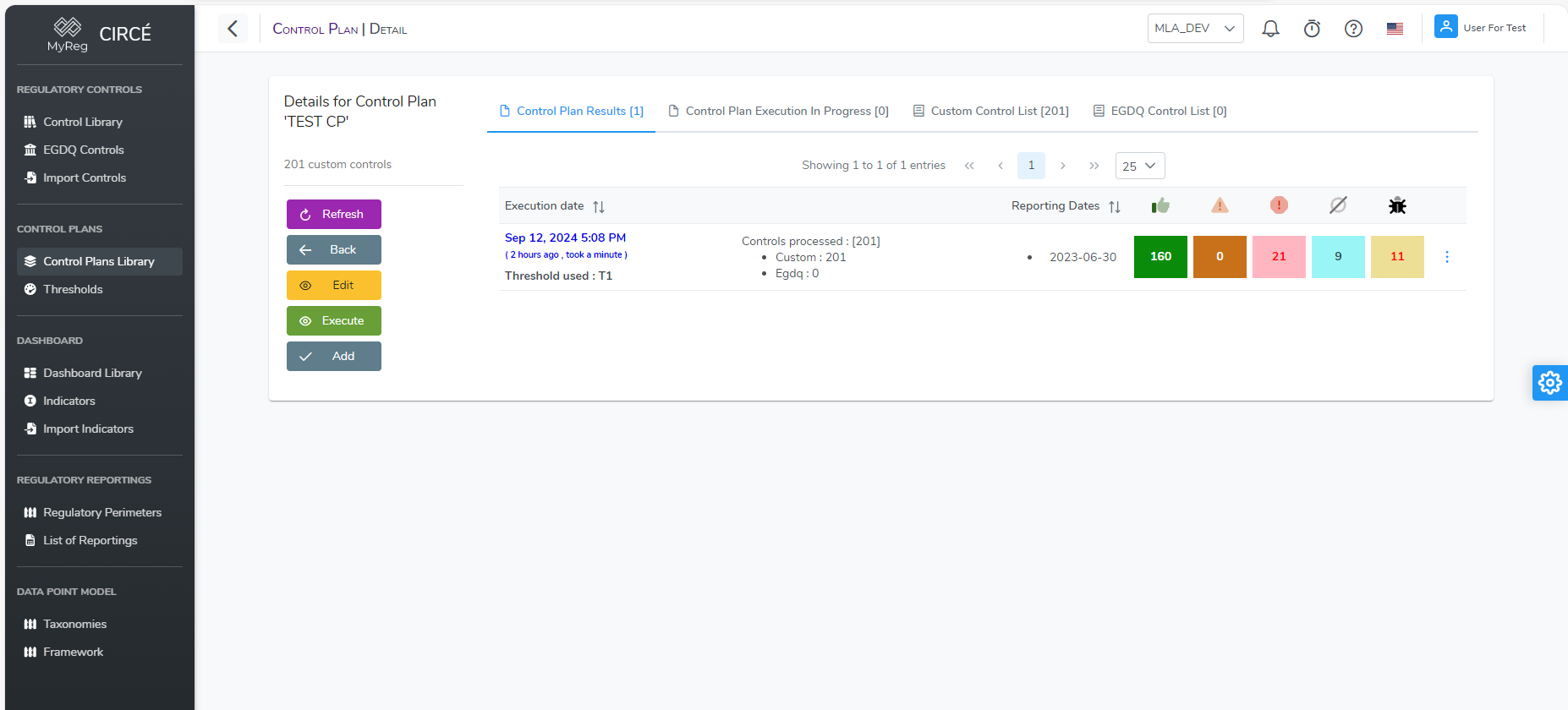
Select the result to display more detail on it. 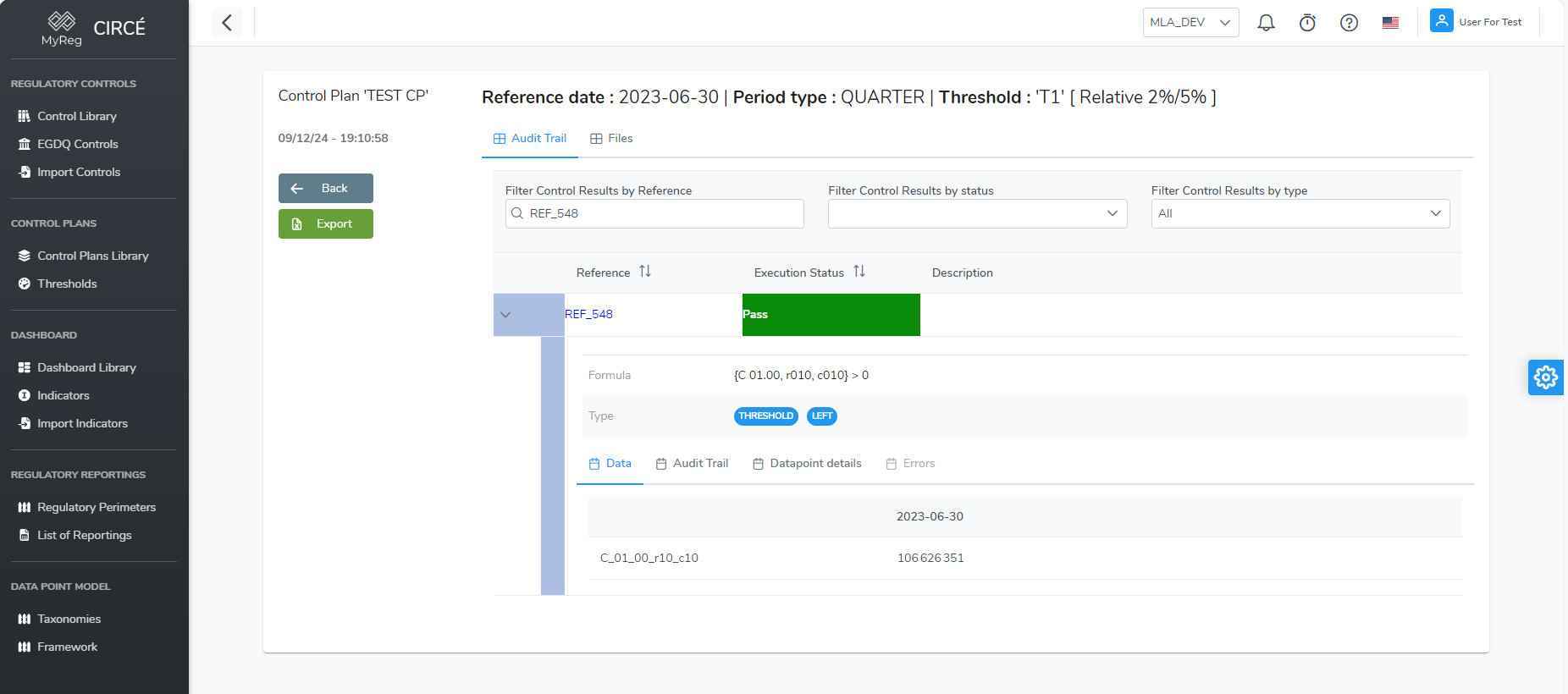
How to export a Control Plan Result in an Excel file
You can export a Control Plan Result into an Excel file by clicking on the Export Button on the top left 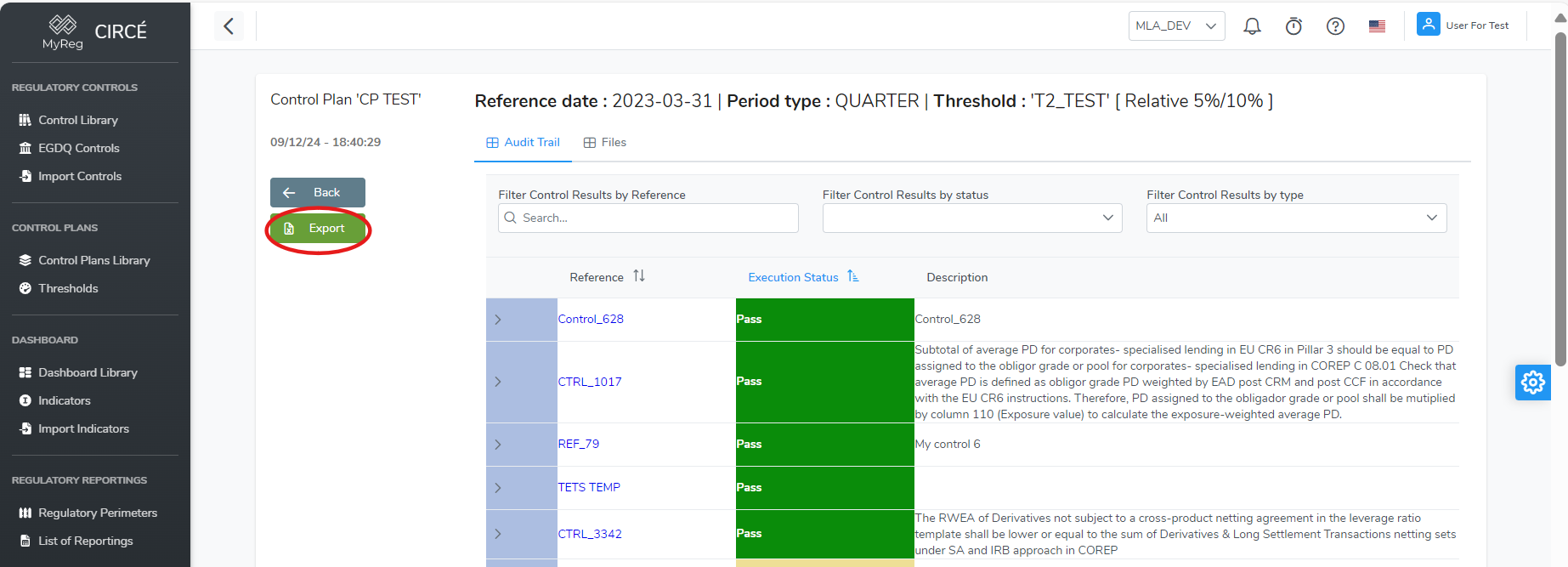
Threshold
How to create a new Threshold
You can create a new Threshold on the Thresholds List Page 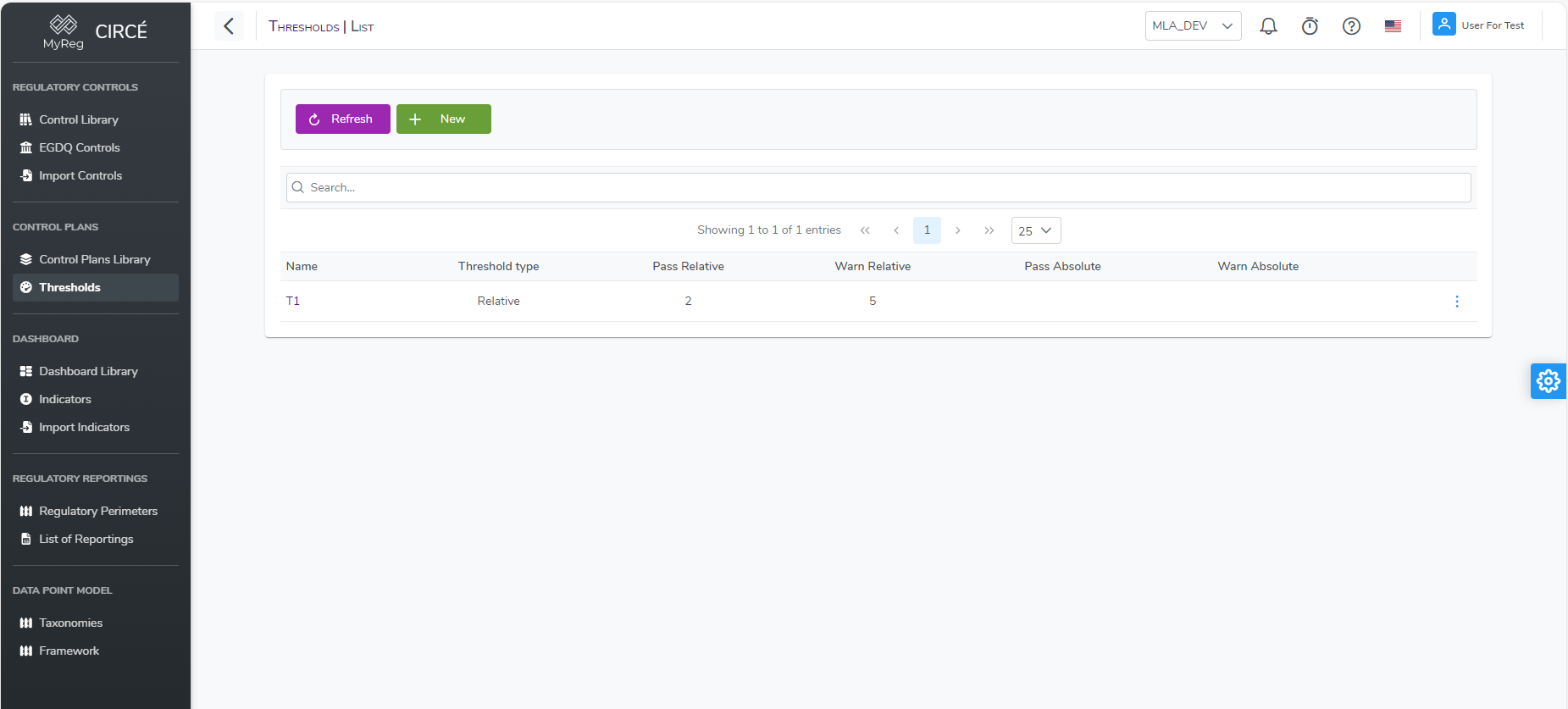
Click on the top left New Button 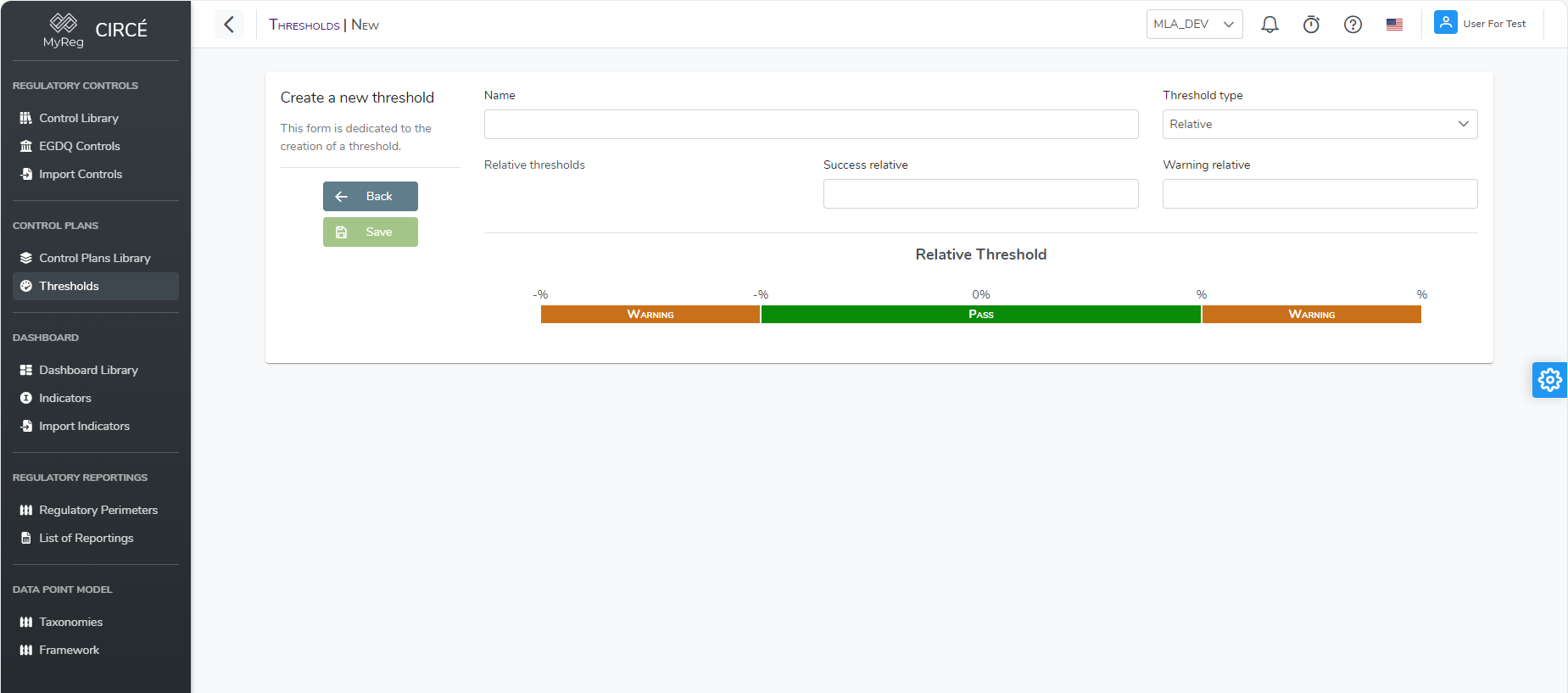
Then enter a name (mandatory and unique), a type (mandatory) and the values of the threshold. The Threshold can have one of the following three type :
Relative : The values are compared to a percentage for instance the difference between A and B should be less than 5% of one of them
Absolute : The values are compared to an absolute number for instance the difference between A and B should be below 5
Relative & Absolute : The values are compared to a percentage AND an absolute number
How to edit a Threshold
Open a Threshold and click on the edit button or in list page click on the action button on the right of each threshold and click on Edit button. 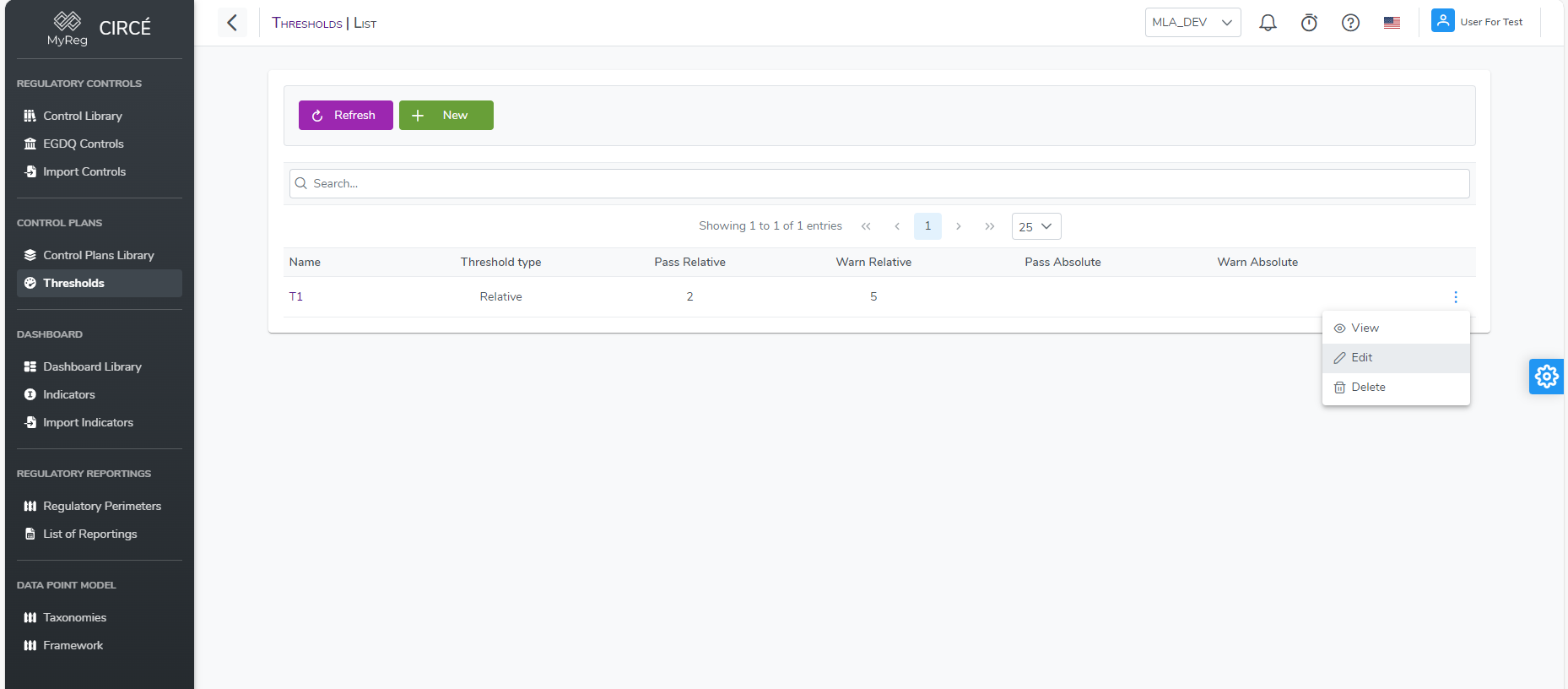
Change the name, type or values of the threshold and click on Save Button 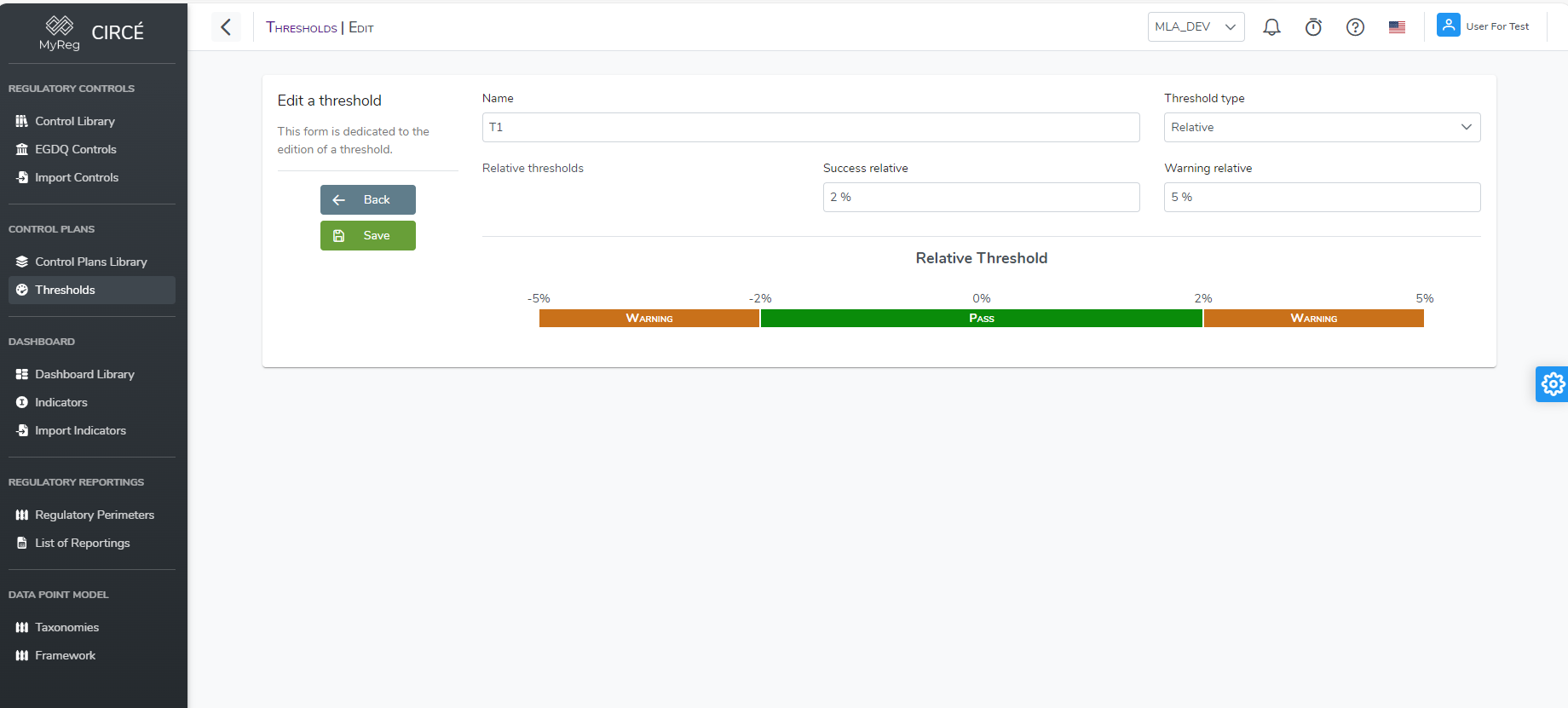
Please note that the changes made here will affect the future usage of the threshold. If the edited threshold has been already used in a control plan, the values will not be changed in the control plan results as part of an audit trail.
How to delete a Threshold
In the Thresholds list page, you can delete a threshold by clicking on the action button on the right of each threshold and click on the Delete button. 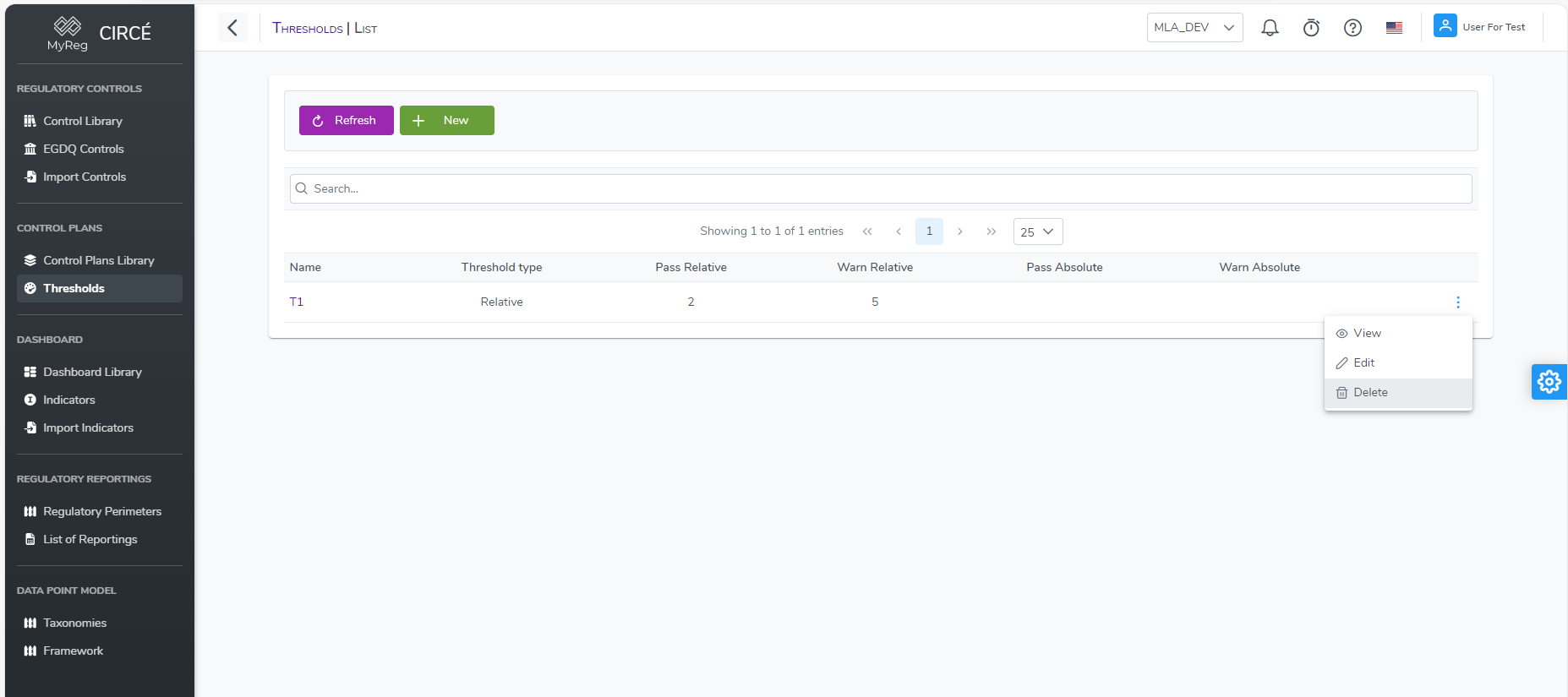
A confirmation box will appear to confirm or cancel your action.
N.B : You cannot delete a threshold that is used in one or more perimeter as preferred threshold. You will have to remove it from all perimeters first. You don't have to delete the control plan result that used this threshold. 
Indicators
How to create a new Indicator
You can create a new Indicator on the Indicator List page 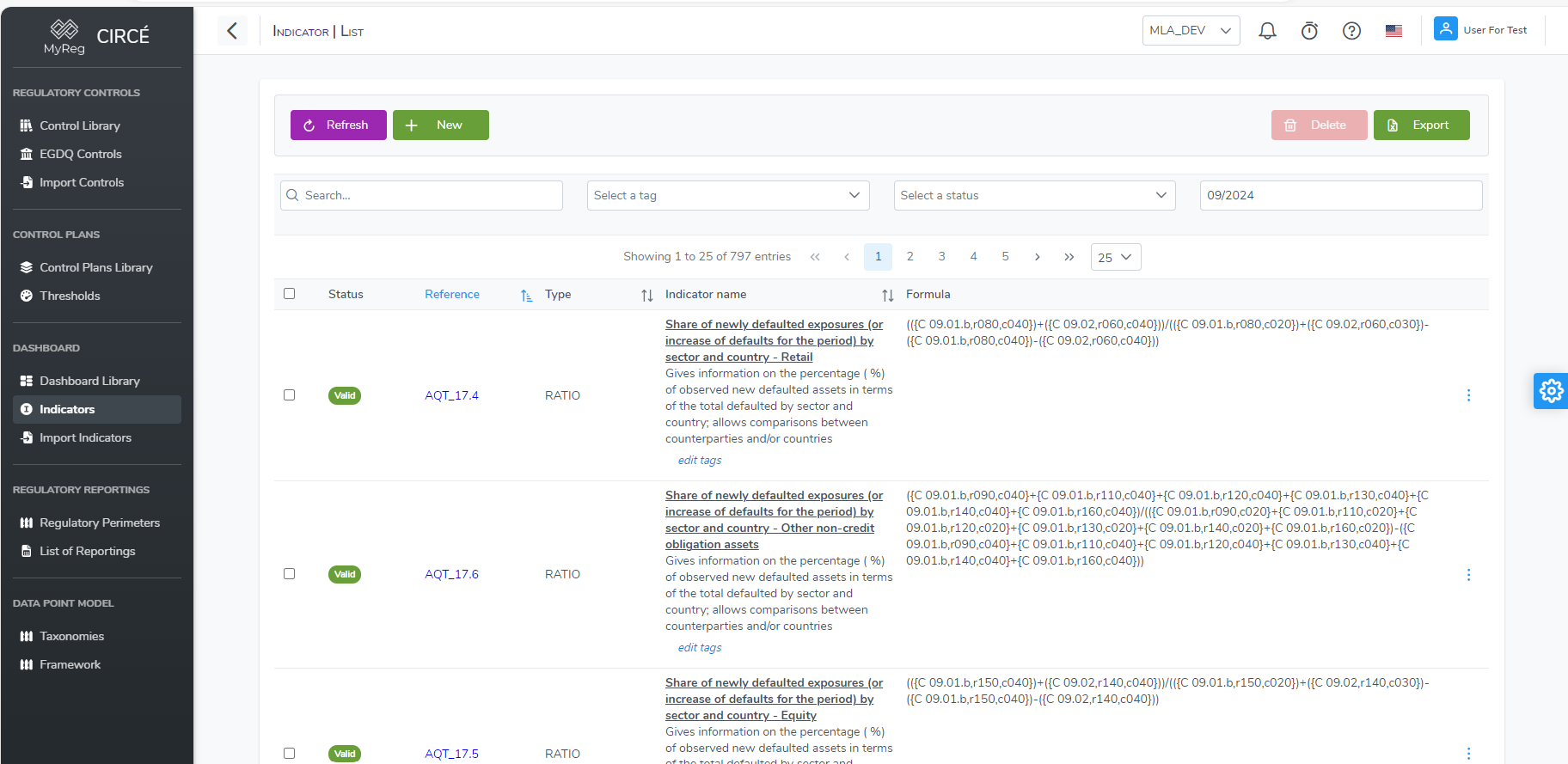
Click on the top left New button 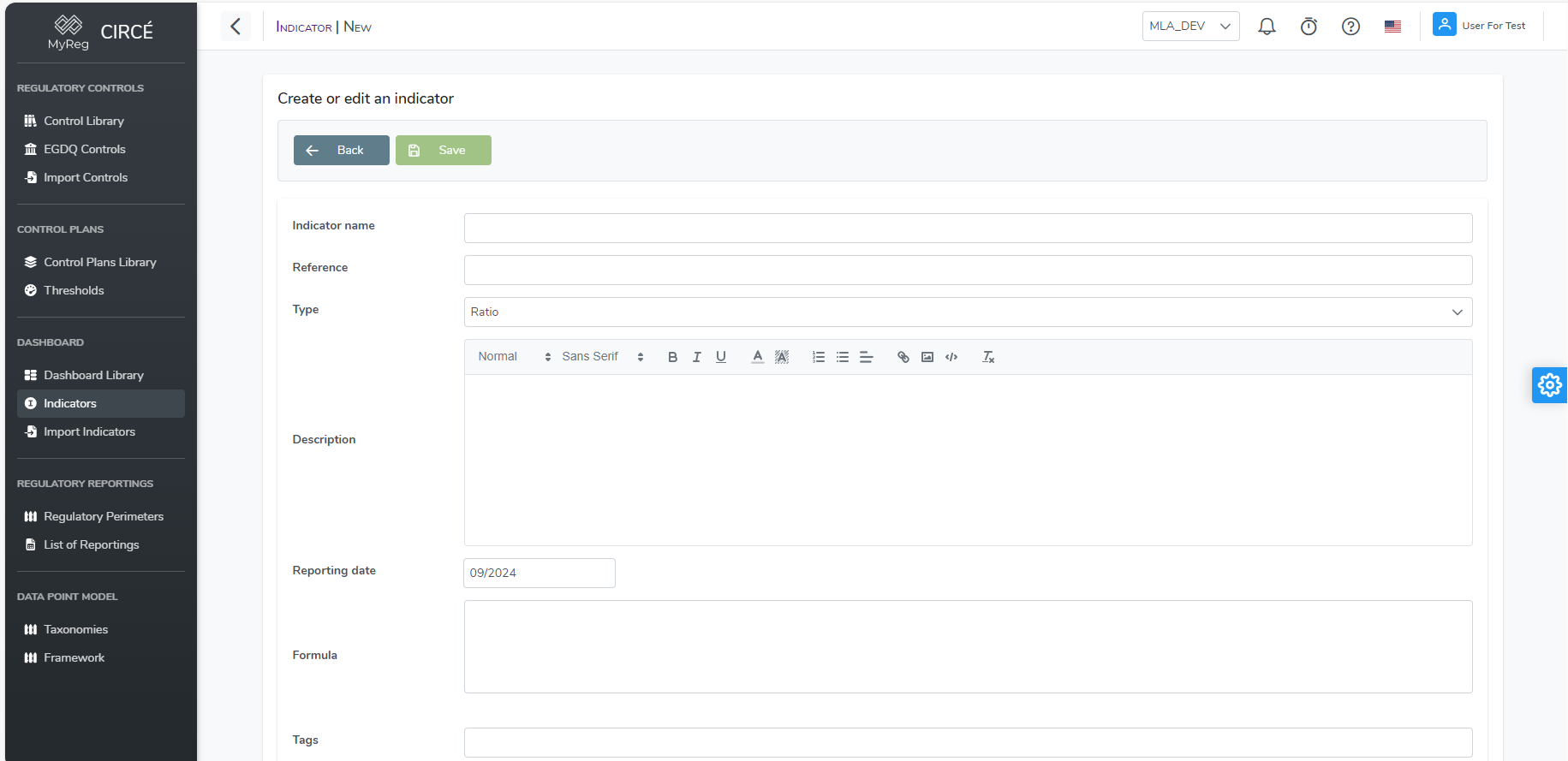
Then enter a reference for your indicator (mandatory and unique), a name (mandatory), a type (mandatory), a description (optional), a formula (mandatory) and tags (optional)
Type and Reporting date are already filled in but you can change the values. Your indicator can be one of this two type : Amount or Ratio Reporting date is the date used to check the validity of the formula
Click on Save on the top left to create your new Indicator, please note that Save will not be clickable until you fill all mandatory fields
How to edit an Indicator
Open an Indicator and click on the edit button or in list page click on the action button on the right of each indicator and click on Edit button. 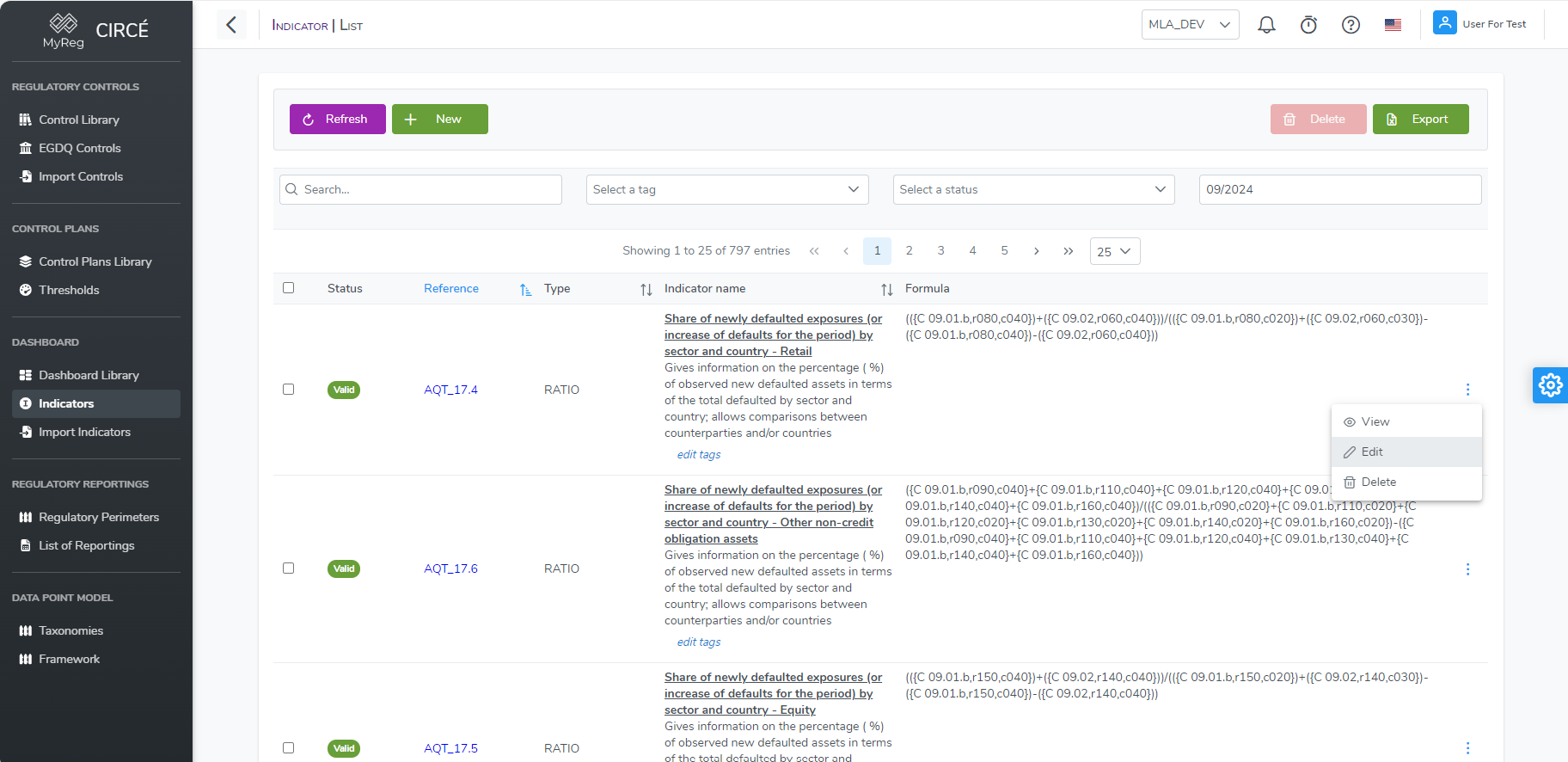
Make your changes and then click on save to edit your indicator. 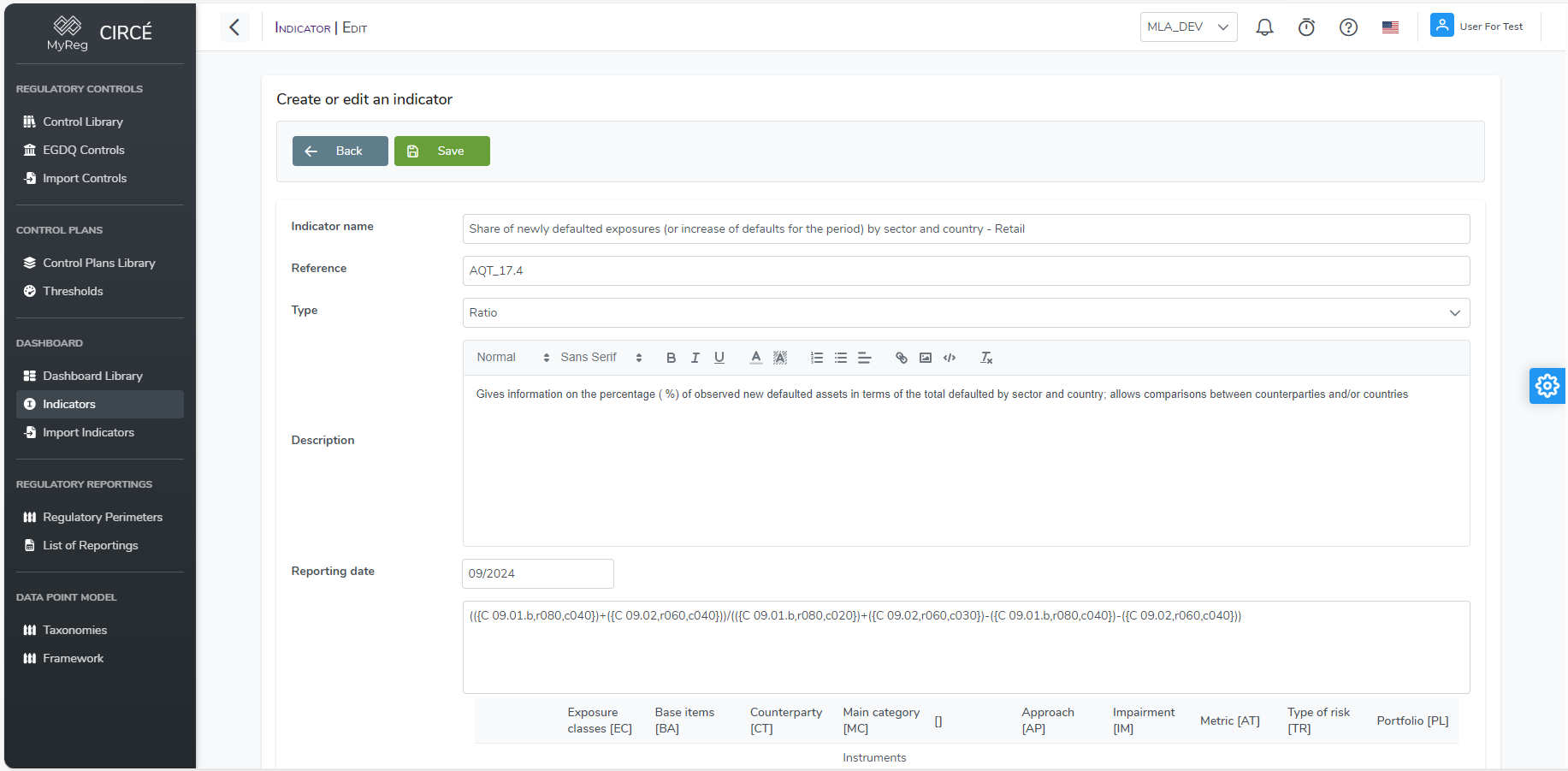
You can click on the Back button to return to the previous page without taking your changes into account.
How to delete one or more Indicators
In the indicator list page, you can delete an indicator by clicking on the action button on the right of each indicator and click on the Delete button. 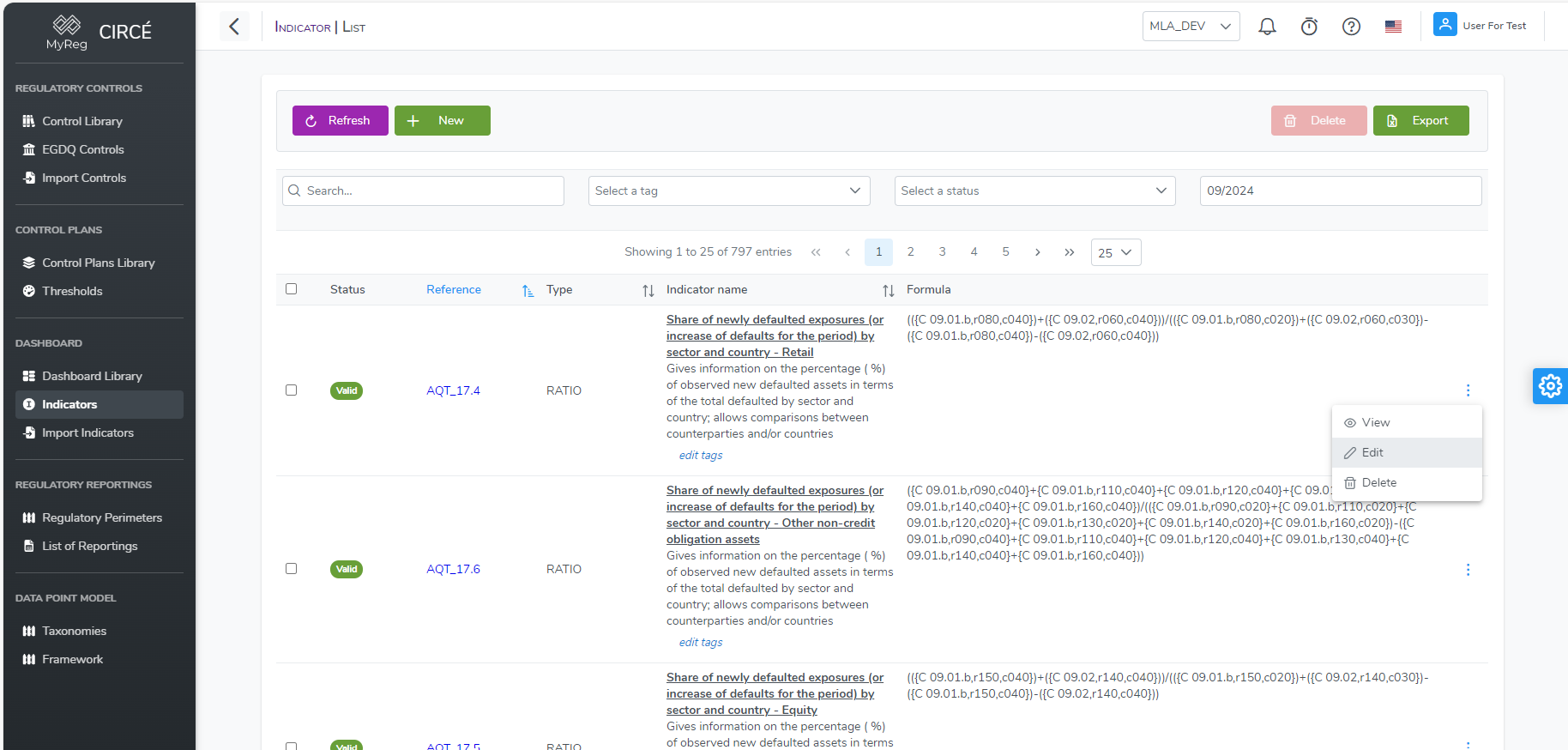
A confirmation box will appear to confirm or cancel your action.
You can also delete multiple indicators at once on the indicators list page by selecting indicators and then click on top right Delete Button. 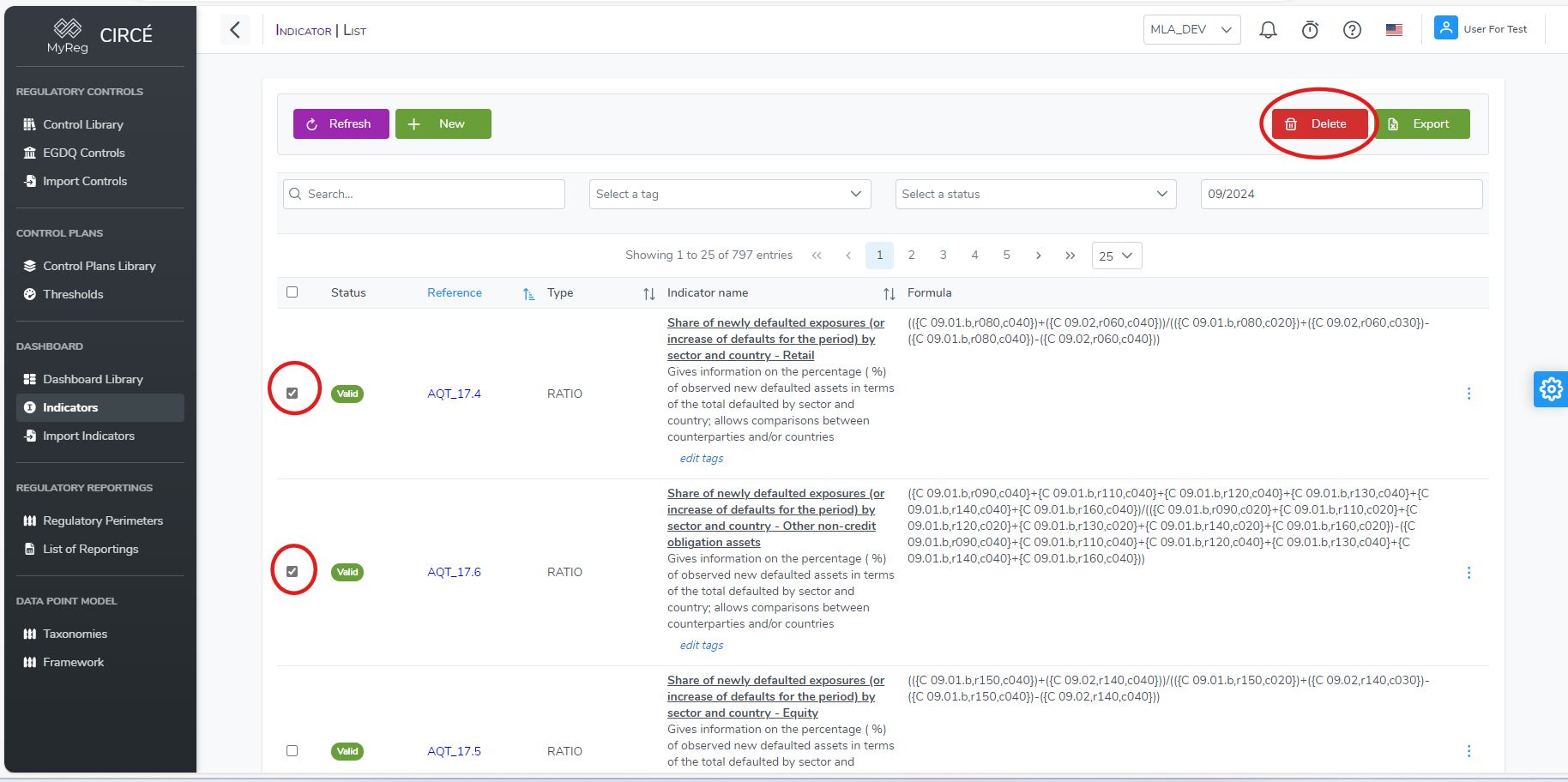
N.B : You cannot delete an indicator that is used in one or more dashboard. You will have to remove it from all dashboard first. You don't have to delete the dashboard result that used this indicator
How to export all Indicators in an Excel file
In the indicators list page, you can export all displayed indicators by clicking on the Export button on the top right. All filters applied will be also applied in the export. 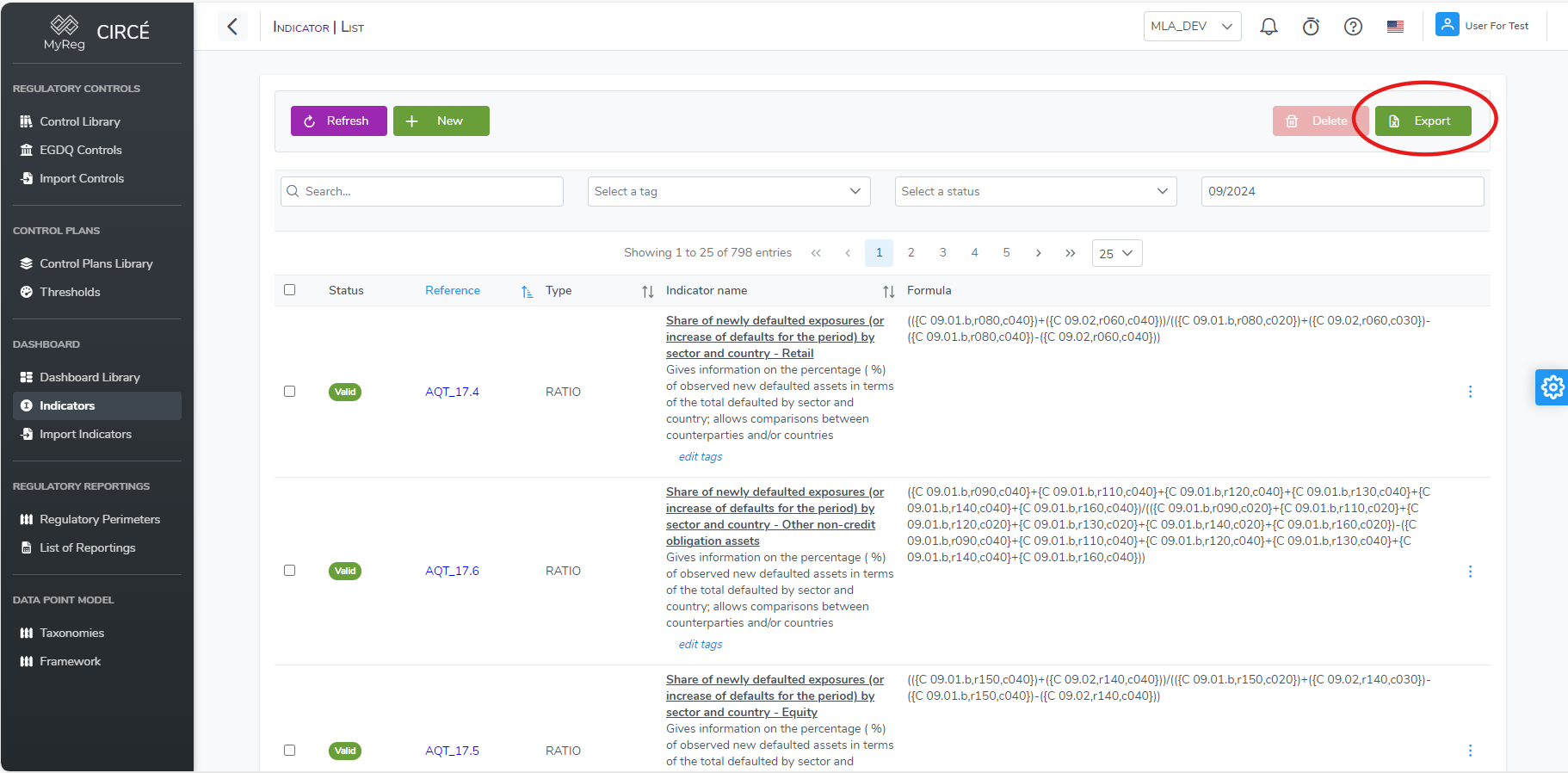
It will create an Excel file named yyyy_MM_dd_hh_mm_ss_indicators which contains all indicators in your library 
This file can also be directly imported into the database via the import indicators feature (see below section)
How to import Indicators
You can import a list of indicators via an Excel file on the Import Indicators page 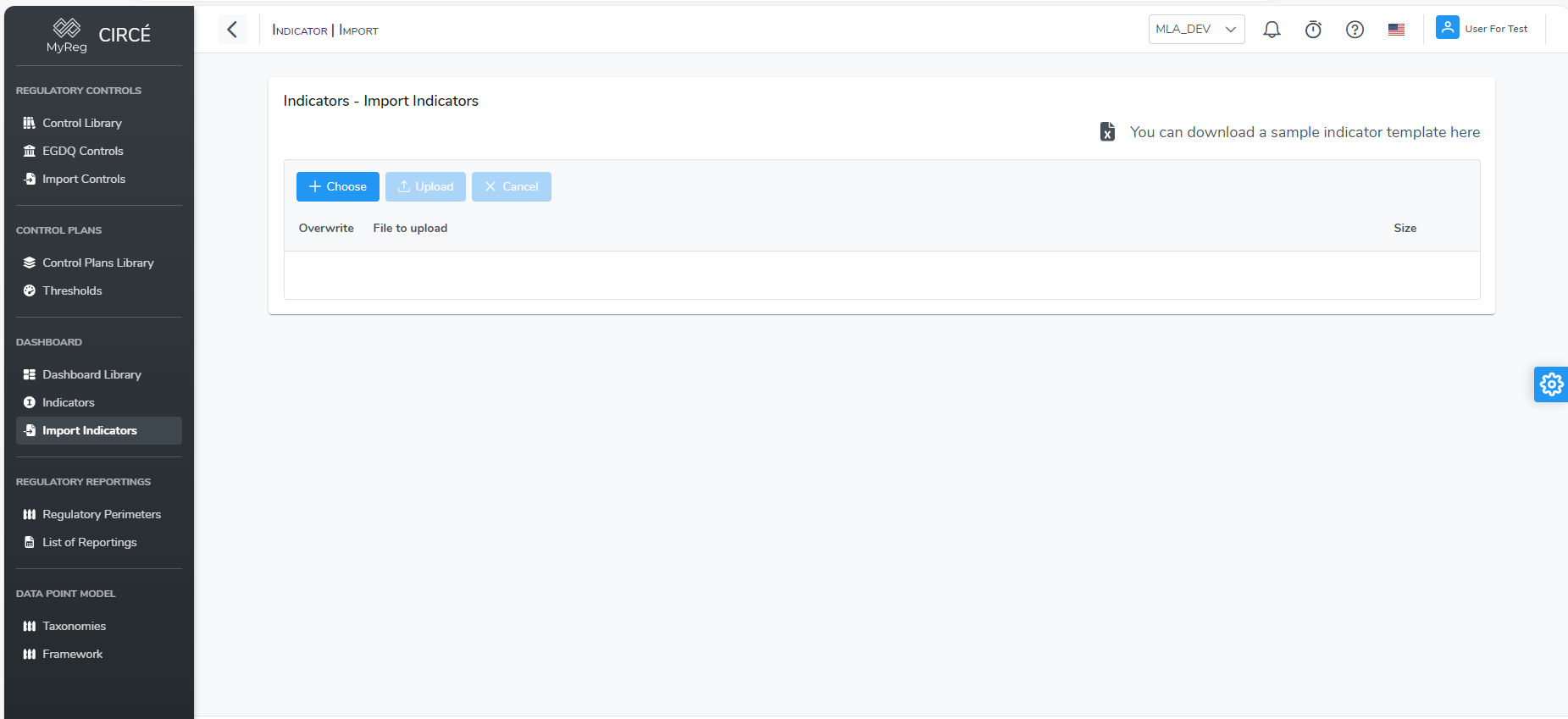
First you will need to download the Excel File Format by clicking on the top right "You can download a sample indicator template here" button 
Please note that you can also use the exported file as mentioned in above section You can edit the Excel file as you wish, please note that Reference, Type, Name and Formula are mandatory. If one or more of this column is empty for a row, this row will be returned in error. Reference is unique so if you put a reference that is already in database or in a previous row of the file it will be either skipped or overwrite (see overwrite option below). Type can only take the following value : RATIO/AMOUNT
When your file is ready click on Choose button on top left to select the file you want to upload. A popup page will appear to select a file from your directory. 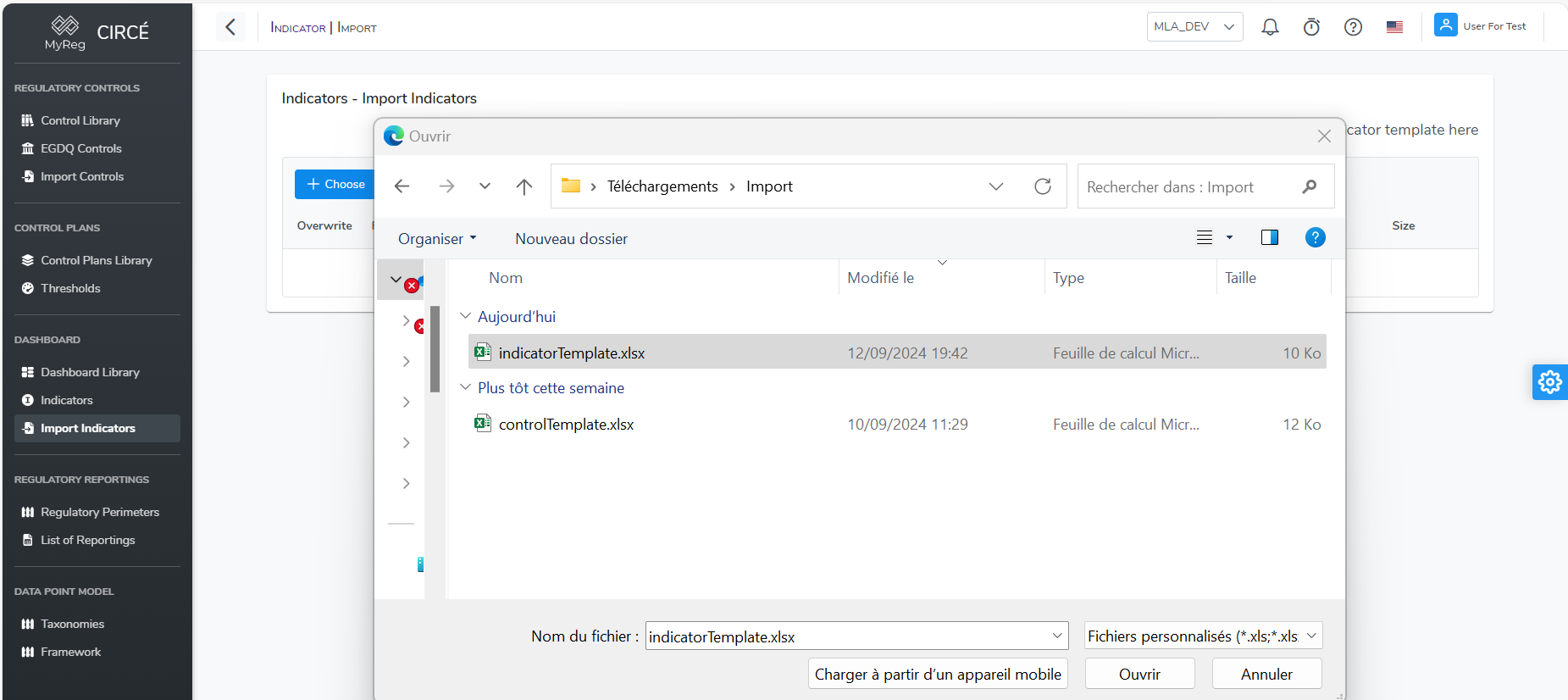
You can click again on Choose button and repeat process if you want to change the file. You can also remove the file if needed by clicking on the Cancel Button
Once you choose it, the file name will be displayed below the buttons. You can choose the option to overwrite the indicators with reference matching by checking the Overwrite option next to the name. This will replace the indicators that are already in database if the reference in the Excel file match with the reference in the Database. If the option is unchecked it will skip the reference already in Database.
Click on the upload button to start the upload of the Excel file. Once the upload is complete, a summary page will be displayed to show you the imported indicators and if any errors occurred. 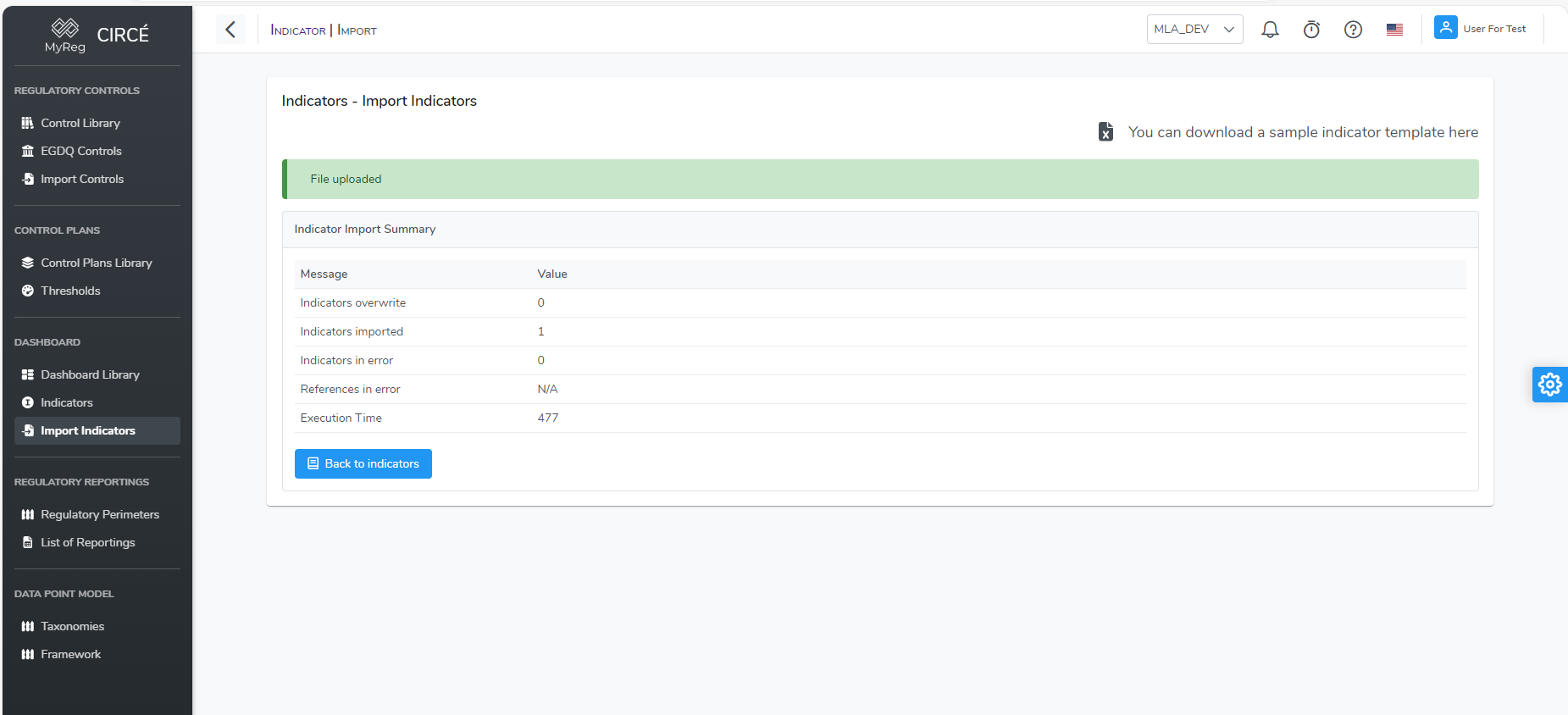
Dashboard
How to create a new Dashboard
You can create a new Dashboard on the Dashboard List Page 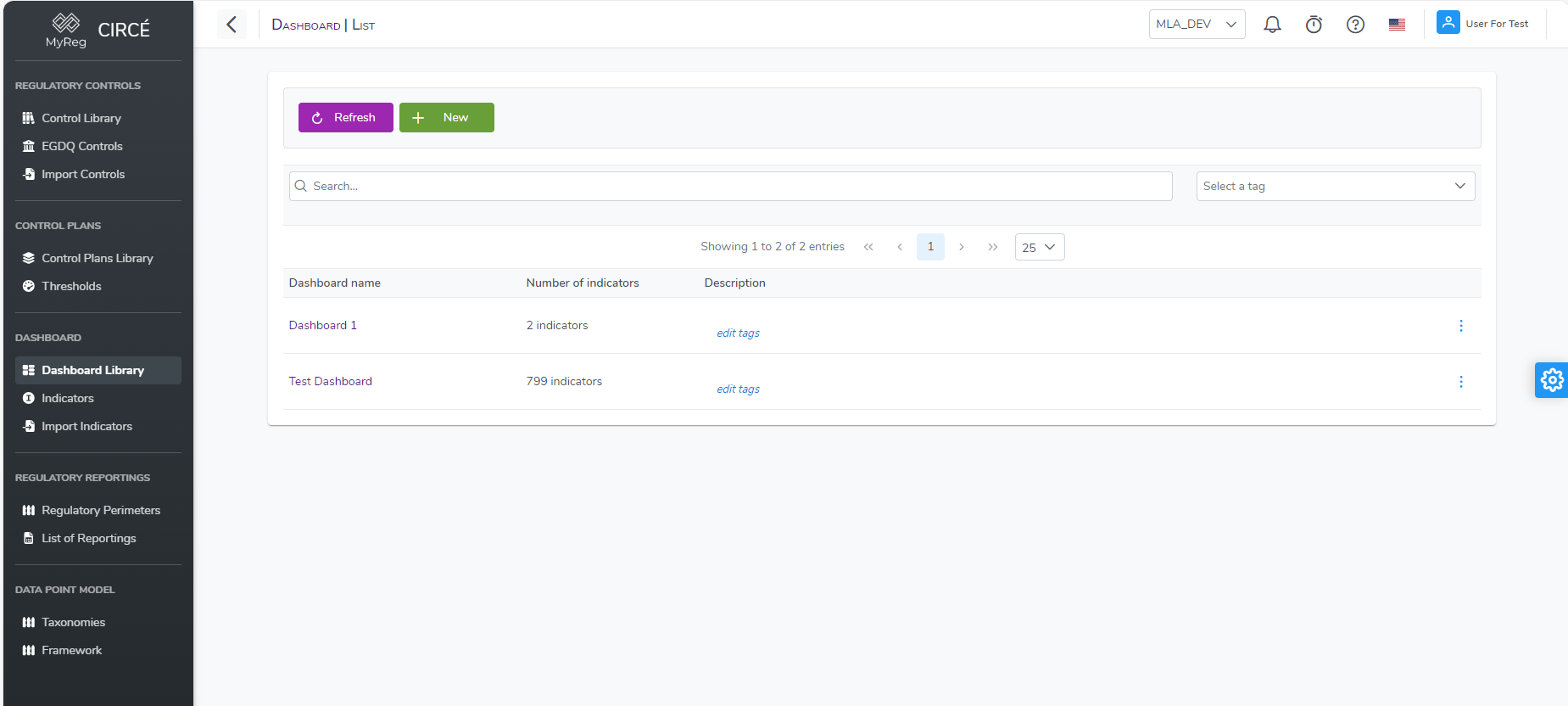
Click on the top left New Button 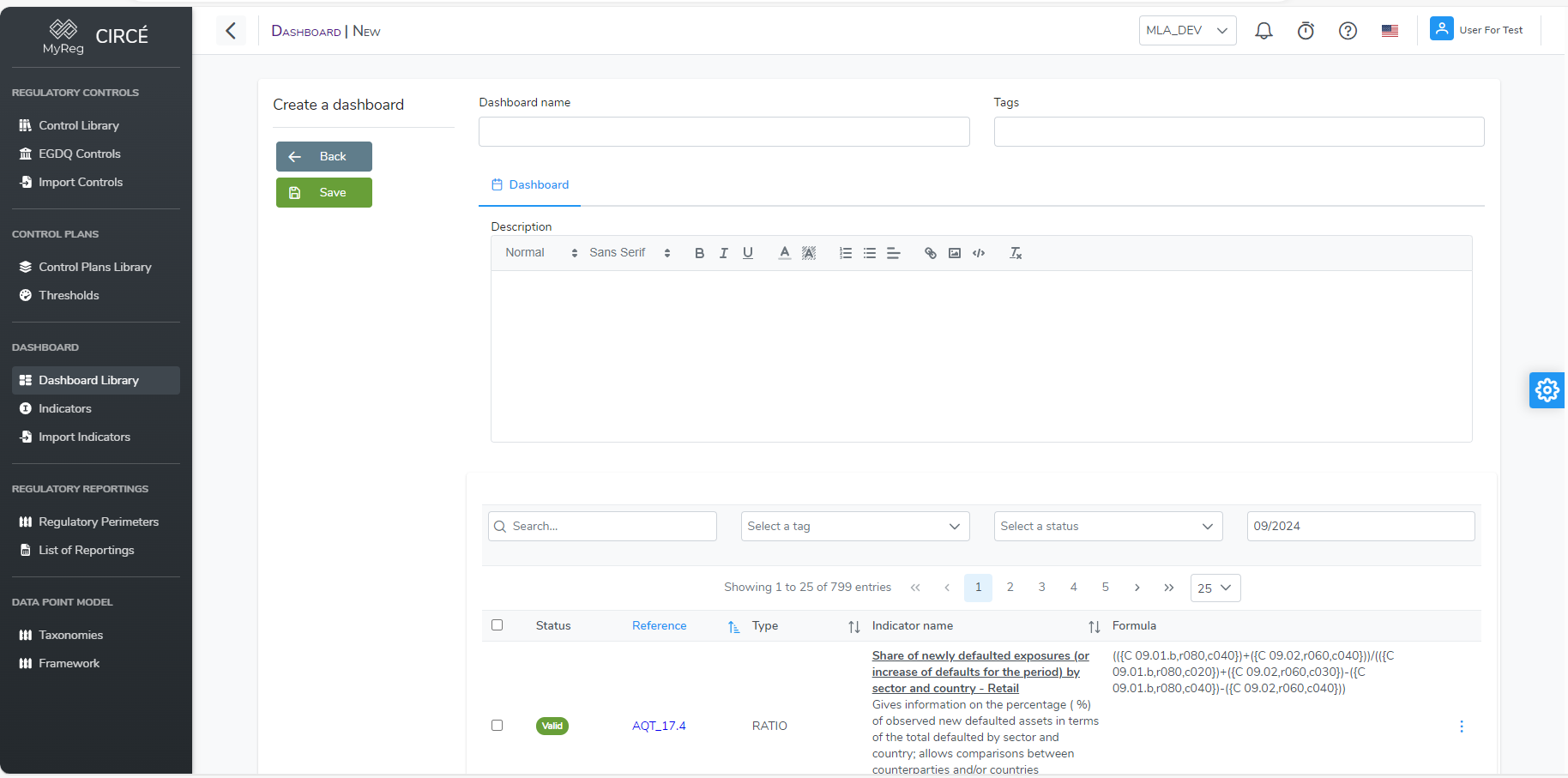
Then enter a name for your Dashboard (mandatory and unique), tags (optional), a description (optional) and select the indicators you want to add in your dashboard. You can filter indicators like in the list page by tag, status and search for specific indicators.
How to edit a Dashboard
Open a Dashboard and click on the edit button or in list page click on the action button on the right of each dashboard and click on Edit button. 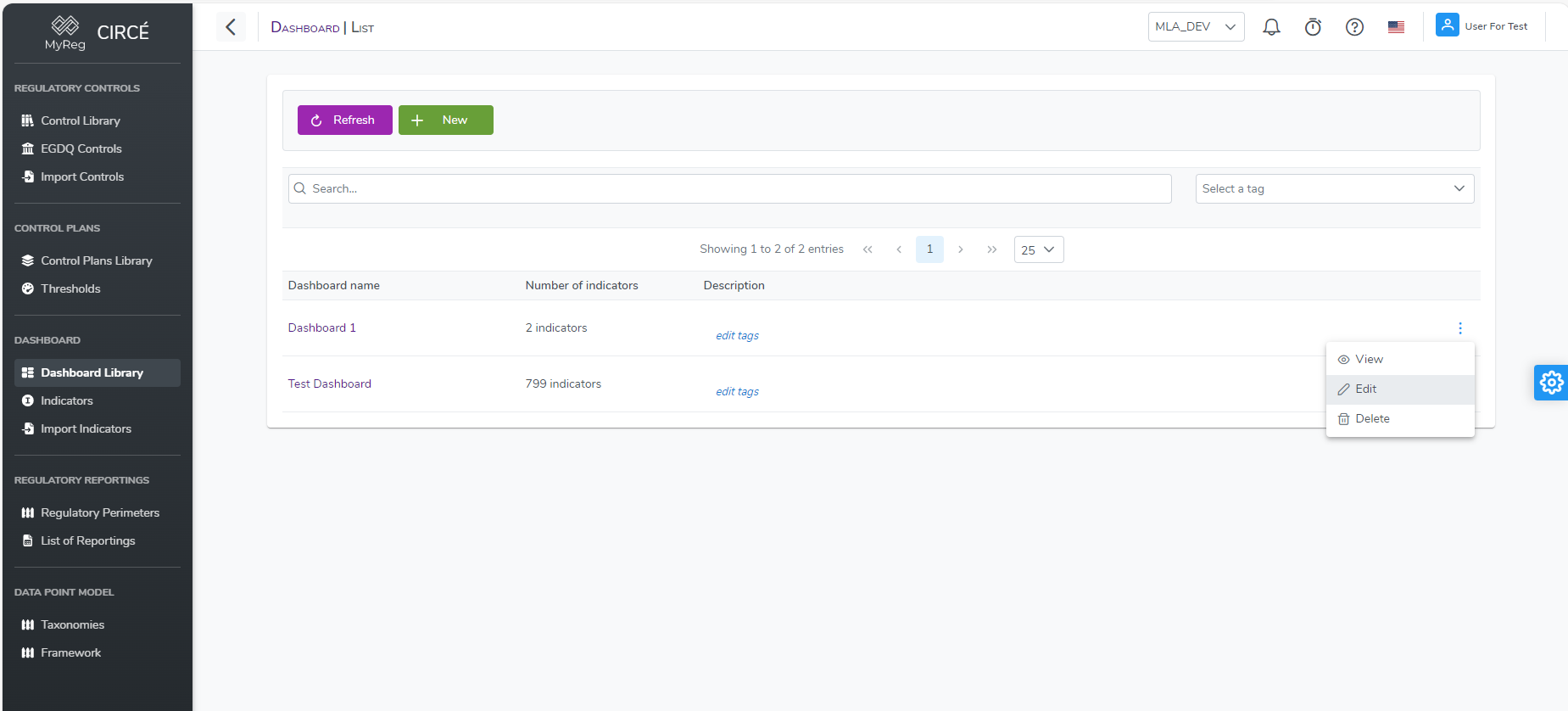
Make your changes in field or add/remove indicators by clicking on them then click on save to edit your dashboard. 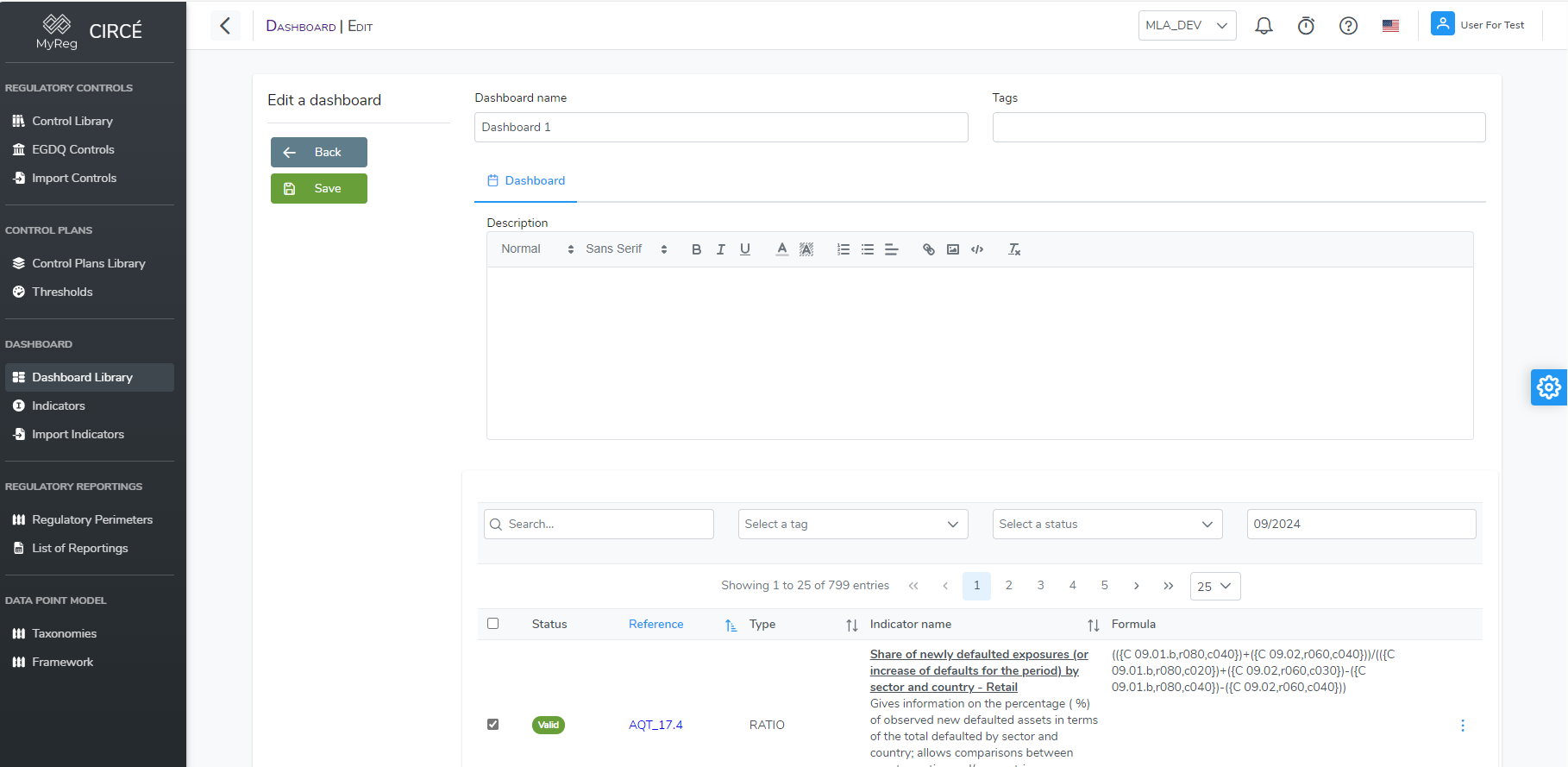
You can click on the Back button to return to the previous page without taking your changes into account.
How to add Indicators to a Dashboard
You can add indicators to an existing dashboard in the edit page as mentioned above but you can also add them directly by clicking on the Add button in the Dashboard Detail Page
A popup will open with all indicators. Already included indicators will be automatically checked. You can uncheck them to remove them and you can add more by check the ones you want to add. Click on update to save your changes. 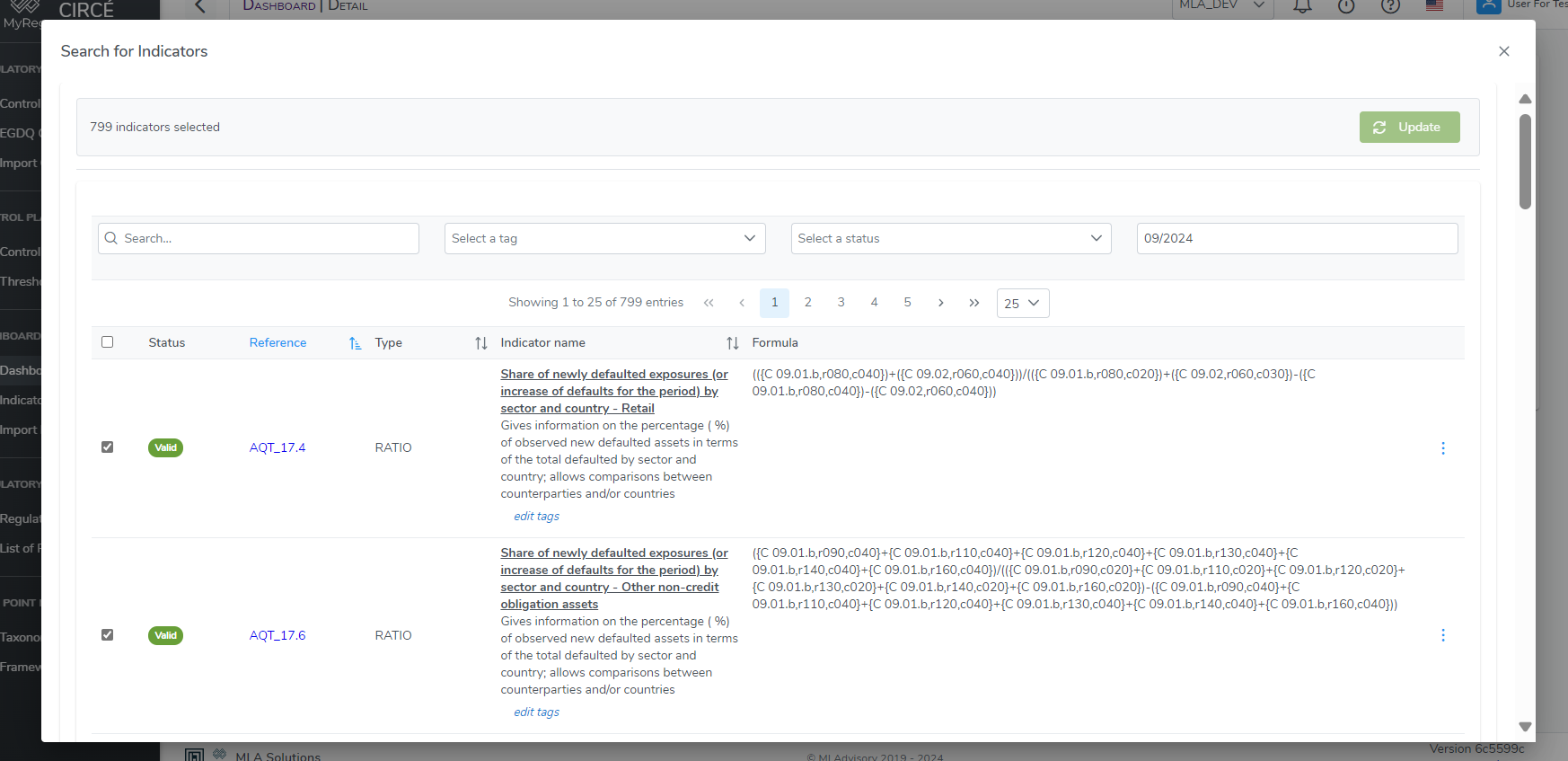
How to delete a Dashboard
In the dashboard list page, you can delete a control by clicking on the action button on the right of each control and click on the Delete button. 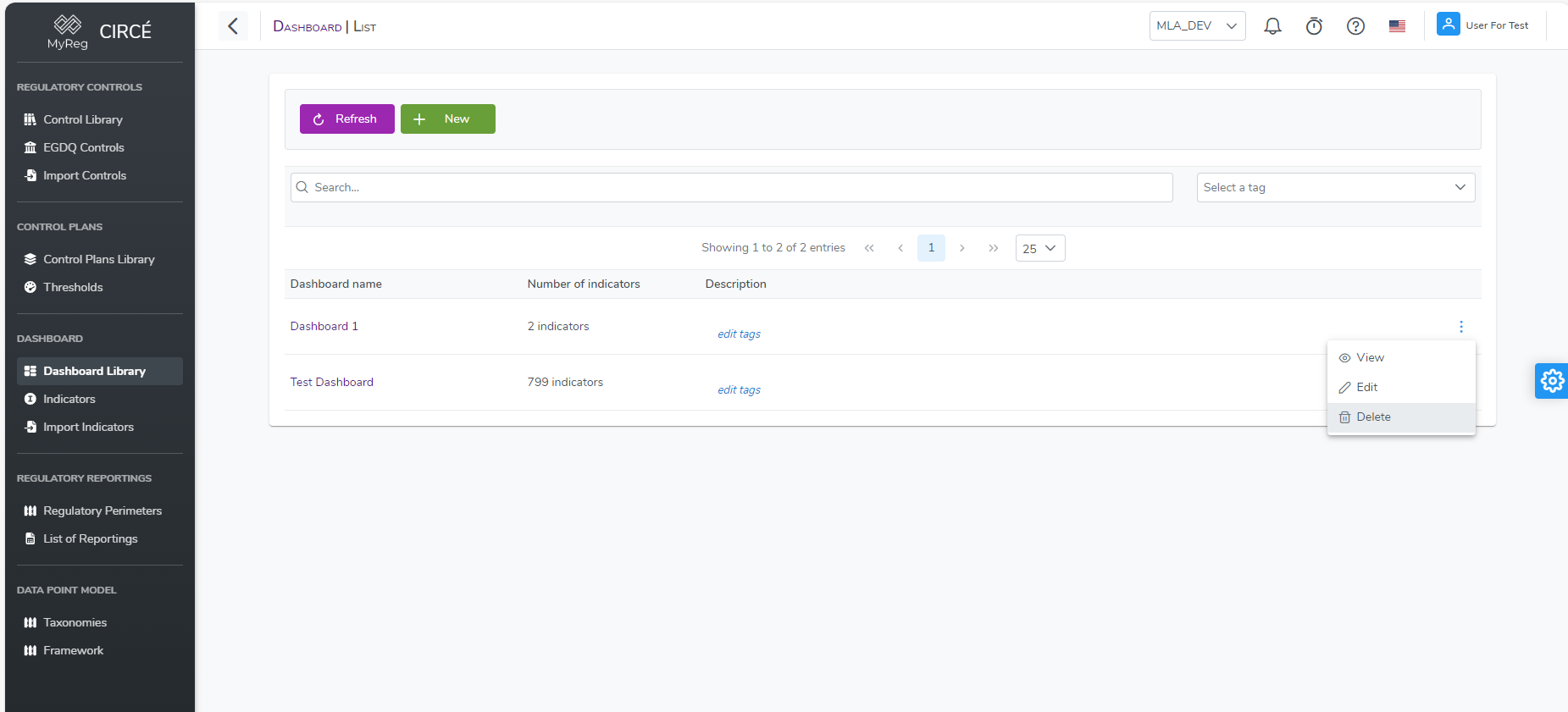
A confirmation box will appear to confirm or cancel your action.
How to execute a Dashboard
Once your Dashboard is ready, you can execute it by clicking on Execute Button in the Dashboard Detail Page. 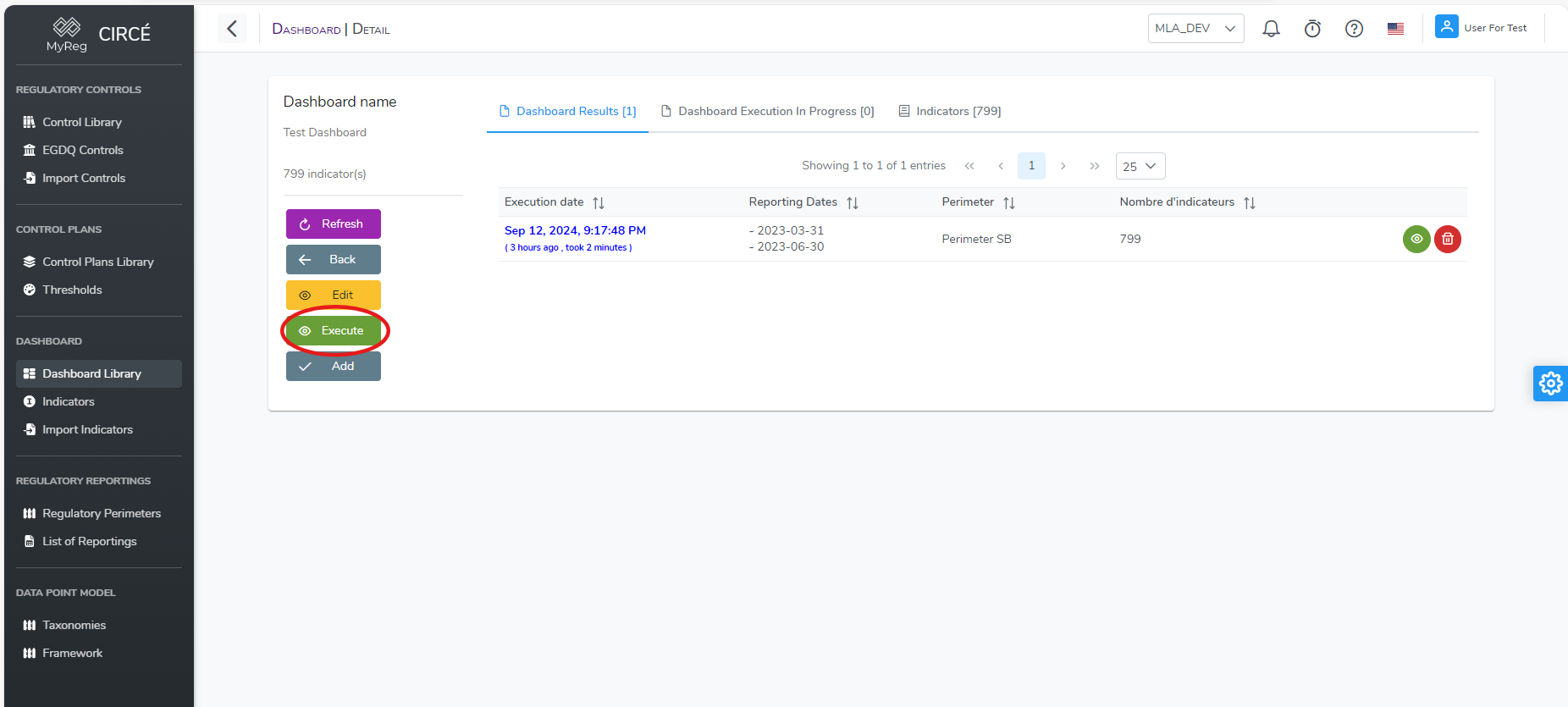
This will open a popup to configure the parameters of the execution. First you will need to select a Perimeter 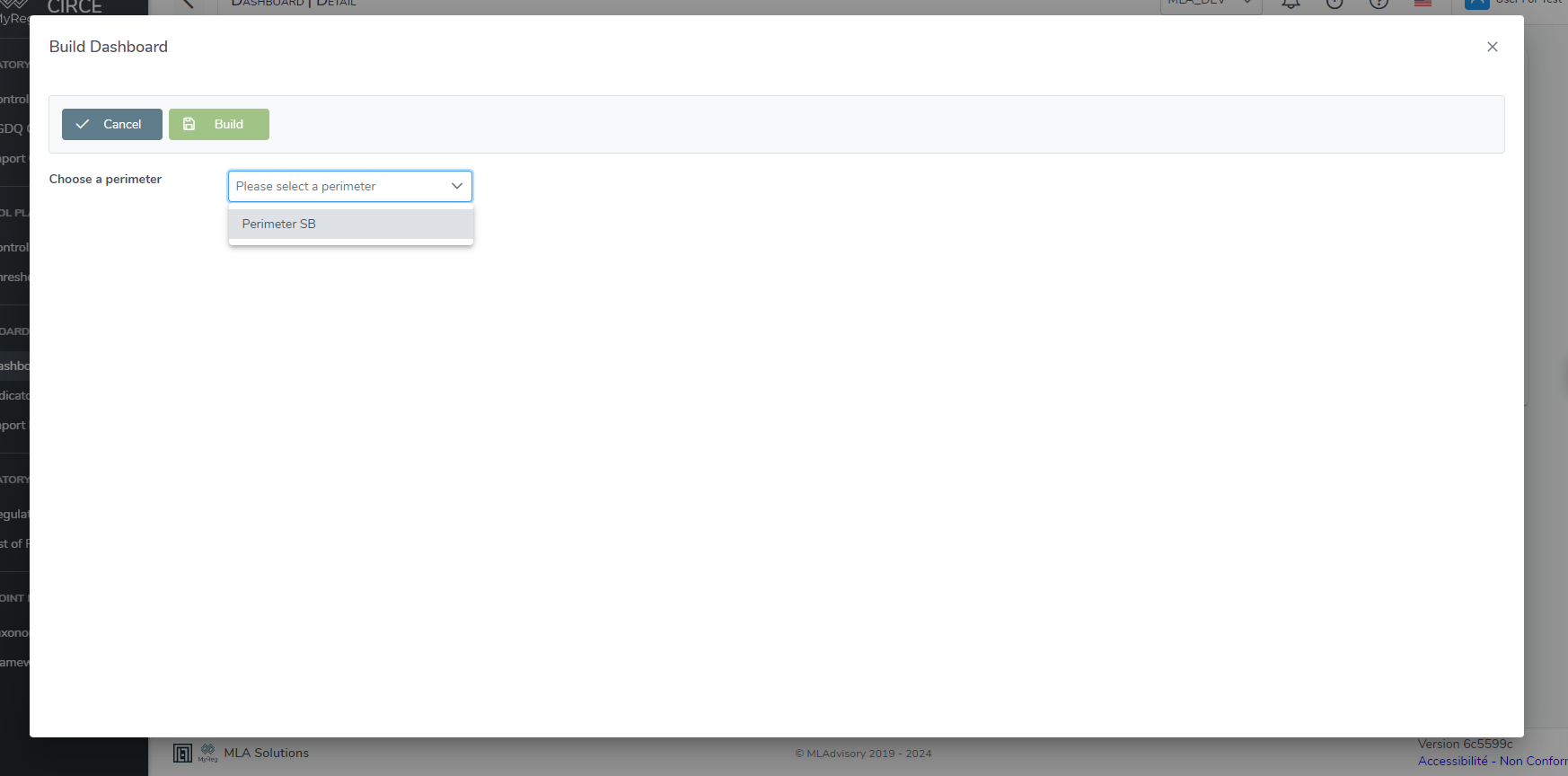
Once the perimeter chosen, you need to select the reporting dates of the reporting files you want to execute.
You can select multiple dates. If so you will need to add a period type (periodicity between your files). You can also filter to only show official reporting files
Once you configured the dates, you will need to select the reporting file(s) you want to execute the dashboard on and then click on Execute Button.
You can check the result of you execution in the dashboard detail page. 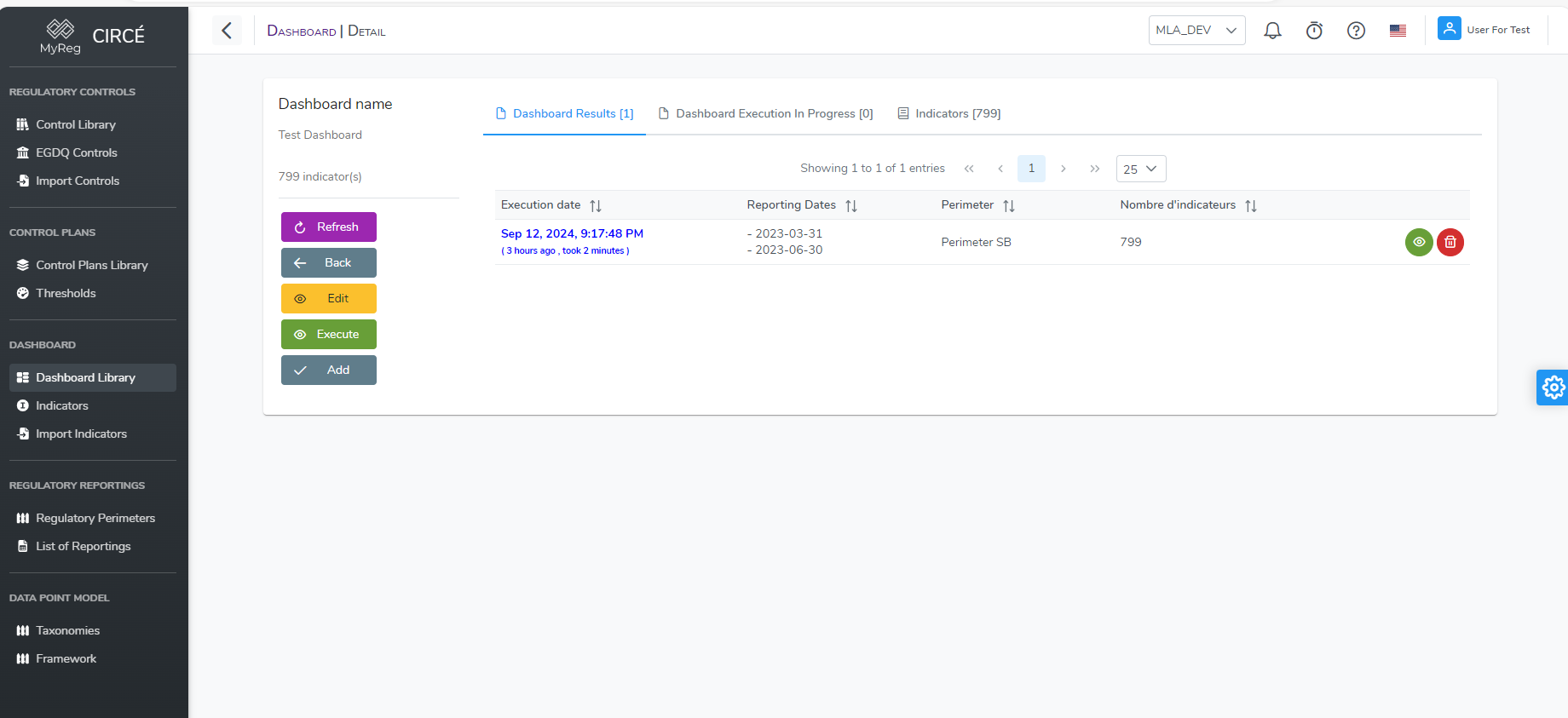
Select the result to display more detail on it. 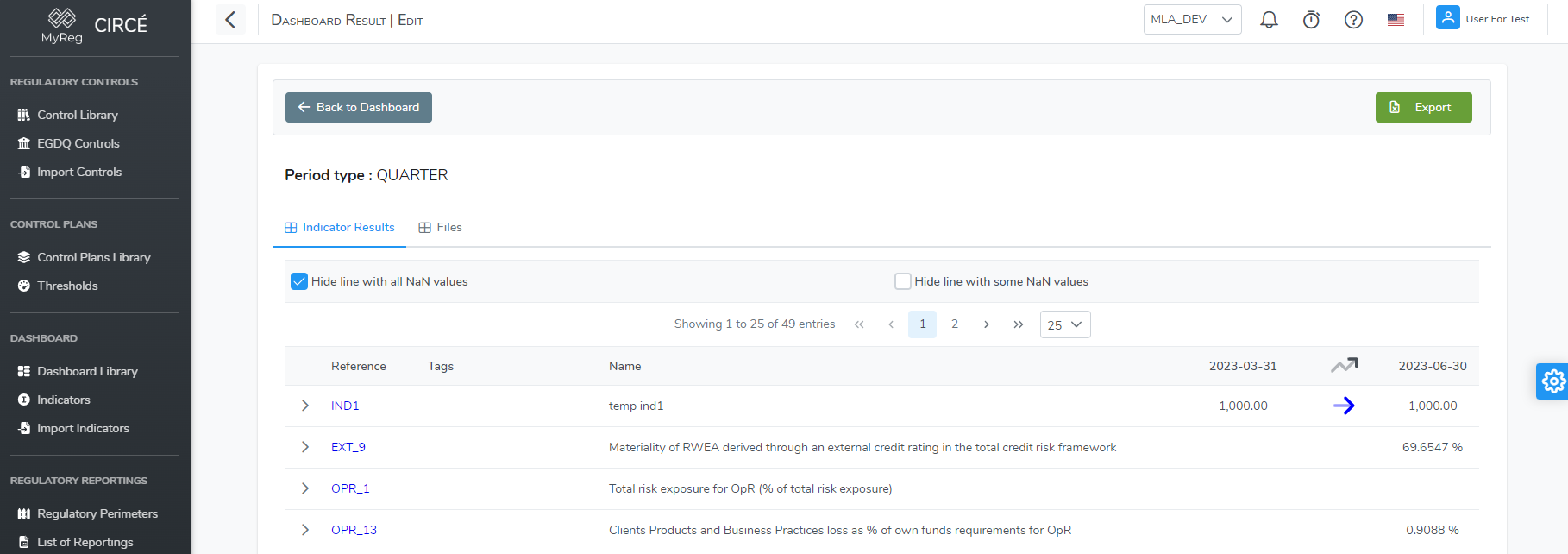
How to export a Dashboard Result in an Excel file
You can export a Dashboard Result into an Excel file by clicking on the Export Button on the top left 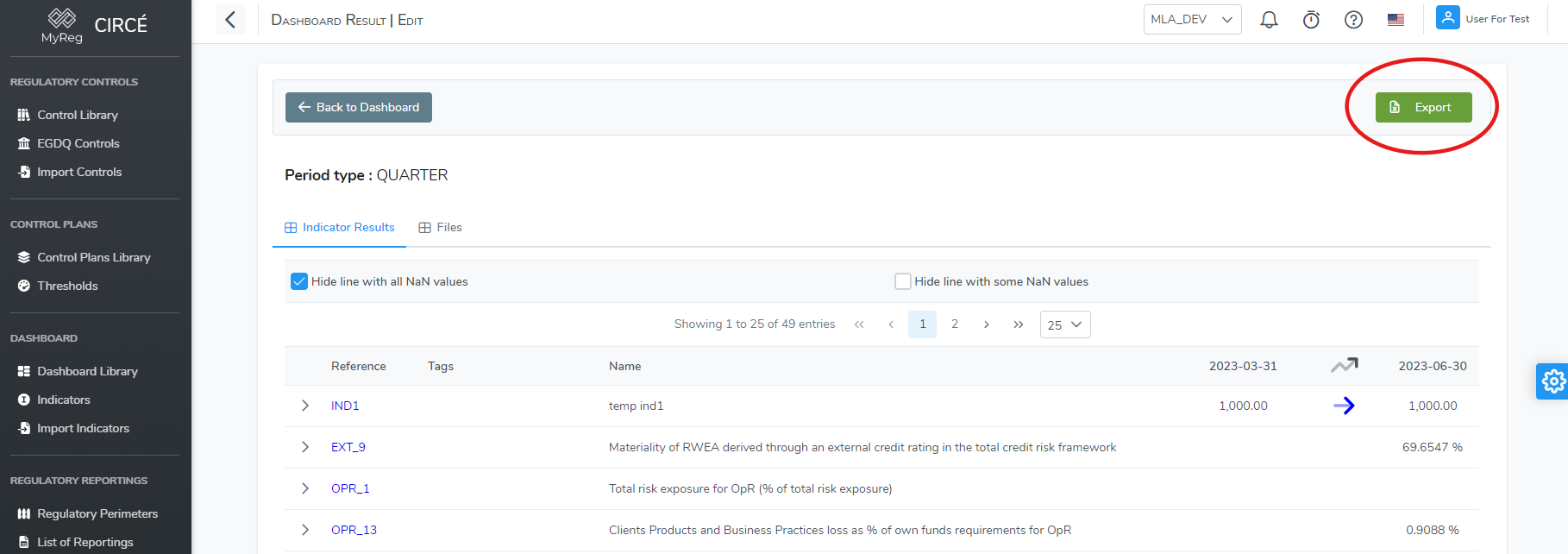
Taxonomies
Taxonomies page will allow you to navigate through all templates. 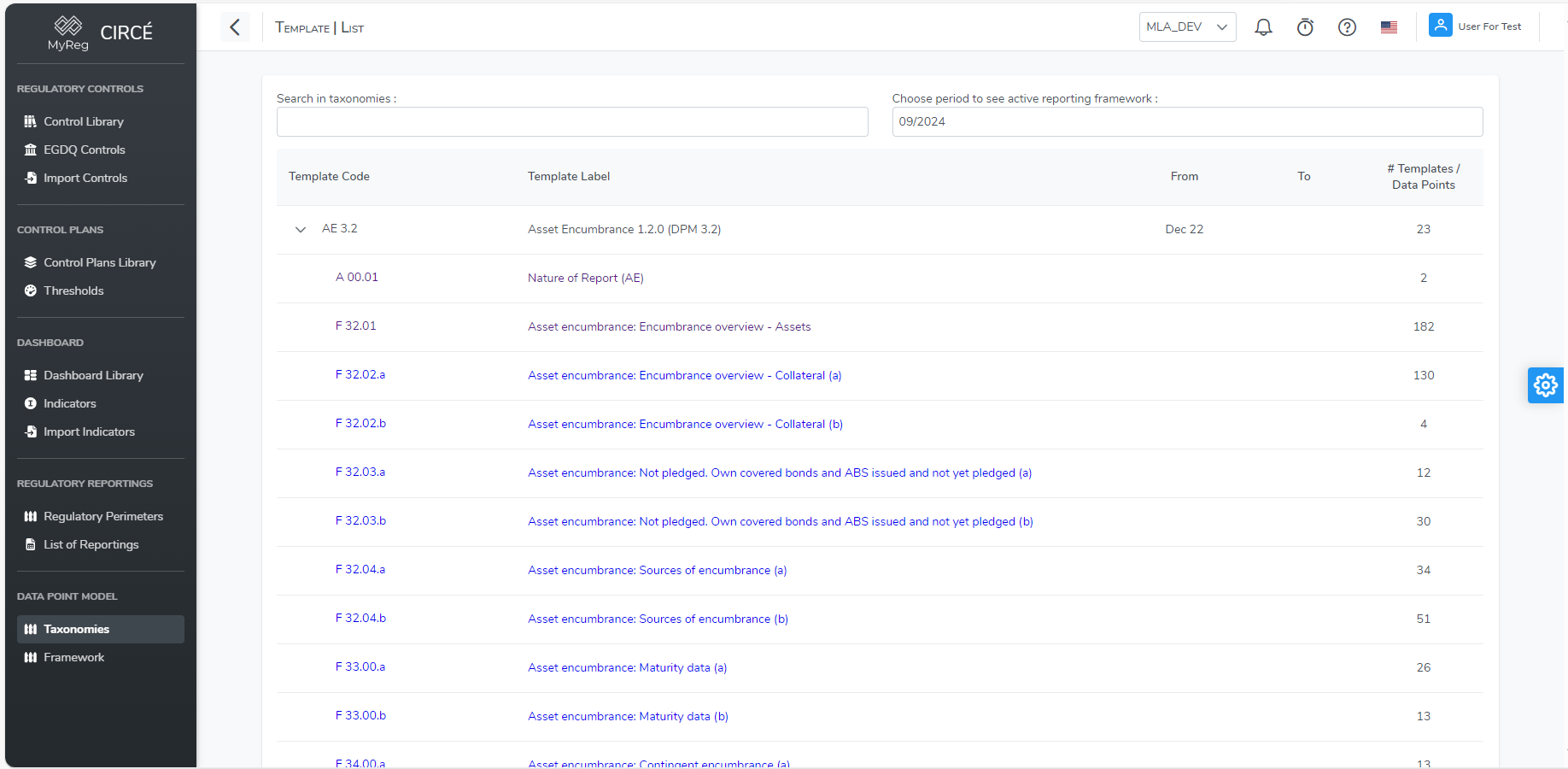
By clicking on a template code or label, template detail page will open with rows and column and detail on each cells. 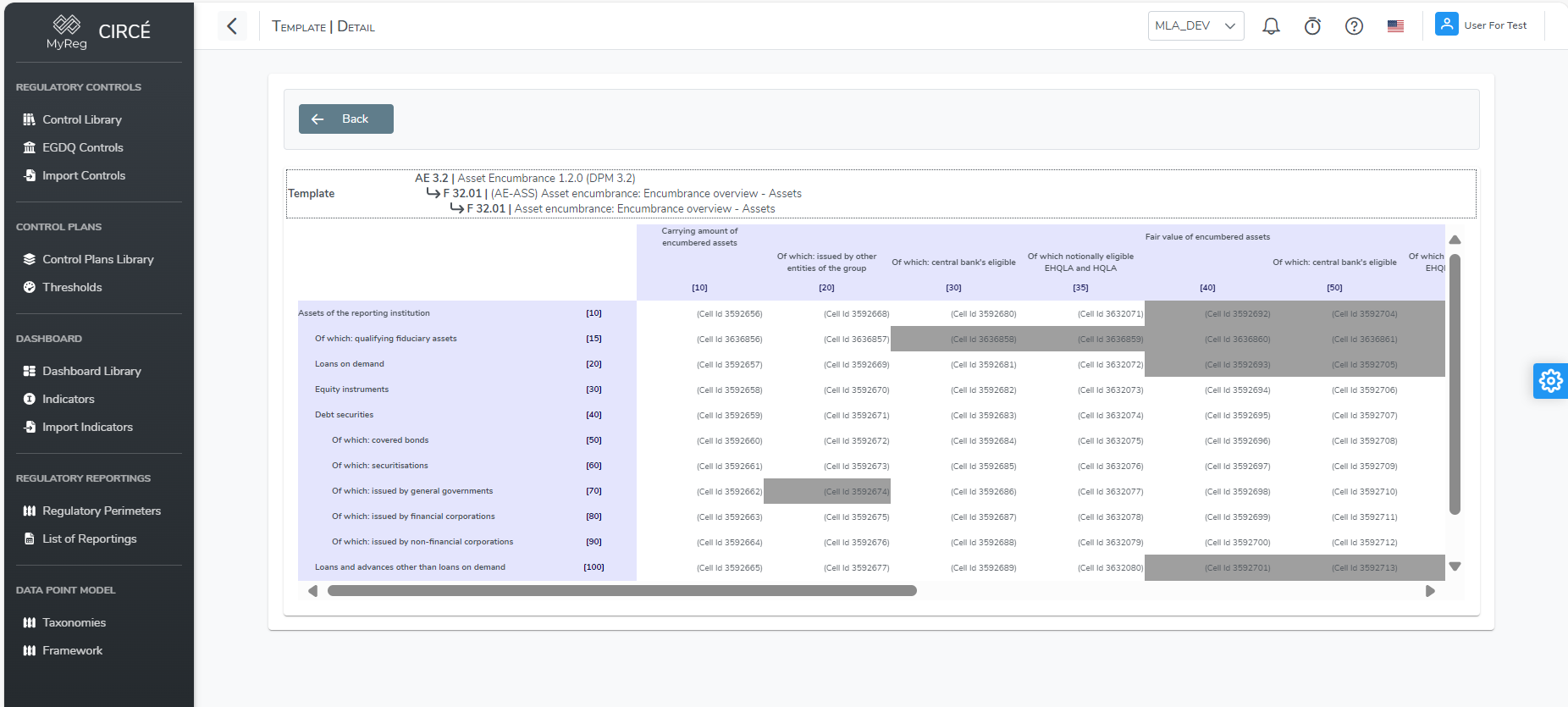
You can click on each cell to display more information 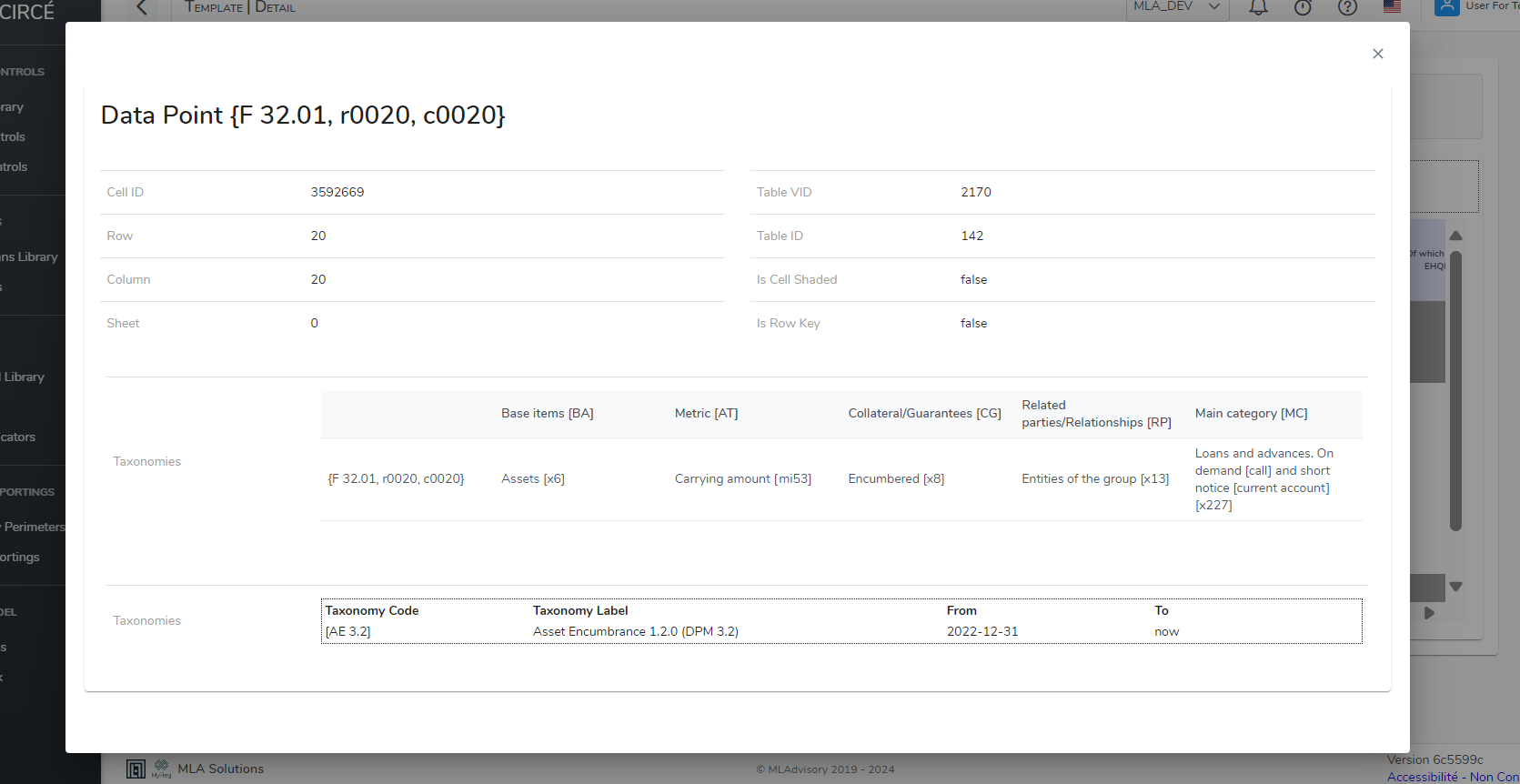
Frameworks
Frameworks page will display all the reporting that are compatible with CIRCE. It is grouped by Code and for each code you have the label, the version and the date. It can be helpful if you have a Control that is valid in previous taxonomy and you don't know at which date it was valid.