The application’s screens
These pages describe each screen of the application, one page per menu entry, in the order of a usual work cycle. The video tutorials sit at the top of the pages they illustrate.
- Perimeters and reporting files: load, explore, compare and export your DPM reportings.
- RUBA reportings: the ACPR national taxonomy, uploaded and compared like DPM reportings.
- AnaCredit*: upload AnaCredit files, build a summary, compare it with FINREP and browse the AnaCredit controls.
- Pillar 3 workbooks*: generate the Pillar 3 disclosure workbook from your declarations.
- EBA stress test and STE for SREP*: load and read the EBA stress test workbooks, and control the ECB STE templates.
- Controls: create, import and export your controls, and browse the published libraries: EGDQ-XL and VR-XL, and their legacy EGDQ and Validation Rules layouts.
- Analytical controls: describe the breakdowns of a template and track their stability in the analytical review.
- Control plans: group controls, run a plan and analyse its results.
- Thresholds: set the tolerance applied to the controls at run time.
- Indicators and dashboards: track indicators over time and review the results.
- Dashboard templates: fill an Excel workbook with the values of your indicators.
- Taxonomies and frameworks: navigate the data point model.
- Document library*: index and search regulatory documents.
- Public data*: explore and download the public data of the ECB and the EBA.
* only if the corresponding module is enabled.
Actions common to all lists
Most lists work the same way:
Refresh reloads the list.
New opens the creation form.
The action menu (⋮) on the right of each row offers View, Edit, Delete, and Permissions if the Teams module is enabled.
The checkboxes enable the toolbar’s bulk actions, for example Delete, Export or Permissions. The header checkbox selects the displayed page.
In forms, Save is only active when all mandatory fields are filled in. Back or Cancel closes the form without saving.
The longest lists, those of the published libraries (EGDQ, Validation rules, EGDQ-XL, VR-XL) and of the reportings, have a filter bar: the search applies as you type, the Filters button opens a dialog whose Show n results button applies the choices, the applied filters appear as chips under the bar, and the eraser clears everything. The other lists keep their inline filters.
Tags are created by typing a text and then pressing Enter. In lists, the pencil icon next to the tags lets you edit them without opening the object. The Tags filter keeps the objects that carry at least one of the chosen tags.
Every deletion asks for confirmation.
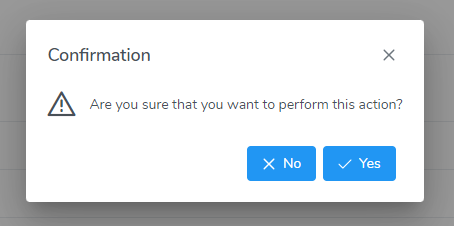
Deletion confirmation A bulk deletion silently skips objects that are still in use: a control included in a plan, a plan that has results, a perimeter that contains files, etc. The other objects are deleted. A single deletion of such objects is refused with a message.
During a background computation (statuses, indexing), the list remains usable and updates itself. A message at the top of the list shows the progress.