Controls
The Controls & Indicators › Control library menu opens a single page, which brings together your controls and the published libraries. The Control nature selector, at the top of the page, switches from one list to another:
- Custom: the controls written by your team;
- Analytical Review: the analytical controls;
- EGDQ: the ECB data quality checks, in DPM-XL format;
- Validation Rules: the EBA validation rules, in DPM-XL format;
- AnaCredit: the AnaCredit controls, if the module is enabled.
The nature shown is framed in green. For EGDQ and Validation Rules, a Format switch chooses between the DPM-XL format and the legacy Legacy layout, marked deprecated (see EGDQ controls and validation rules).
See the concepts.
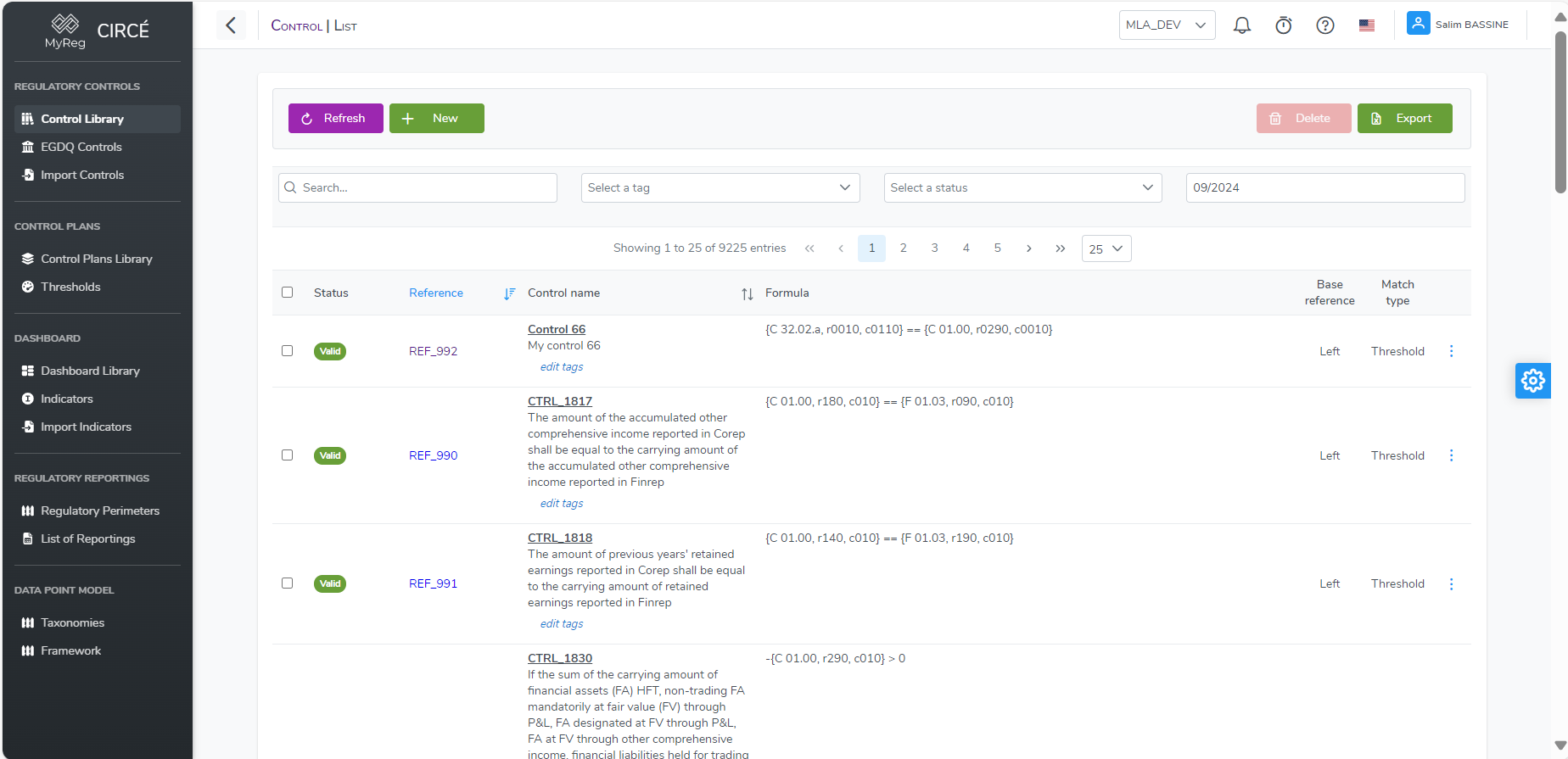
All these lists share the same layout:
- the nature selector;
- a header with the title, the number of controls and the page actions;
- a filter bar;
- pagination at the top of the list, with a choice of the number of rows (5, 10, 25, 50, 100 or 200), and a second one at the bottom of long lists.
Custom controls
The control list
The header offers Import (.xlsx), Export all and New control.
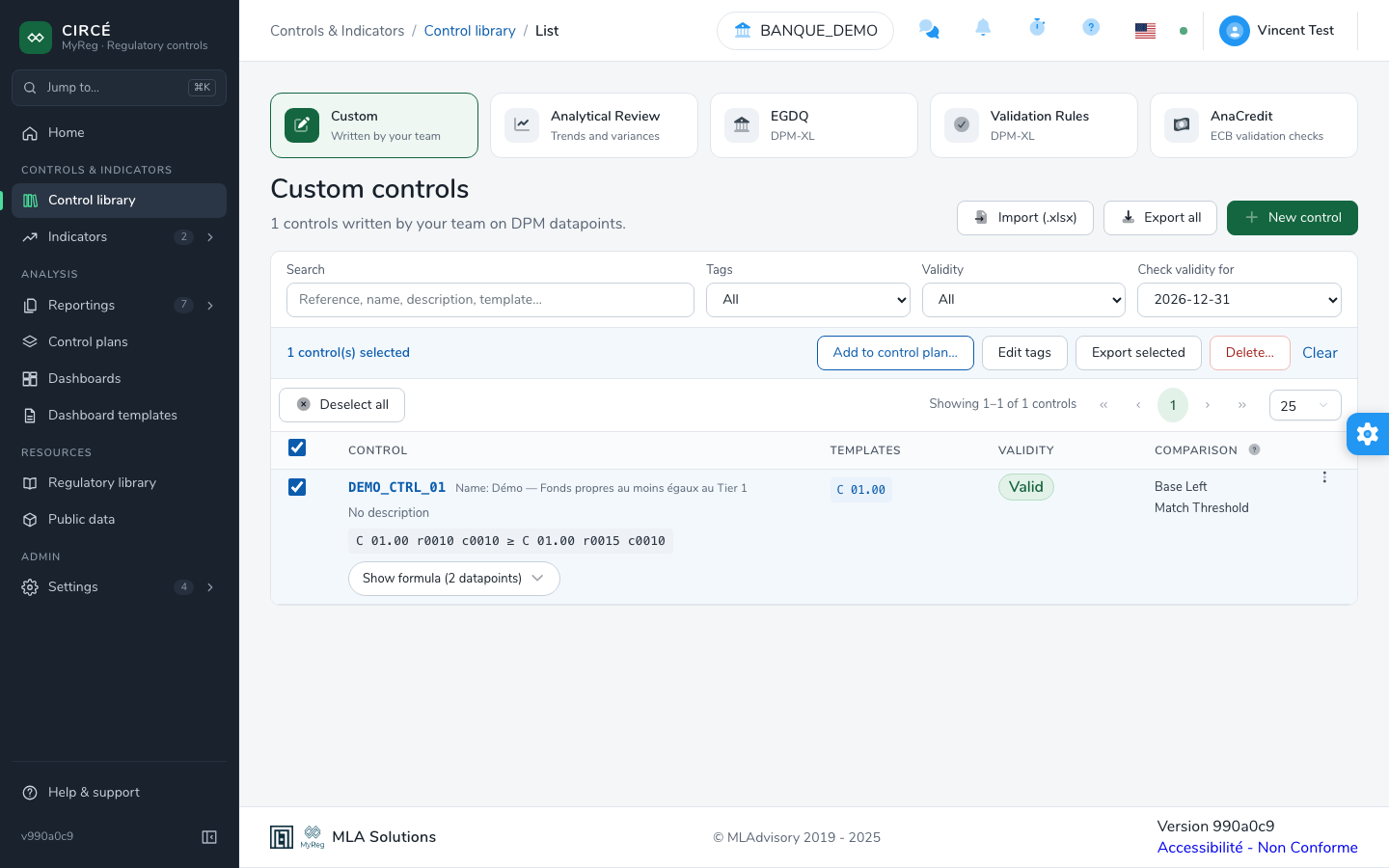
For each control, the list shows:
- Control:
- the reference, which opens the control, and the name;
- the description;
- a summary of the formula: the comparison, or the templates used;
- the Show formula (n datapoints) button, which expands the formula term by term, with the Copy and Edit control buttons;
- the tags.
- Templates: the templates read by the formula.
- Validity: the control’s status, as a badge: Valid, Invalid (with the reason), Ambiguous, Incomplete or Valid in a previous taxonomy.
- Comparison: the base (Left or Right) and the match type (Exact or Threshold). The help icon in the header recalls their meaning.
- the ⋯ menu: Edit, Edit tags, Add to control plan, Export, Permissions (if teams are enabled) and Delete.
The available filters are:
- Search: reference, name, description, template…;
- Tags: one tag;
- Validity: All, Valid, Invalid or Not checked yet. Invalid also includes the Ambiguous, Incomplete and Valid in a previous taxonomy statuses;
- Check validity for: the quarter end for which statuses are displayed, from 8 quarters back to 1 quarter ahead. By default, this is the end of the current quarter.
The filters are kept in the page address. When no control matches them, Clear filters resets them.
When statuses are not yet known for the selected date, they are computed in the background:
- The affected controls show the Checking… badge.
- A “Checking validity against the … taxonomy: x of y” line shows the progress.
- You can keep working: statuses fill in on their own.
- During this computation, exports are disabled.
Selecting controls
Check controls one by one, or check the header box to select the displayed page. The Select all (N) button selects every control that matches the filters, across all pages. It then becomes Deselect all.
As soon as a control is selected, a bulk action bar appears:
- Add to control plan…;
- Edit tags;
- Export selected;
- Permissions, if teams are enabled;
- Delete…;
- Clear.
How to create a new control
On the list page, click New control. The page is filled in four steps, top to bottom, with the At a glance panel on the right.
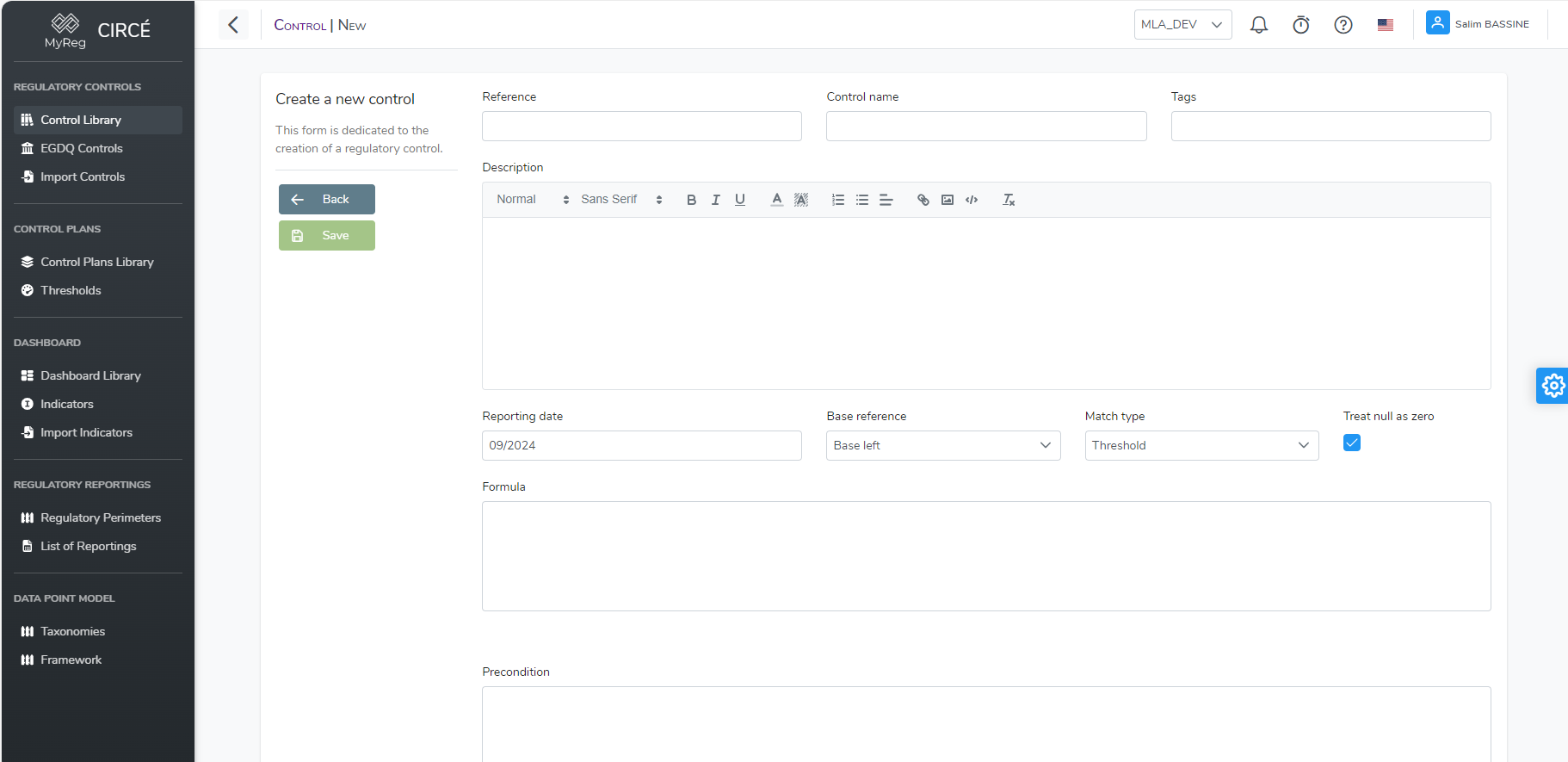
1. Identity. How the control is found in libraries and control plans.
| Field | Rule |
|---|---|
| Reference | Required and unique, 200 characters at most. A message immediately flags a reference that is already in use, including in another team. |
| Control name | Required. |
| Tags | Optional: type a tag and press Enter. |
2. Check. The rule every reporting must satisfy.
| Field | Rule |
|---|---|
| Formula | Required. See the control grammar. |
| Dictionary at | The month whose DPM dictionary is used to check the formula while you type. Empty (Today), it is today’s dictionary. This field is not saved. |
| Assisted / Plain text | The formula input mode (see below), Plain text by default. The choice is remembered on this browser. |
| Min release and Max release | The window of DPM 2 releases the control applies to, bounds included (see below). open means no bound. The min release must not come after the max release. |
| Base reference | Base left (default) or Base right: the member the relative difference is measured against. |
| Match type | Threshold (default): the difference is graded pass, warning or fail by the plan’s thresholds. Exact: any difference between the two sides fails. |
3. Only when. Optional. Add a precondition opens a second editor: the control runs only where the precondition holds. The precondition has its own base (Base left by default) and its own match type (Exact by default). The bin removes it. Without a precondition, the control applies to every reporting.
4. Description. Optional: context for whoever reviews a failing result.
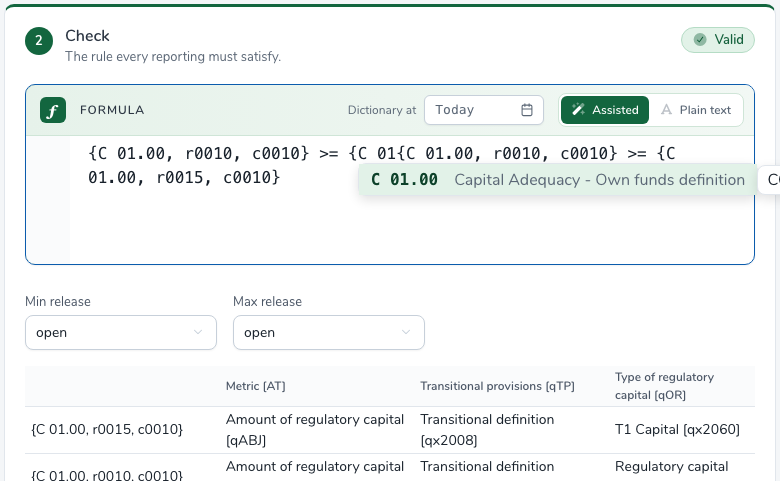
Assisted mode. The editor suggests templates, rows, columns and sheets as you type, read from the DPM 2 dictionary at the chosen date, or from the control’s max release when one is set. Type { and the first characters: the list opens, Enter takes the suggestion and the next separator is added. Ctrl+Space reopens the list.
Plain text mode. A plain text field, without suggestions, handy for pasting a formula.
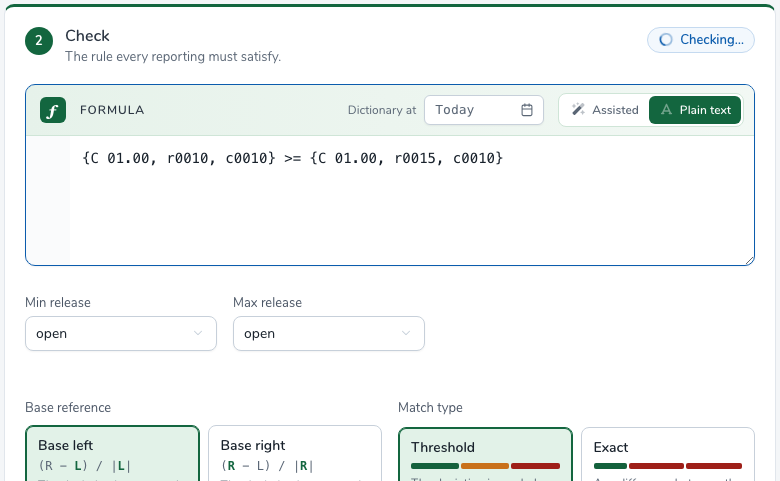
The check. The formula is checked as soon as you leave the editor. The pill at the top of the card reads Checking…, Valid, Several cells match or n to fix.
- In assisted mode, the spot of each error is underlined, in red or in orange, and its message shows on hover.
- Below the editor, the The formula needs a fix box explains each problem in plain words: line and column, the excerpt of the formula with the spot marked, what was Expected there, a hint when there is one (close the cell with
}, write what comes after an operator…) and the candidate cells (Did you mean). Parser message gives the raw error text. - An ambiguous coordinate is flagged by “Warning : there are multiple possible values for some coordinates within the formula”, and the table of used cells lists the candidates.
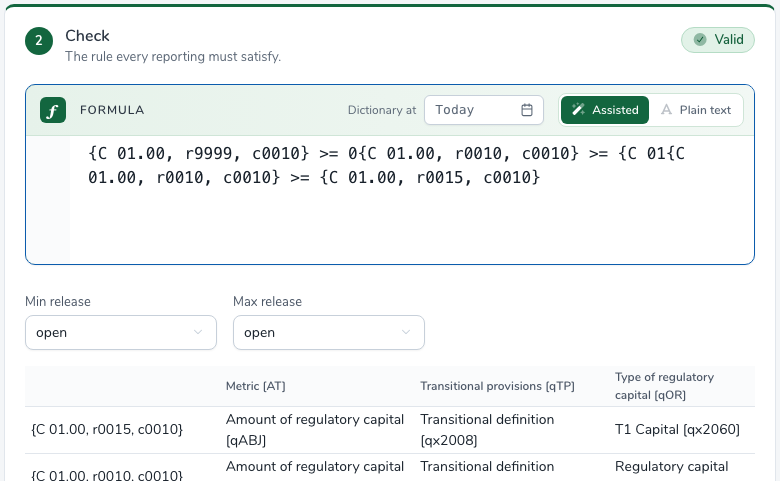
The release window. A control written for one taxonomy release may make no sense in another: its cells change or disappear. Min release and Max release restrict the control to the chosen DPM 2 releases, compared by family: 4.2.1 counts as 4.2. On a reporting whose release is outside the window, the control is not evaluated: its result is Not applicable. Its validity status is not computed either for the dates the window leaves out. By default both bounds are open: the control applies to every release.

At a glance. The right-hand panel sums the control up as you type: the reference, the name, the tags, the formula, and four points to meet, a unique reference, a name, a valid formula, and the precondition or “Applies to every reporting”. The meter fills with them.
The Grammar cheat sheet, below the panel, recalls how a cell is written and the operators. Full grammar, like the Help button of the header, opens the Control grammar page of this manual in the Online Help window.
Click Save to create the control. The button is only enabled once the reference, name and formula are filled in and the release window is consistent. An incorrect formula does not prevent saving: the control then gets the Not valid status. Cancel returns to the list without saving.
How to view a control
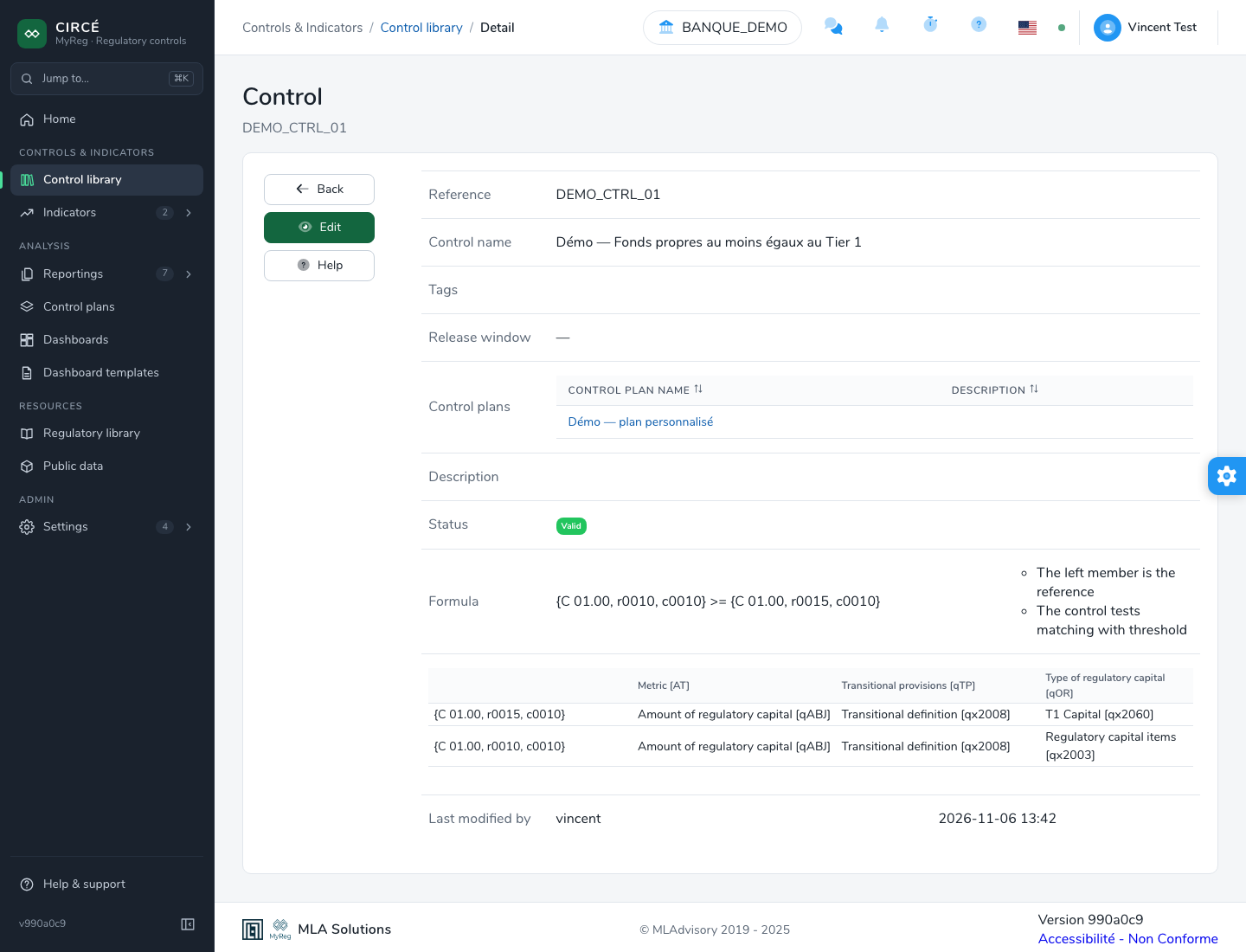
Click a control’s reference. The detail page shows:
- its reference, name, tags and Release window: “4.2 → open”, or “—” without a window;
- the list of Control plans that use this control;
- its description and status;
- the formula and the precondition, with syntax highlighting, with their base and match type. Hover over a coordinate to highlight the corresponding cell in the table of used cells. If the formula is incorrect, the The formula needs a fix box explains the problem as in the form;
- the author and the date of the last change.
The Back, Edit and Help (the control grammar) buttons are on the left.
How to edit a control
Open a control and click Edit. On the list page, use the Edit entry of the ⋯ menu, or the Edit control icon of the expanded formula.
The Edit control page opens, the same as the creation page. Make your changes, then click Save.
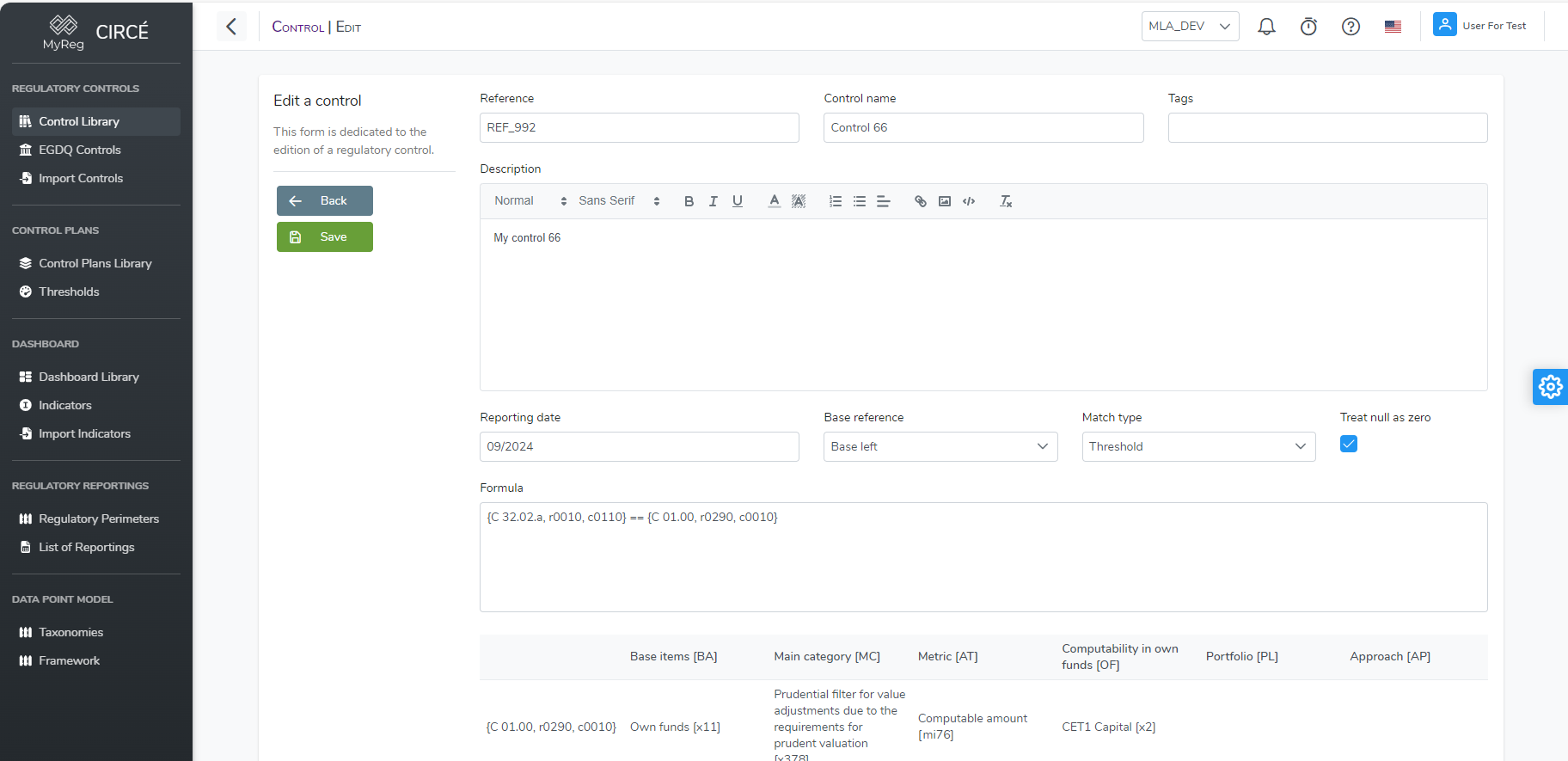
The Cancel button returns to the previous page without saving your changes. Changing the formula triggers a new status computation. The change applies to every control plan that uses this control, but does not alter results already produced.
How to edit tags
Use Edit tags in a control’s ⋯ menu, or in the bulk action bar. Type a tag and press Enter, then click Save.
- For a single control, the list you type replaces its tags.
- For several controls, the tags you type are added to each control’s own tags.
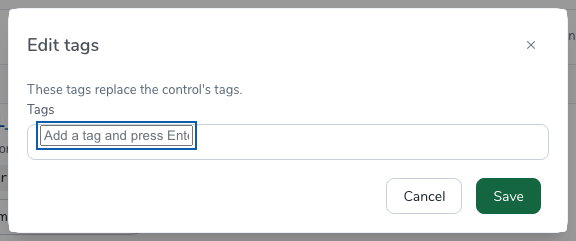
How to add controls to a control plan
Use Add to control plan in a control’s ⋯ menu, or Add to control plan… in the bulk action bar. Choose an existing control plan, then click Add. Controls already in the plan stay as they are.
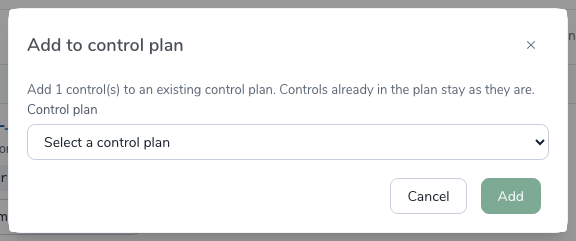
How to delete one or more controls
On the list page, use the Delete entry of a control’s ⋯ menu.
A confirmation dialog lists the references of the controls to delete.
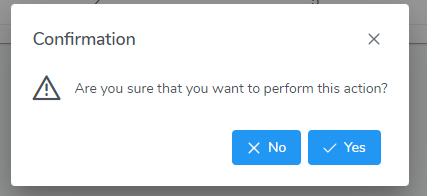
To delete several controls at once, select them, then click Delete… in the bulk action bar.
A control used in one or more control plans cannot be deleted.
Remove it from those plans first. You do not need to delete the results of the plans that used it.
During a bulk deletion, controls that are still in use are kept without any message.
How to export controls to an Excel file
Three buttons export controls:
- Export all, in the header: the controls matching the Tags, Validity and Check validity for filters. The Search filter is not applied to the export.
- Export selected, in the bulk action bar: the selected controls. Use Select all to select every filtered control.
- Export, in the ⋯ menu: that single control.
The file is named yyyy_MM_dd_HH_mm_ss_controls.xlsx. It contains:
- the columns of the import template;
- the status of each control;
- the references of the control plans that use it.
The table header is frozen and filterable, and the columns are sized to their content.

This file can be re-imported as is: the Status and control plan columns are ignored on import.
How to import controls
On the list page, click Import (.xlsx) to open the Import controls page.
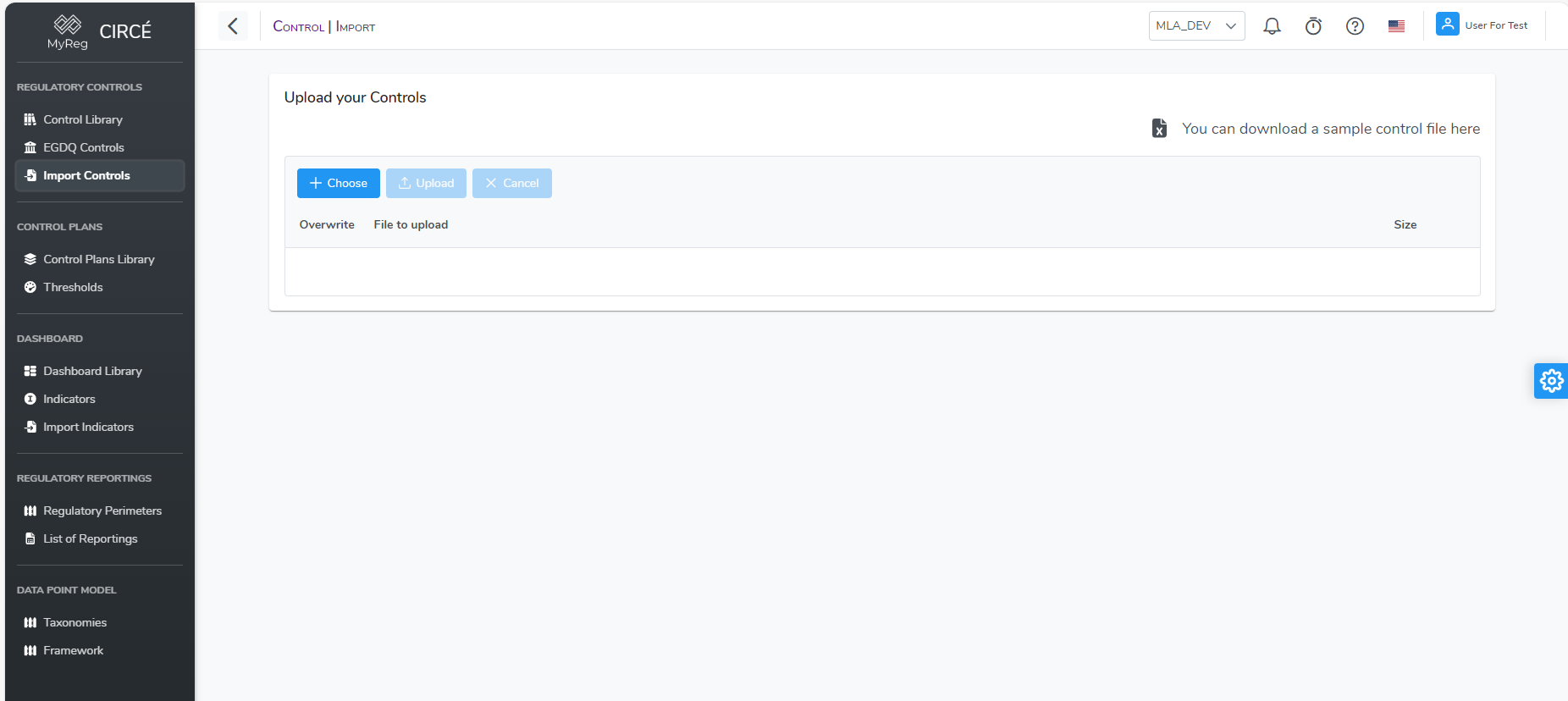
The Download model link provides the Excel template. You can also start from an exported file.
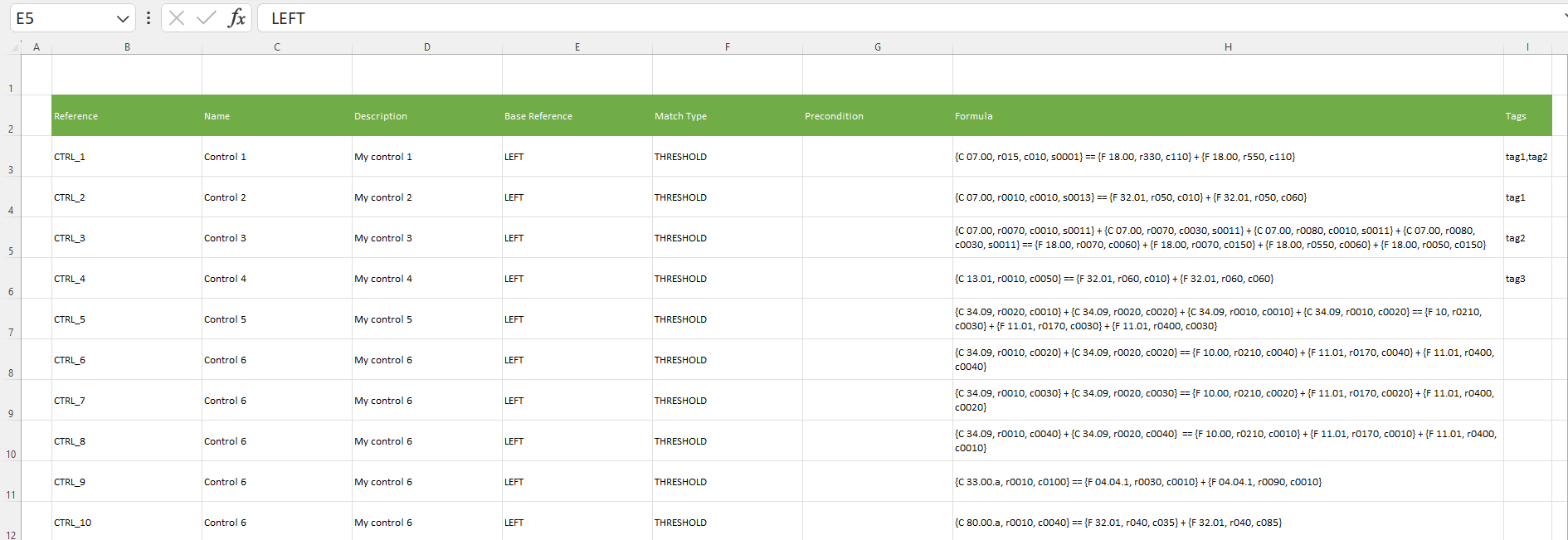
The file has the following columns:
| Column | Rule |
|---|---|
| Reference | Required. |
| Name | Required. |
| Formula | Required. |
| Base Reference | Required: LEFT or RIGHT. |
| Match Type | Required: THRESHOLD or EXACT. |
| Description | Optional. |
| Tags | Optional, comma-separated. |
| Precondition | Optional. |
| Precondition Base Reference | Optional. |
| Precondition Match Type | Optional. |
| Min release | Optional: the lower bound of the release window, for example 4.2. |
| Max release | Optional: the upper bound of the release window. |
If a required value is missing on a single row, the whole file is rejected and a message names the column at fault.
A row with an incorrect value, for example a base other than LEFT or RIGHT, is reported in the summary under References in error.
To load the file:
Click Choose and select the
.xlsor.xlsxfile. Cancel removes it.If needed, check Overwrite: controls whose reference already exists are then updated. Otherwise, they are skipped.
Click Upload.
The Control Import Summary then shows:
- the Controls imported;
- the Controls already imported or the Controls overwritten;
- the Controls in error and the References in error;
- the Execution Time.
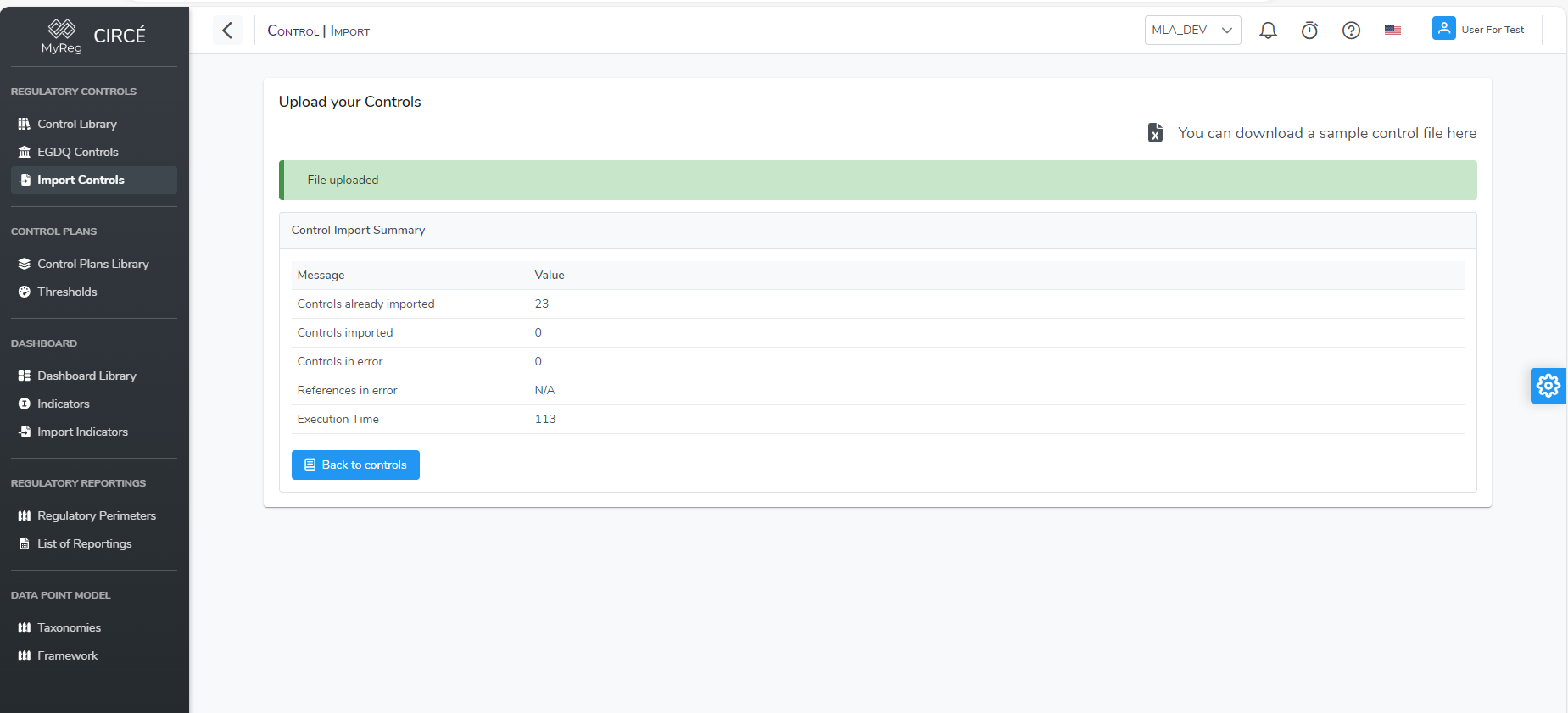
Back to controls returns to the list. The statuses of the imported controls are computed in the background.
EGDQ controls and validation rules
The EGDQ and Validation Rules natures give access to four published libraries, which share the same screen:
- EGDQ-XL controls: the ECB data quality checks, published in DPM-XL format;
- VR-XL controls: the EBA validation rules, published in DPM-XL format;
- EGDQ controls and Validation rules: the same lists in their legacy layout, converted into sub-controls.
They can be viewed but not modified.
The Format switch, in the header, moves from DPM-XL · EGDQ-XL (or DPM-XL · VR-XL) to Legacy, marked deprecated. The legacy libraries are deprecated: a Deprecated banner reminds that they are being replaced by EGDQ-XL and VR-XL, and its Open EGDQ-XL (or Open VR-XL) link returns to the DPM-XL library. They can still be used in control plans.
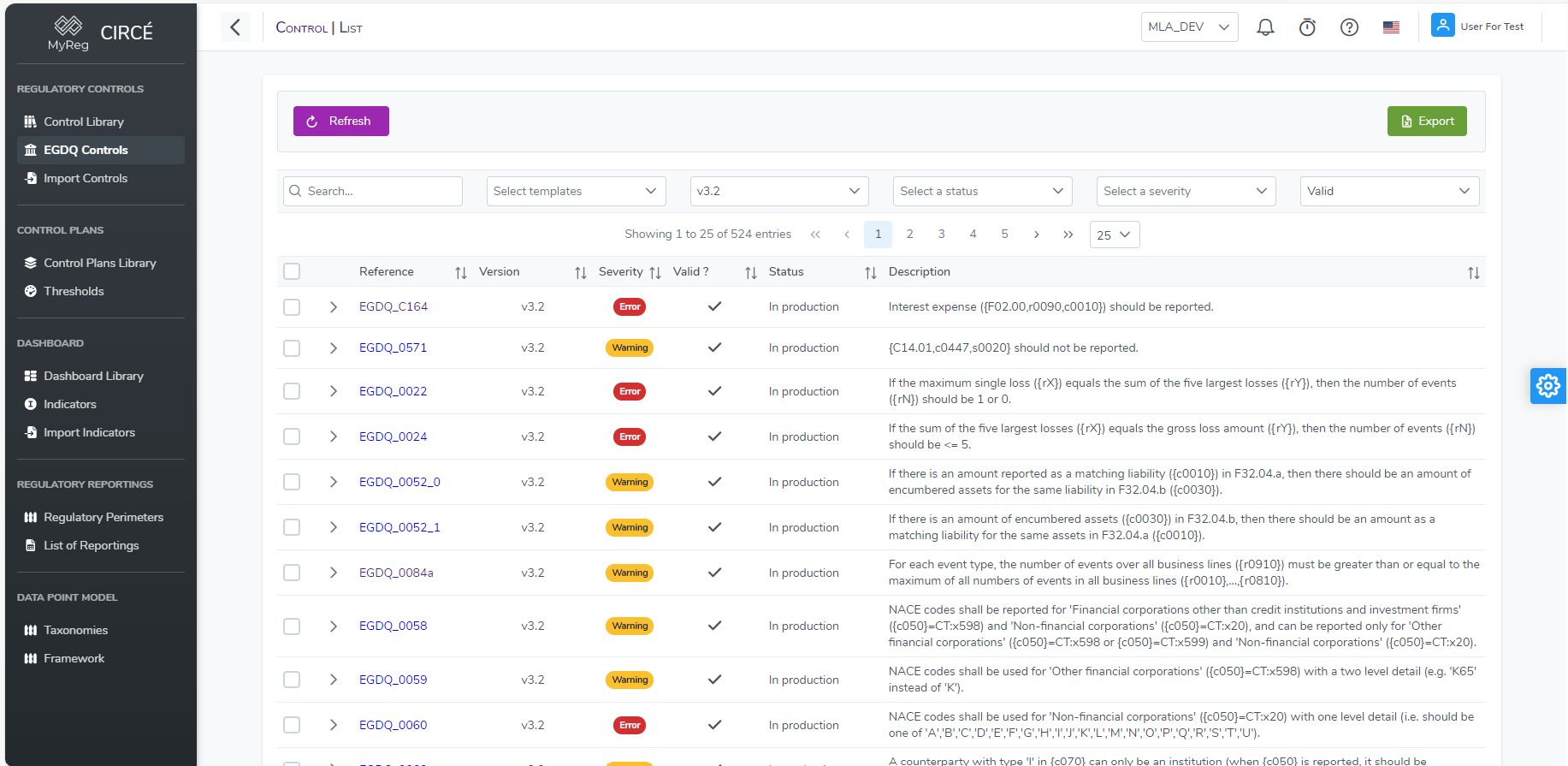
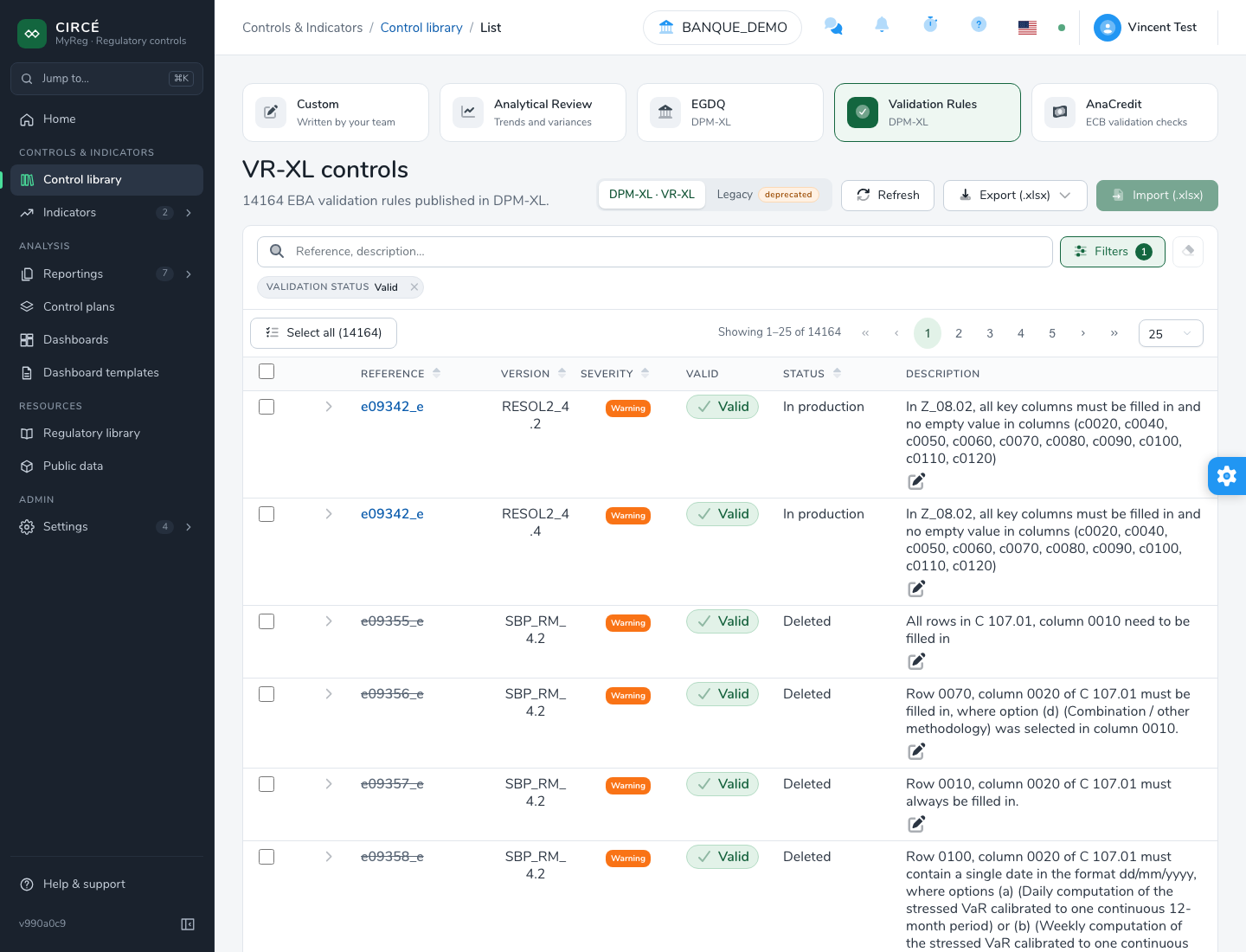
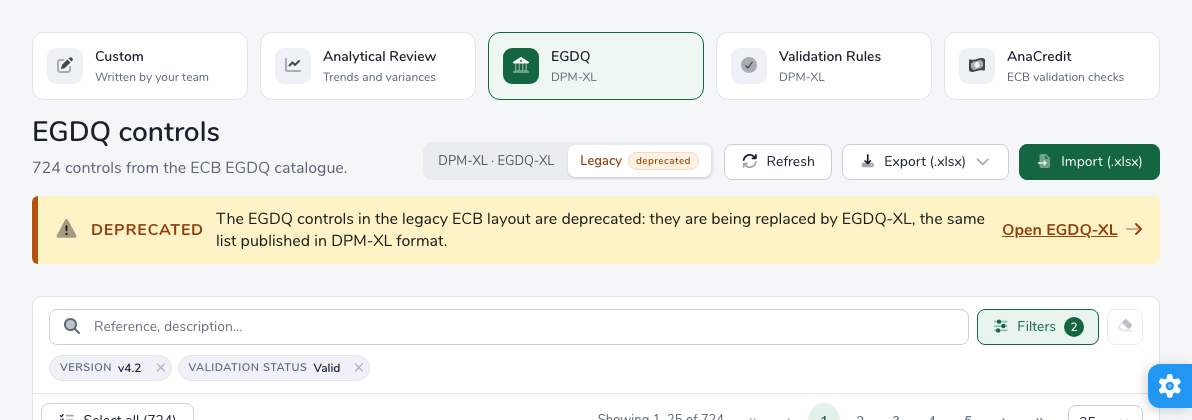
The header offers:
- Refresh;
- Export (.xlsx) (see Export);
- Import (.xlsx), to import tags (see Add tags). This button is disabled for EGDQ-XL and VR-XL.
Search and filter
The filter bar, at the top of the list, offers:
- the Search field (“Reference, description…”): it filters the list as you type;
- the Filters button, which opens the Filter the controls dialog. It carries the number of applied filters;
- the Clear all filters eraser, active as soon as the search or the filters differ from the defaults. It restores them.
The applied filters appear as chips under the bar, for example “Validation status · Valid”. The cross of a chip removes that filter only.
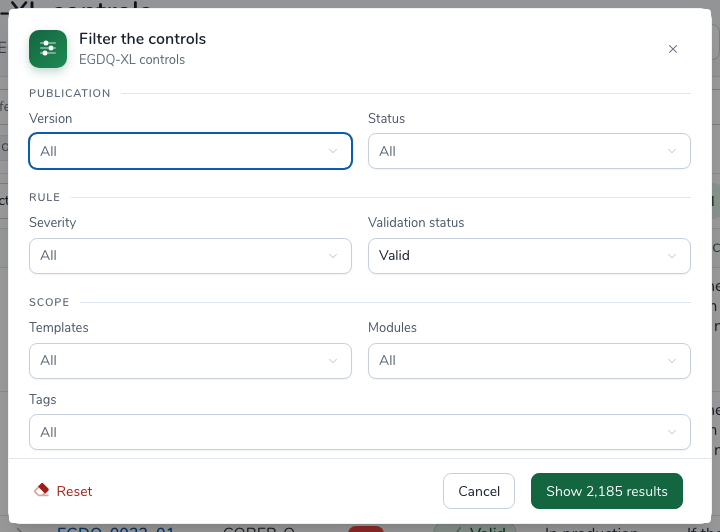
The Filter the controls dialog names the library concerned and groups the filters in three parts:
- Publication: Version and Status, the publication status (In production, Proposed, Deleted);
- Rule: Severity and Validation status (Valid or Invalid);
- Scope: Templates (the templates used), Modules and Tags.
Each filter accepts several values, and means All when empty. By default, the Validation status is Valid, and the Version is v4.2 for the legacy EGDQ and Validation rules libraries; the DPM-XL libraries have no preselected version.
The Show n results button tells, as you choose, how many controls match, and applies the filters. Reset puts the defaults back, to apply the same way. Cancel closes the dialog without changing anything.
When no control matches, the Clear filters button restores the default filters.
Each row shows the reference, version, severity, validity (Valid or Invalid), status, description and tags. The Reference, Version, Severity and Status headers sort the list. The arrow at the start of the row expands the control’s details:
- precondition and formula;
- arithmetic approach;
- applicable modules;
- comments;
- templates, tables, rows, columns and sheets concerned.
A control is valid when the platform can run it:
- EGDQ and Validation rules: its formula could be converted into at least one correct sub-control;
- EGDQ-XL and VR-XL: its formula and, if it has one, its precondition are correct DPM-XL expressions.
The checkboxes and Select all (N) are mainly used to build a control plan (see How to create a new control plan).
Control indexing
The platform prepares these libraries in the background: at startup, every night, or on demand from the Settings. During this indexing:
- the list shows “Indexing controls: n%”;
- pages load more slowly;
- the validity filter does not yet take non-indexed controls into account.
The list reloads itself when indexing is complete.
View a control
Click a control’s reference to open its details.
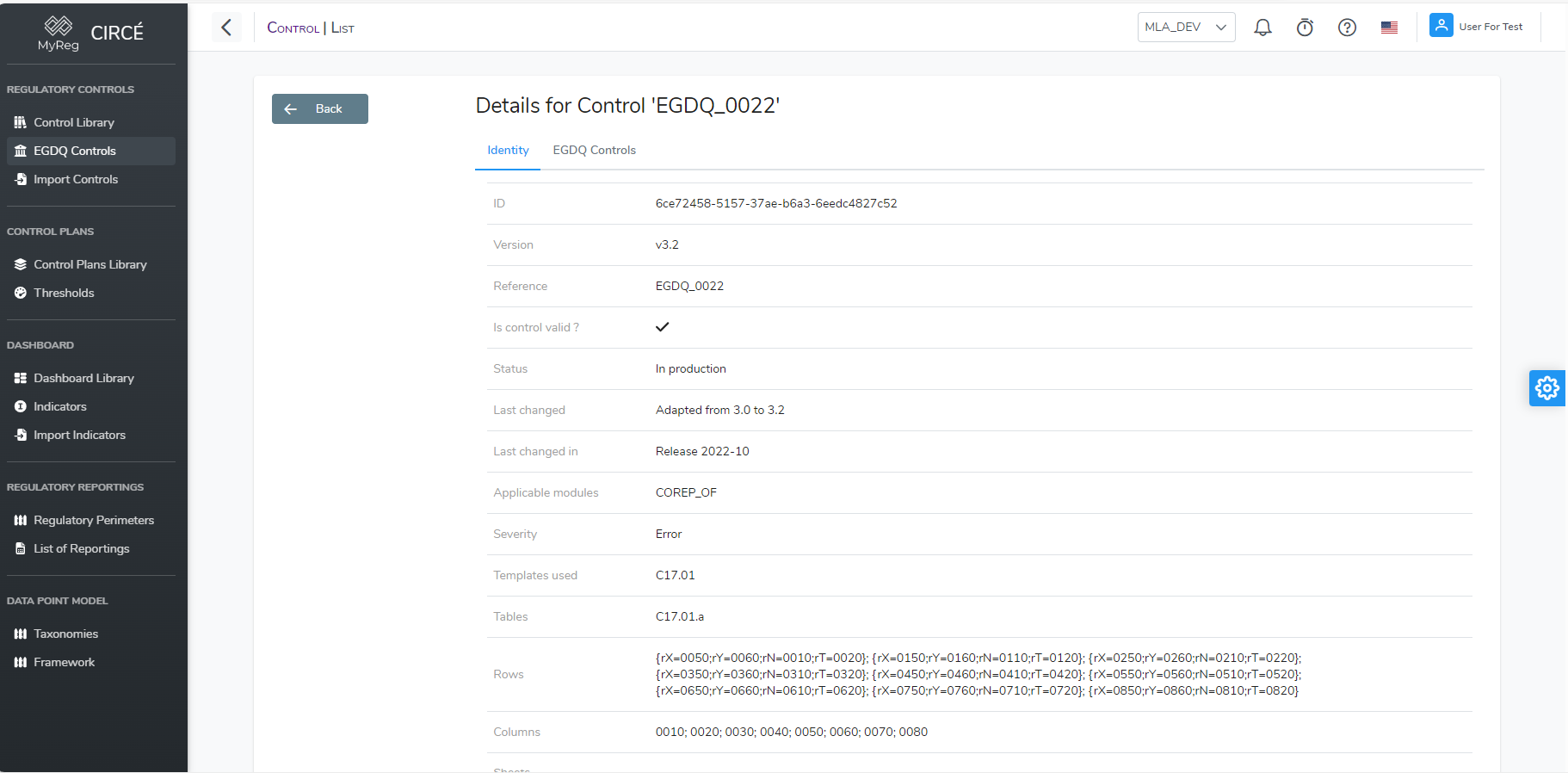
The page has two tabs:
- Identity: all the published information.
- This information is the library, version, status, modules, severity, templates, rows and columns, formula, precondition and comments.
- The tab also shows “Is control valid?”.
- Controls: for EGDQ and Validation rules, the sub-controls generated from the published control, written in the platform grammar. This tab is disabled if the control is not valid.
An EGDQ-XL or VR-XL control is run as published, without any sub-control. See Reading a DPM-XL rule.
Version run and validity period
When a control plan is run:
- An EGDQ control runs in the taxonomy version of the controlled reporting, if the control exists in that version. For example, a COREP 4.0 at 31/12/2025 is checked with version v4.0, even if the plan holds version v4.2. Otherwise, the plan’s version runs.
- An EGDQ control whose “Applicable until” date is before the reference date is not run. This is the case of the Bundesbank “request for information” controls discontinued on 30/03/2026.
- An EGDQ control with the “interval” arithmetic approach and one side missing gives No Data.
Export
The Export (.xlsx) button offers:
| Choice | Content |
|---|---|
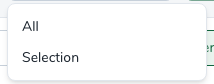
| All | The whole library. |
| Selection | The controls matching the current filters. Checked boxes have no effect on this export. |
| All (+details) and Selection (+details) | The same controls, with an extra Details sheet listing the generated sub-controls. These two choices are only offered for EGDQ and Validation rules in the legacy layout. |
The file holds a Controls sheet, including the “Applicable from” and “Applicable until” dates and the validity (Valid or Invalid). Its header is frozen and filterable.