EBA stress test and STE for SREP
This chapter describes two optional modules:
- the Stress test workbooks, for the templates of the EBA EU-wide stress test;
- STE for SREP, for the templates of the ECB Short-Term Exercise (STE) and their controls.
Each part only applies to installations where the corresponding module is enabled for your organisation. Otherwise, the menu entry does not appear.
Both pages are in the Analysis › Reportings menu. They work on a perimeter:
- loading or deleting a workbook, a package or a run requires the right to edit the perimeter;
- viewing and downloading requires the right to read the perimeter.
Stress test workbooks
This part only applies to installations where the Stress test module is enabled.
The Stress test workbooks page reads the EBA EU-wide stress test template workbooks cell by cell, to analyse them.
How to load a workbook
In the Load a workbook block:
- Choose the Perimeter.
- Drop the file in the Workbook (.xlsx) area, or click choose a file.
- Click Load. The message “Reading the workbook…” shows during the reading.
The workbook must keep the EBA Instructions sheet: its reference date, version and colour legend identify it.
- Only workbooks of the 2027 exercise are accepted. The exercise is the year after the reference date. A workbook of another exercise is refused with a message that names the exercise and the supported exercises.
- The same workbook can only be loaded once per perimeter: “This workbook is already loaded on this perimeter.”
The workbook list
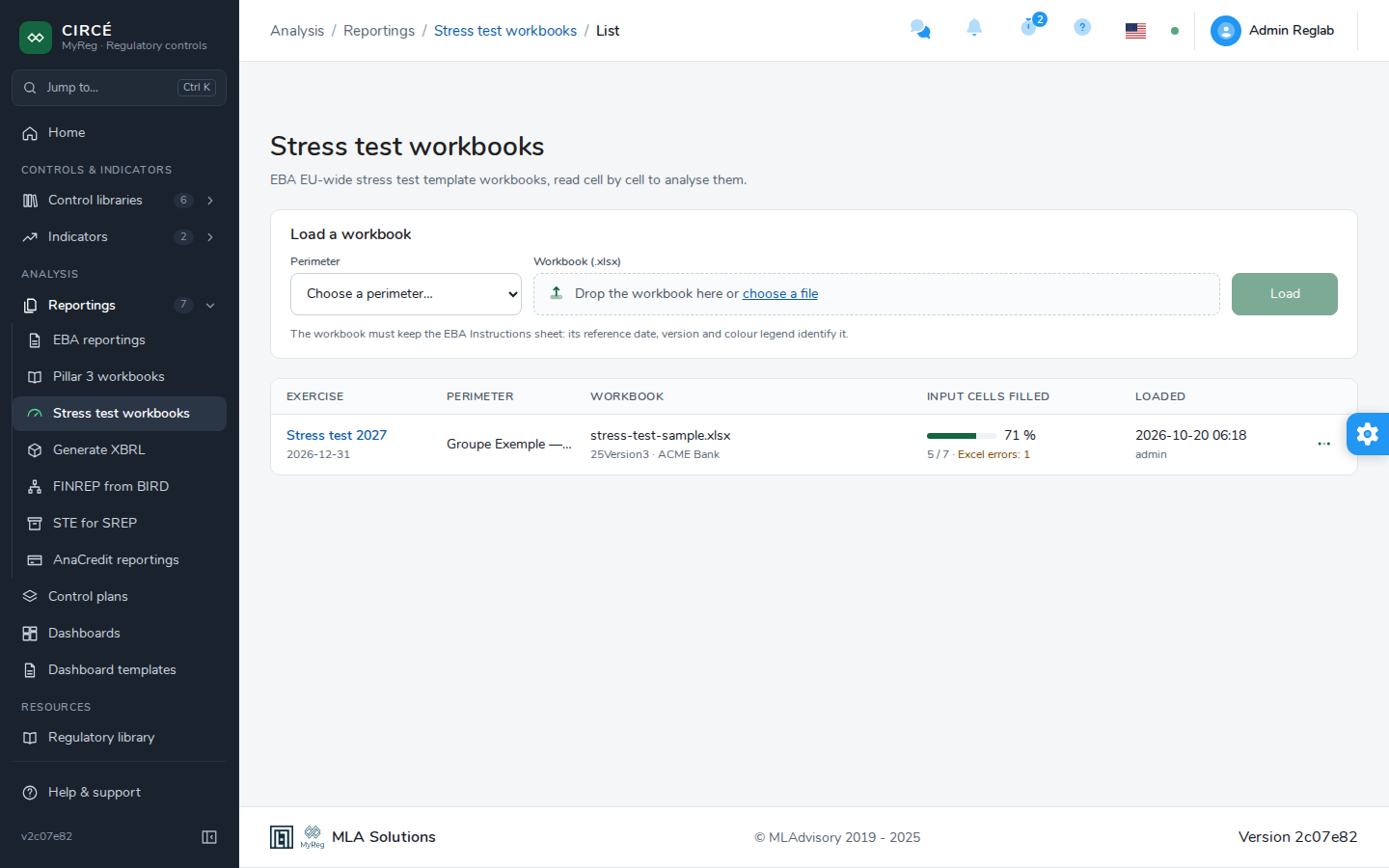
The list shows for each workbook:
- Exercise: “Stress test 2027”, which opens the details, and the reference date;
- Perimeter;
- Workbook: the file name, the template version and the bank, or “blank template”;
- Input cells filled: the share of input cells (white in the EBA legend) that hold a value, and the number of Excel errors. Some of these cells already carry EBA text, such as the COREP/FINREP references of the starting points;
- Loaded: the date and author of the upload.
The action menu (⋮) offers Details, Download the workbook and Delete. Deleting removes the workbook and everything read from it.
How to view a workbook
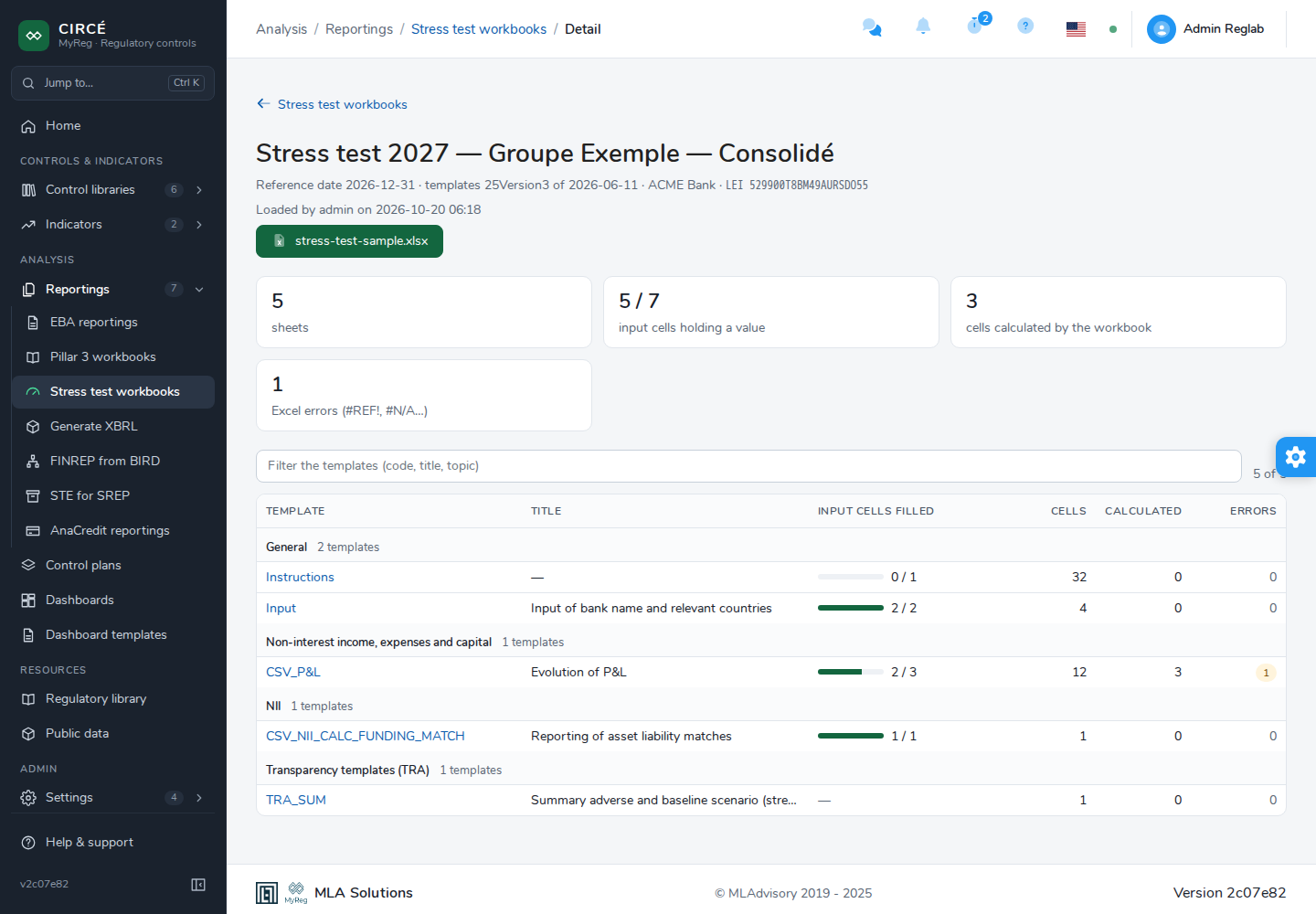
The details page recalls the reference date, the version and date of the templates, the bank and its LEI, and who loaded the workbook. The button that carries the file name downloads the workbook.
It then gives:
- the number of sheets;
- the input cells holding a value;
- the cells calculated by the workbook;
- the Excel errors (#REF!, #N/A…).
The template table is grouped by topic (General, Transparency templates (TRA), etc.). For each template, it shows its title, its input cells filled, its number of cells, of Calculated cells and of Errors. The Filter the templates (code, title, topic) field narrows the list.
If the Instructions sheet has no colour legend, a warning says that the cell kinds come from the colours of the 2027 draft templates.
How to read a template
Click a template’s code to open it in a dialog. It offers two views.
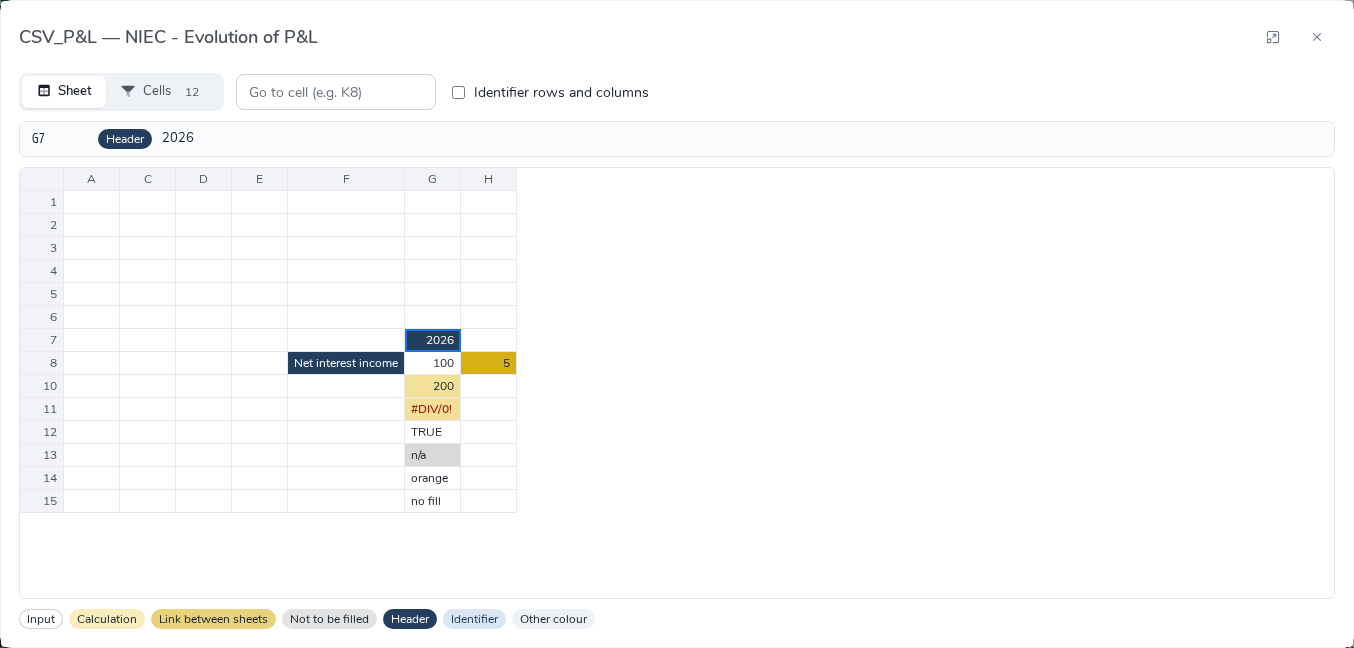
The Sheet view shows the template as in Excel:
- rows and columns are paged, by 60 rows and 26 columns, with the Previous and Next buttons;
- Go to cell (e.g. K8) moves to a cell;
- clicking a cell shows its address, its kind and its full value;
- the Identifier rows and columns checkbox shows the hidden rows and columns where the EBA templates repeat their labels for data extraction. They are left out by default;
- a legend recalls the colour of each cell kind.
The Cells view lists the cells with their address, kind, type and value. It is filtered by Kind, by address or value, and by the With a value only checkbox. Clicking an address shows it in the sheet.
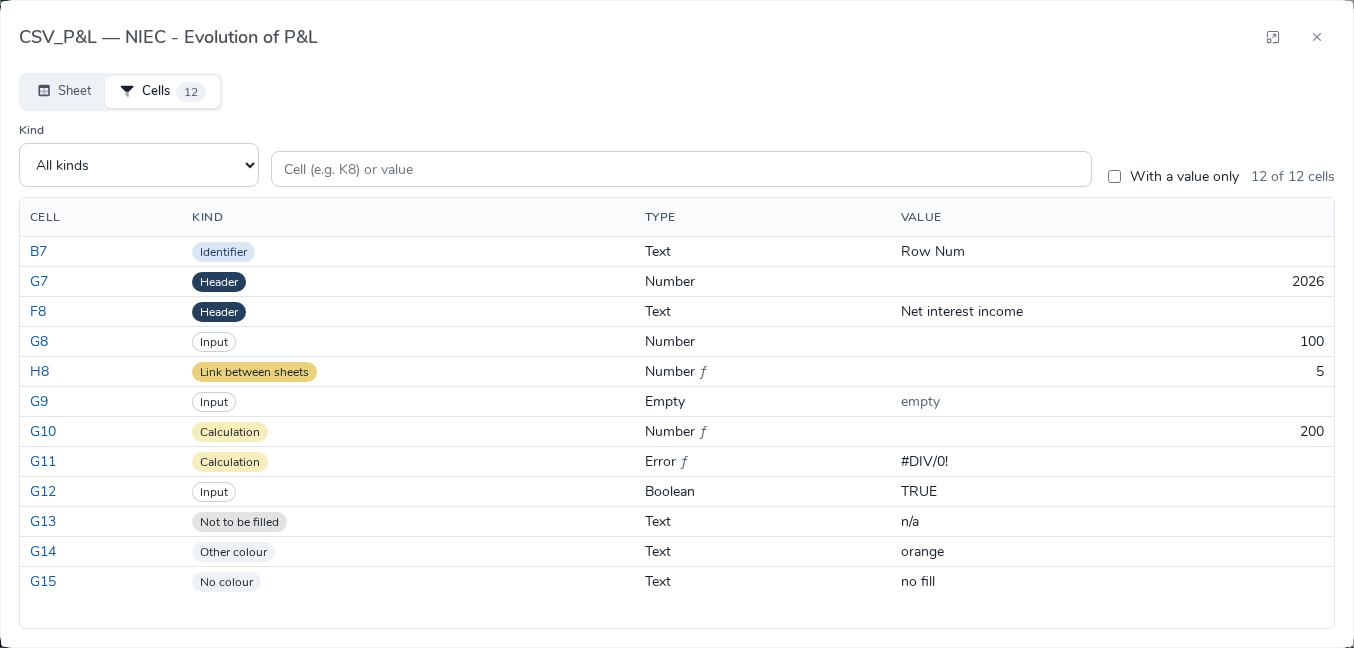
Each cell’s kind is deduced from its colour, using the legend of the Instructions sheet: Input, Calculation, Link between sheets, Centralised calculation, Prefilled parameter, Not to be filled, Header, Identifier.
Formulas are not recomputed: a calculated cell shows the value Excel last saved (ƒ sign).
STE for SREP
This part only applies to installations where the STE for SREP module is enabled.
The STE for SREP page loads the templates of the ECB short-term exercise, as the zip of the filled templates, then runs the ECB validation rules on them.
How to load a package
In the Load a package block:
- Choose the Perimeter.
- Drop the zip in the Package (.zip) area, or click choose a file.
- If needed, choose the Rules version. By default, it is the latest.
- Click Load. The message “Reading the templates…” shows during the reading.
The zip holds the ECB templates as they are filled (annex 1 and/or annex 3). Each file name starts with its template code, for example 01.1 - YYYY QX SREP Profitability (incl. PFE).xlsx.
- A template is recognised by the exact code that starts its name (
02,02.01and02.2are three different templates). The codes of the 2026 edition are recognised, as well as the 2025 codes 02.2, 13a and 15. - Files whose code is unknown stay in the package, but are not read.
- A single .xlsx file is refused: load the zip of the templates, not one of its files. A zip without any recognised template is also refused.
- The same zip can only be loaded once per perimeter: “This zip is already loaded on this perimeter.”
The identification block of each template is read: country, LEI, bank, reference date and level of consolidation.
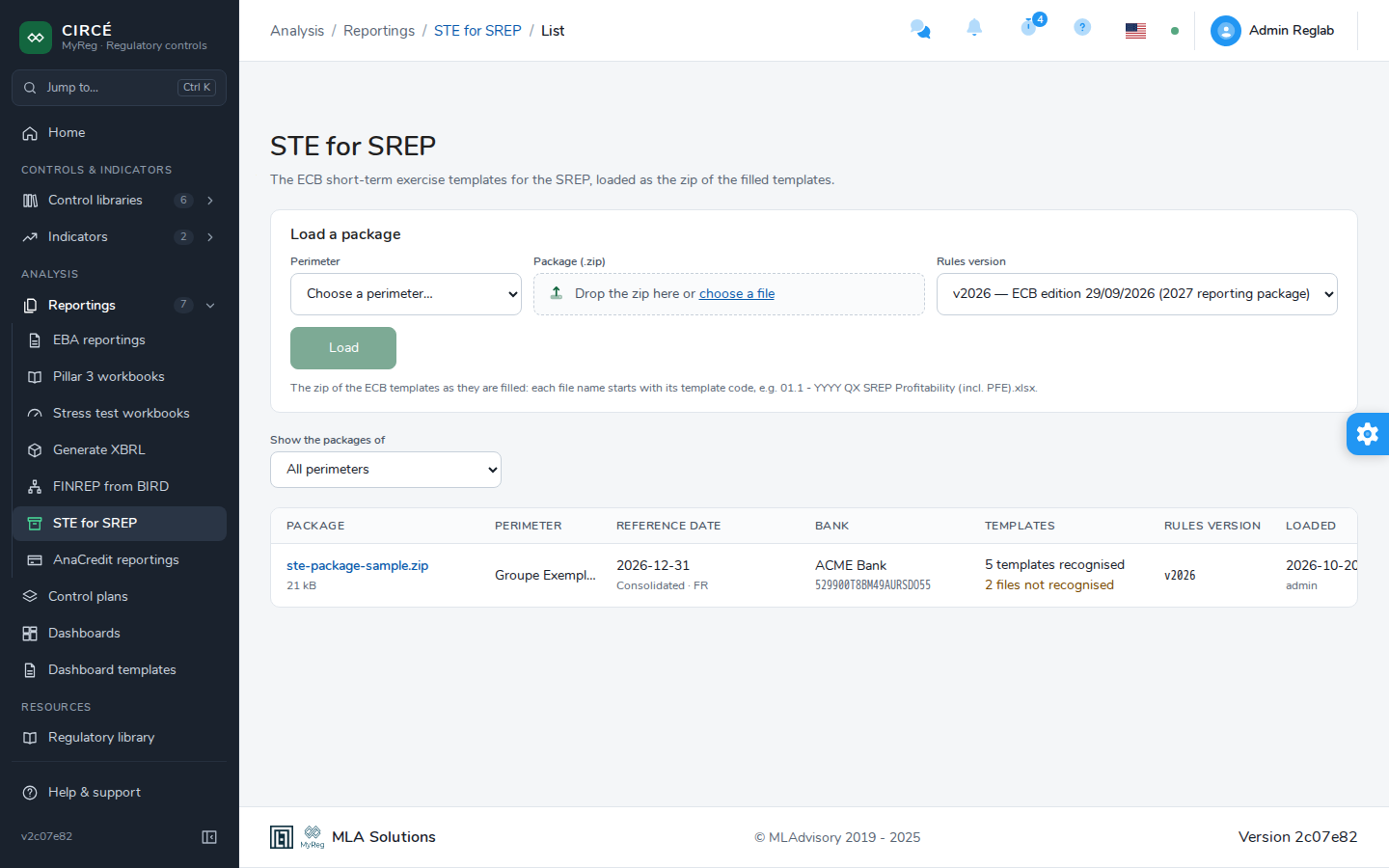
The package list
The list shows for each package:
- Package: the zip name, which opens the details;
- Perimeter;
- Reference date;
- Bank, with the consolidation and the LEI;
- Templates: the number of templates recognised and of files not recognised;
- Rules version, or “latest at first run” when the version is not set yet;
- Loaded: the date and author of the upload.
The Templates disagree marker flags templates that do not carry the same value for an identification field. The Show the packages of filter limits the list to one perimeter. The action menu (⋮) offers Details, Download the zip and Delete. Deleting a package also deletes its runs.
How to view a package
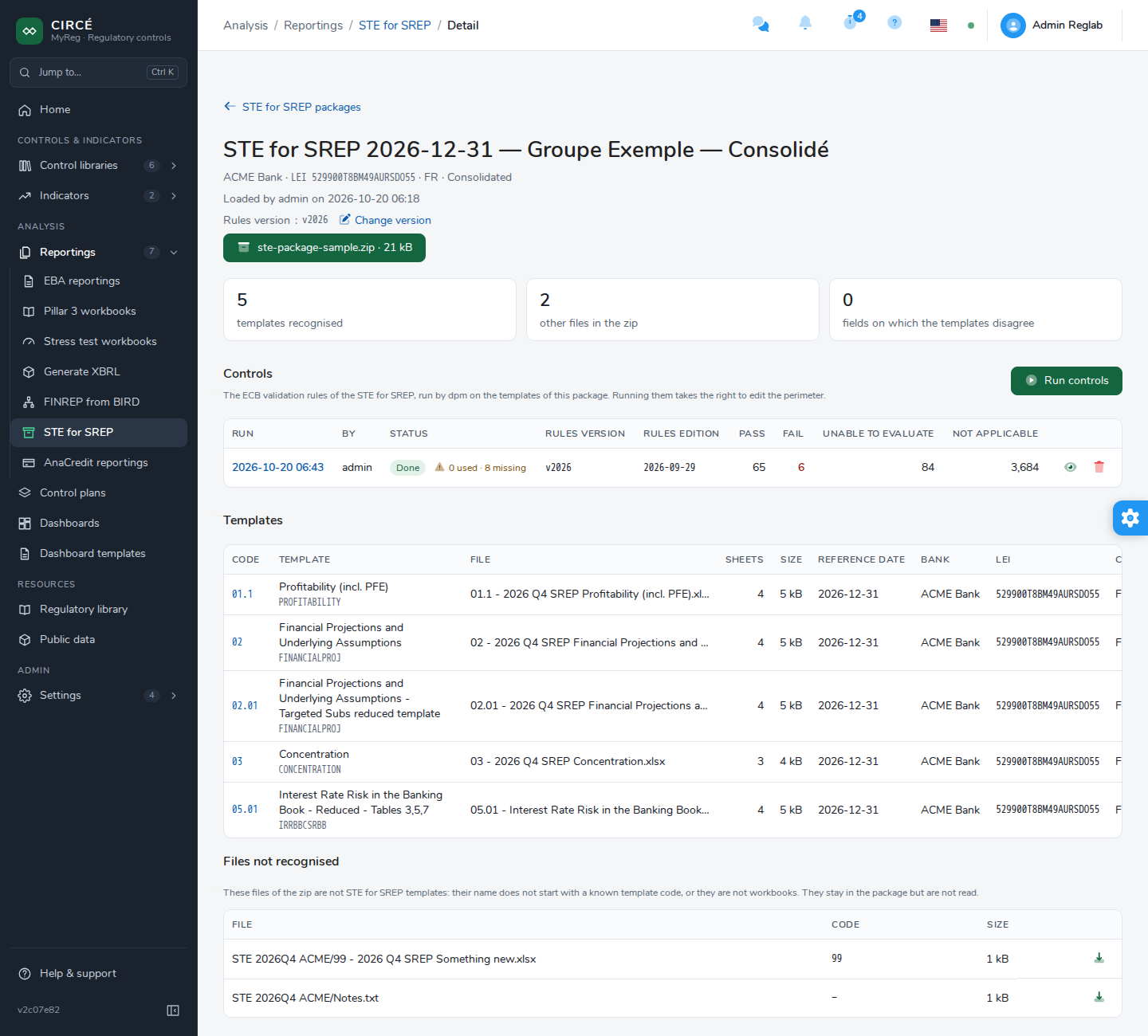
The details page recalls the reference date, the bank, its LEI, the consolidation and the Rules version.
- Change version chooses another version of the rules. The runs already made keep the version they used. The next run will use the chosen one.
- If the templates disagree on a field (reference date, bank, LEI, country, consolidation), a banner says so. The package leaves that field blank, and the values that differ are marked in the template table.
The Templates table shows for each template its code, label, file, number of sheets, size and identification fields. Each file can be downloaded. The Files not recognised table lists the other files of the zip.
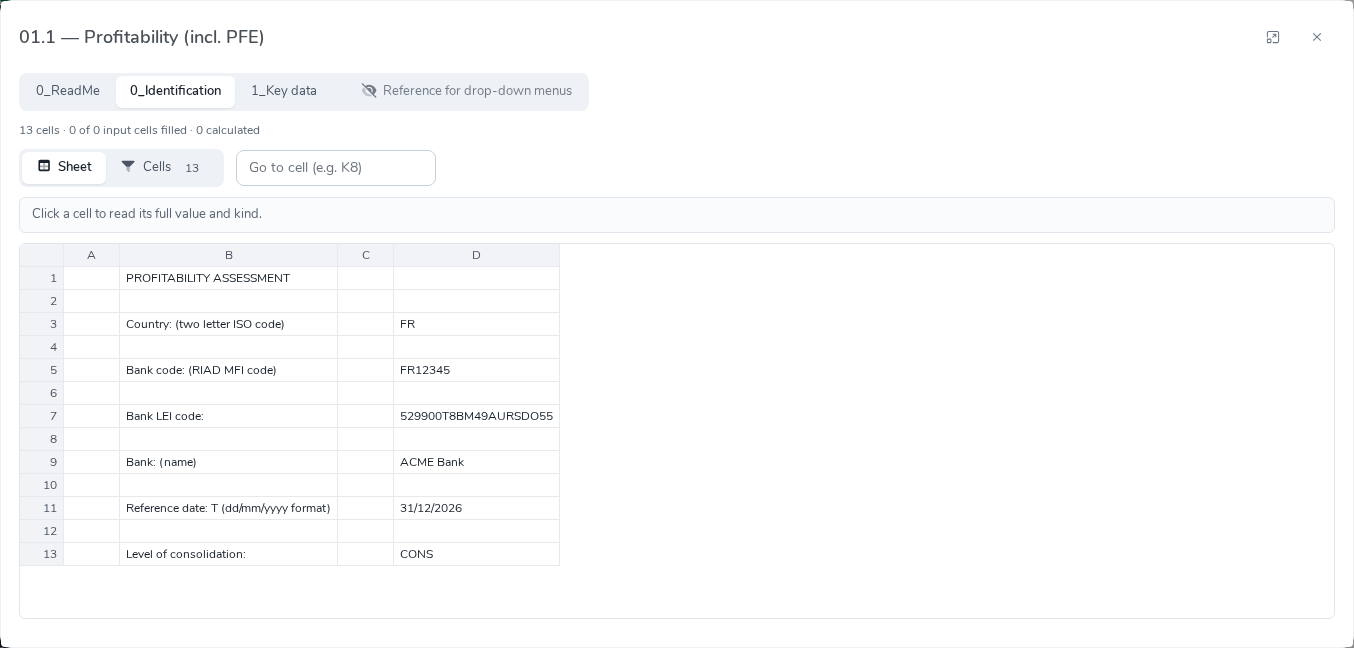
Click a template’s code to open it in a dialog:
- one tab per sheet, in workbook order. Hidden sheets (helper sheets) are marked with a crossed-out eye;
- for the chosen sheet: its number of cells, of input cells filled and of calculated cells;
- the Sheet and Cells views, as for a stress test template, with the workbook’s merged cells.
How to run the STE controls
In the package’s Controls section, click Run controls.
The ECB validation rules are run on the package’s templates, in the package’s rules version. The Cross module rules, which read COREP or FINREP amounts, take these amounts from the perimeter’s declarations. You have nothing to select. For each date read (T, the package’s reference date, and T-1, the previous reporting date), the application picks one declaration:
- of the same perimeter, processed and fully extracted;
- with the same consolidation (consolidated or individual) and the same LEI;
- the official declaration first, otherwise the latest.
The run history shows for each run:
- the date, the author and the status, Done or Failed;
- the version and edition of the rules;
- the number of rules Pass, Fail, Unable to evaluate and Not applicable;
- the declarations used and missing.
A refused or failed run stays visible with its error. Delete the run deletes the run and its results.
How to analyse the results of a run
Click the date of a run, or See the results.
The results page shows:
- the number of rules, of evaluated rules, the version and edition of the rules, and the run time;
- one tile per status. Clicking a tile shows the rules with that status;
- the templates read, with the number of values read and the missing sheets, and the files of the package that were not read;
- the breakdown of the rules By severity (Fatal, Error, Warning) and By template.
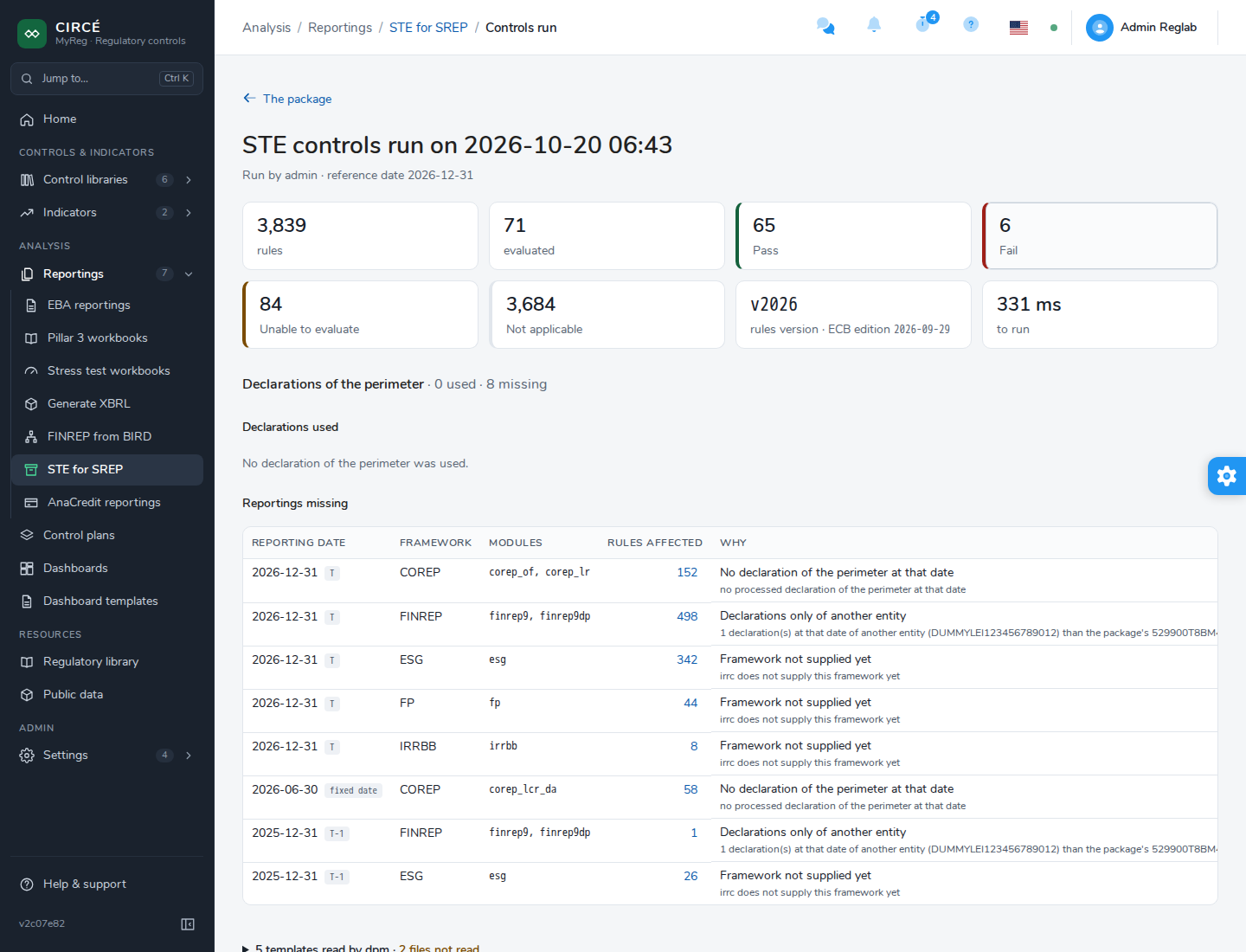
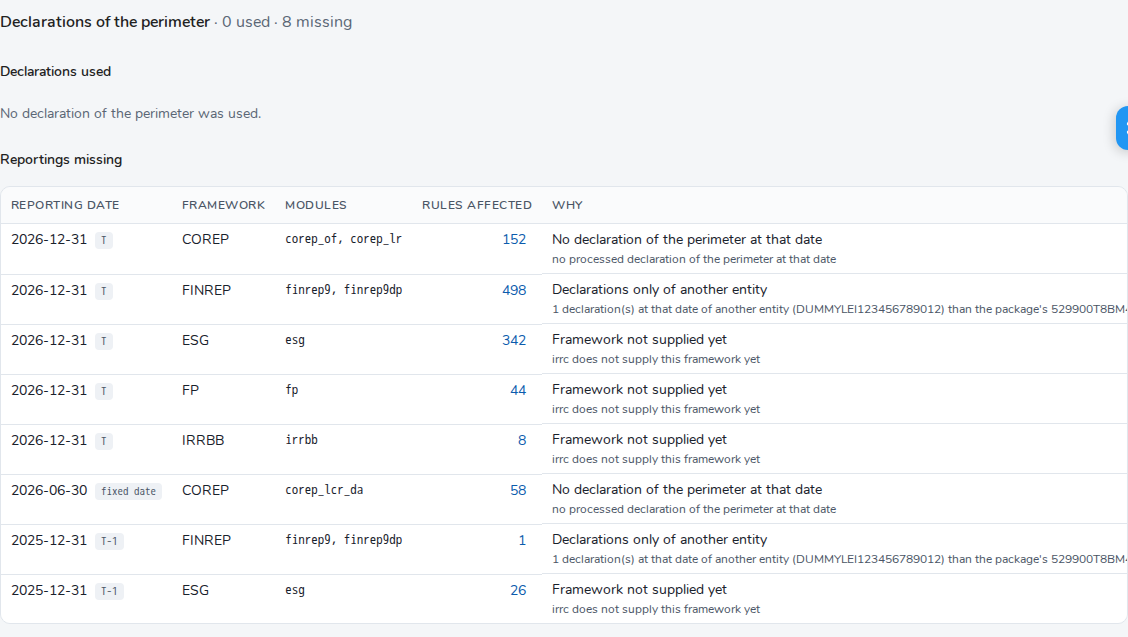
The Declarations of the perimeter panel details:
- the Declarations used: file, framework, module, reporting date (T or T-1 badge), consolidation, the reason for the choice in the Why this one column, for example “The official reporting”, and the facts sent and read;
- the Reportings missing: the date, the framework, the modules, the number of Rules affected and the reason in the Why column, for example “No declaration of the perimeter at that date” or “Declarations only on the other consolidation basis”.
A missing reporting does not block the run: the rules that read it are marked “Reporting not provided”.
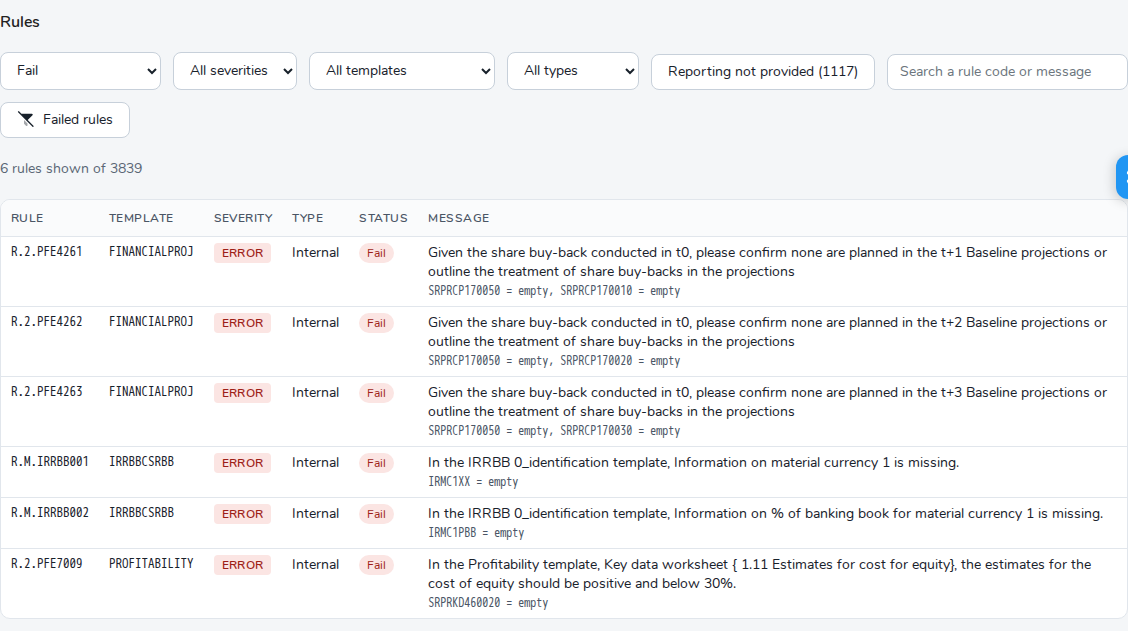
The Rules list opens on the failed rules. It is filtered by status, severity, template, type (Internal or Cross module) and by text, on the rule code or the message. The Failed rules button goes back to the opening filter. The Reporting not provided (n) quick filter shows the rules whose reporting is missing.