Dashboard templates
Dashboard templates are found under Analysis › Dashboard templates (see also the concept).
A dashboard template is an Excel workbook in which some cells hold an indicator formula, written between %% (for instance %%{C 01.00, r0010, c0010}%%). Generating the template on reporting files fills these cells with the computed values. The rest of the workbook (formatting, charts, Excel formulas) is kept.
The Analysis › Dashboard templates page lists the templates.
Uploading, editing and deleting templates, as well as saving an edited workbook, are reserved to tenant admins.
Other members can view templates, download them, generate them and download their results.
The template list
The header has the Refresh, Generate from indicators and, for an admin, New template actions.
For each template, the list shows its name, its description and its Workbook. The download icon of the row downloads the template workbook. The Search field covers the name, reference, file and tags.
The ⋯ menu of a row offers Results, Generate, Download the template and, for an admin, Edit and Delete.
How to create a template
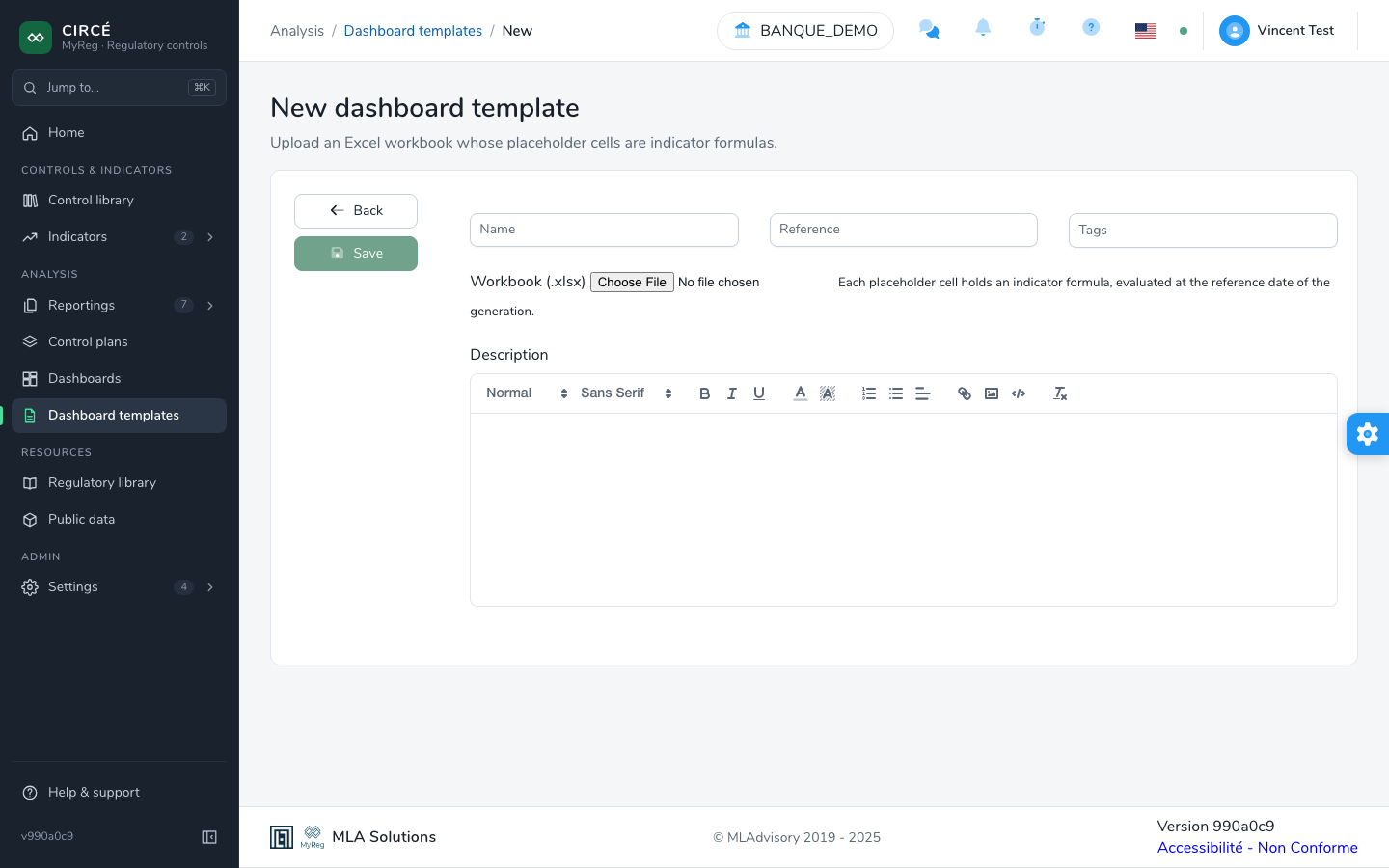
- Click New template.
- Fill in the Name and Reference, both required, then the Tags and Description, both optional.
- Choose the Workbook (.xlsx): each placeholder cell holds an indicator formula, evaluated at the reference date of the generation.
- Click Save.
To edit a template, open it and click Edit. Leave the workbook field empty to keep the current file.
To delete a template, click Delete on its page or in the ⋯ menu of the list. Every result generated from it is deleted too.
How to generate a template
- On the template page, click Generate, or use the Generate entry of the ⋯ menu of the list.
- In the Generate … dialog, choose the Perimeter, then the Reference date.
- Check the Reporting files to use among the processed reporting files of that date. The Official reportings only option limits the list to official reportings.
- Click Generate on n files.
The calculation uses the quarterly period of the reference date. In the filled workbook:
- a
%%…%%cell receives the value of its formula; - a cell whose formula fails, or that has no value, shows
#N/A; - an empty formula gives the “Empty formula” error.
To generate a template, you need the right to use each of the chosen reporting files.
The results of a template
The Results section of the template page lists its generations, with the Reference date, the start date (Started), the Status and the Reporting files used.
- A generation stays Running until the filled workbook is ready. It then shows “Done in n s”.
- The Download the filled workbook icon downloads the result.
- The Delete icon deletes the result, after confirmation.
A result belongs to the team that produced it: the read, export and delete rights come from that team. The page updates itself when a result is ready.
How to edit the workbook in the browser
On the template page, click Edit the workbook. For a member who is not an admin, the button reads Open the workbook and the workbook opens read-only.
The workbook opens in a built-in spreadsheet, as in Excel:
- you type values and formulas directly in the cells, including the
%%…%%cells filled at generation; - right-click gives access to the row and column commands.
The Formatting bar offers:
- Undo and Redo;
- Bold, Italic, Underline, Strikethrough, Increase font size and Decrease font size;
- Align left, Center, Align right and Wrap text;
- Merge and center, Unmerge cells and Freeze panes;
- Font colour, Fill colour and No fill;
- the Borders: the target (All borders, Outside, Bottom, Top, None (remove)), the Line (Thin, Medium, Thick, Dashed, Dotted, Double) and the Border colour, applied with Apply the borders;
- the Number format.
Click Save: the “Saved. The next generations use this workbook.” message confirms it. Back to the template returns to the template page; if changes are not saved, the application asks for confirmation before leaving.
- There is no “Format Cells” dialog: use the commands of the bar.
- Type numbers with a decimal point (
12.5). - Charts, conditional formats, validations and names of the workbook are kept, even though they cannot be edited here.
- Excel formulas are recalculated when the file is opened in Excel.
How to generate a template from indicators
Rather than writing the workbook by hand, you can build it from your indicators.
- In the template list, click Generate from indicators.
- Fill in the Name and Reference, and if needed the Title of the sheet (by default, the template’s name).
- Check A section per tag to group the indicators by their first tag. Indicators without a tag are grouped under “Other indicators”.
- Check the indicators in the list. The counter shows “n indicators in the template”. Indicators without a formula are left out and counted separately.
- Choose the action:
- Download (.xlsx), available to everyone, downloads the workbook;
- Create the template, reserved to admins, saves it as a template, with the tags of its indicators, then opens it in the workbook editor.
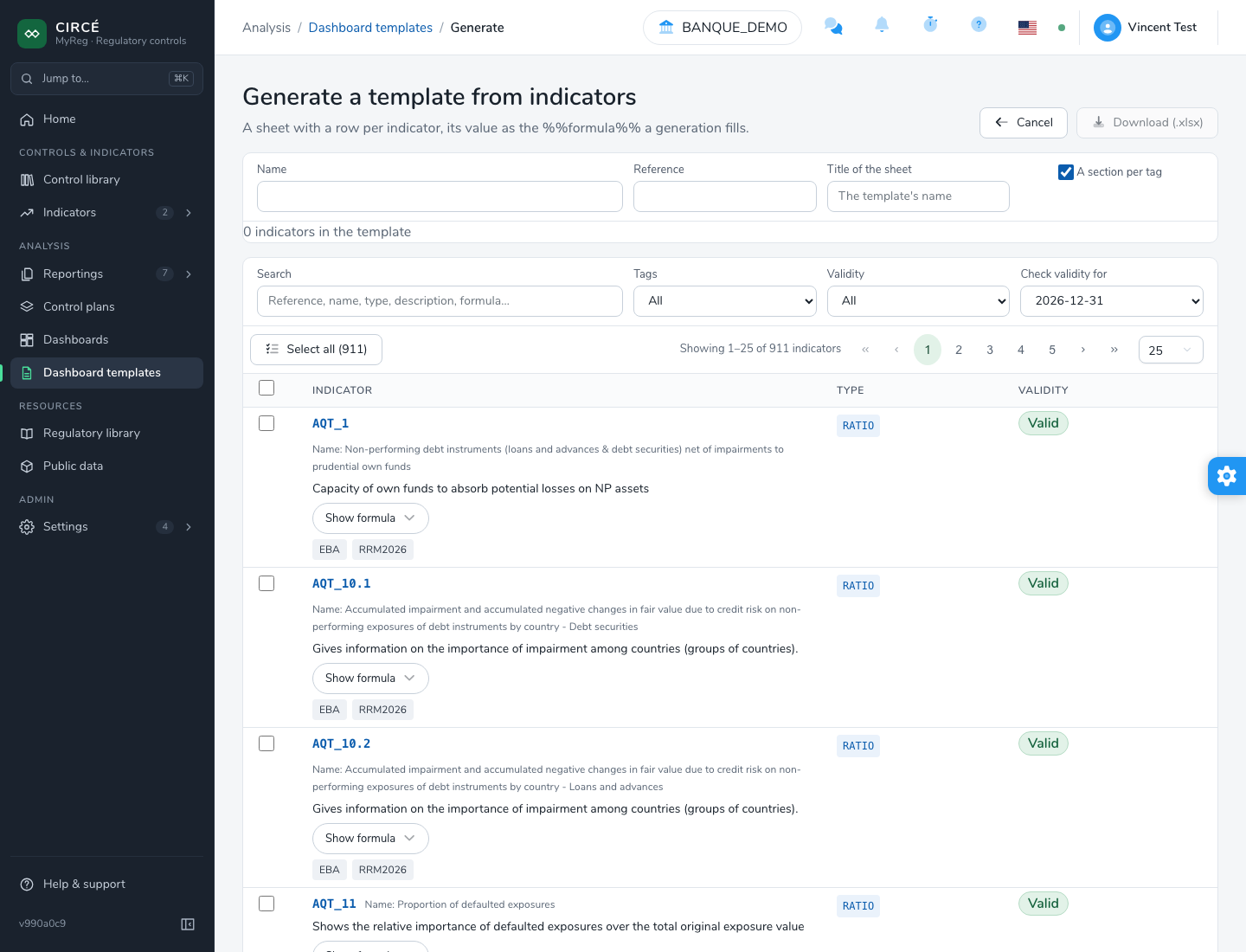
Generating a template from indicators
The workbook contains an Indicators sheet with one row per indicator: Reference, Indicator, Type and Value. The value is the %%…%% cell filled at generation. Ratios use the 0.00% format, amounts the #,##0 format.