AnaCredit
This chapter only applies to installations where the AnaCredit module is enabled. The Analysis › Reportings group then gives access to AnaCredit reportings, and the control library to the AnaCredit nature.
AnaCredit reportings
Upload. Upload AnaCredit files in XML format, choosing the ANACREDIT format. For a file in the Banque de France format, a YYYY-MM report date is read as the last day of the month. The details page of an AnaCredit file, AnaCredit reporting, shows one tab per extracted table, from T1 to T10. It offers Refresh, Reprocess and Download.
Build a synthesis.
- In the file list, select the AnaCredit files of a single reporting date and a single perimeter. They must include a T1M file, a T2M file and a T2Q file.
- Click Build AnaCredit in the bulk actions bar. The button is active only if at least two files, all AnaCredit, are selected. Otherwise, the bar explains why.
- The synthesis appears on the AnaCredit reportings page.
The AnaCredit reportings page lists the syntheses, with the reporting date, the T1M, T2M and T2Q files, the perimeter and the status. The Refresh button reloads it.
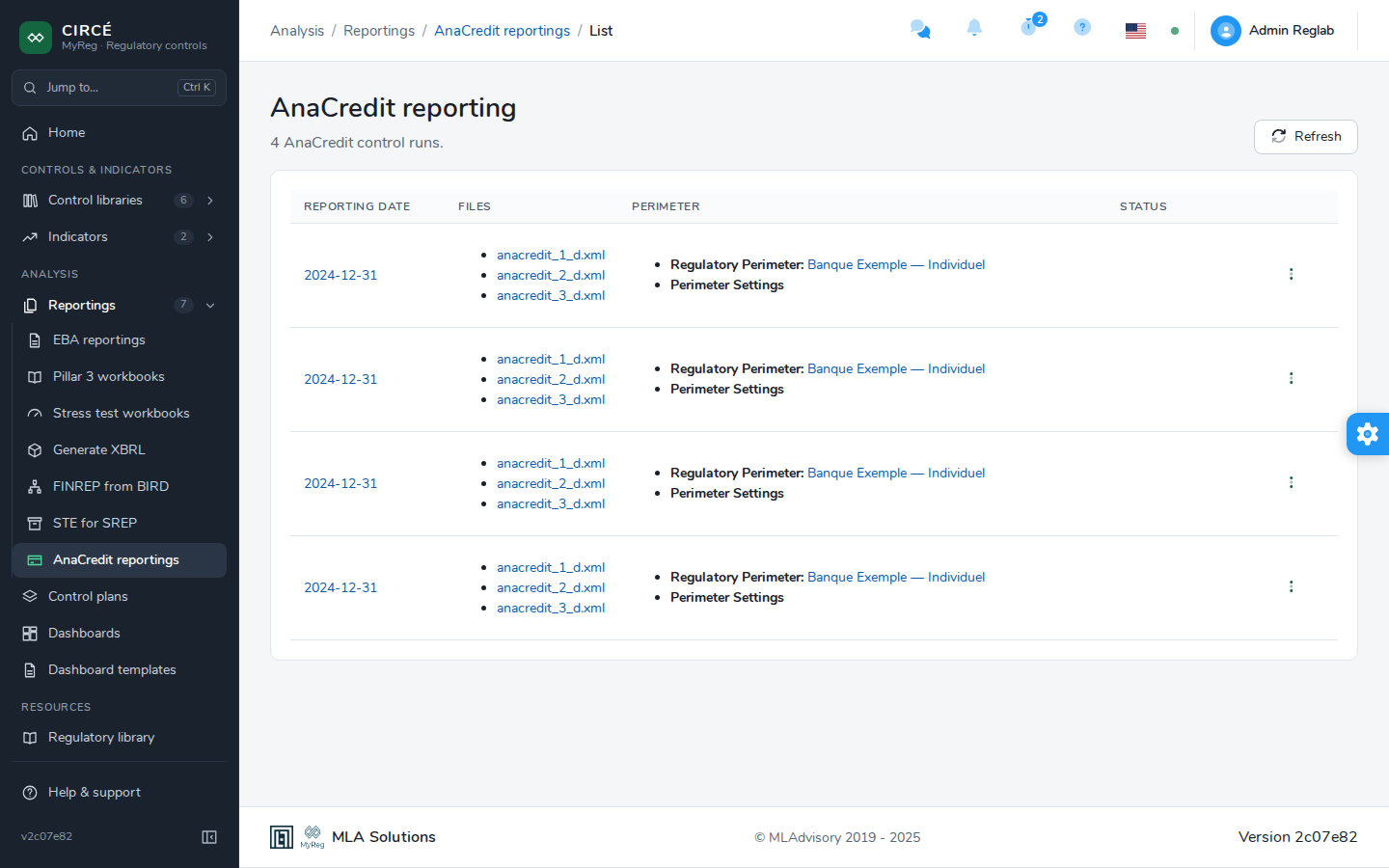
Only the syntheses whose three files you can read are listed. Deleting a synthesis requires the edit right on its perimeter.
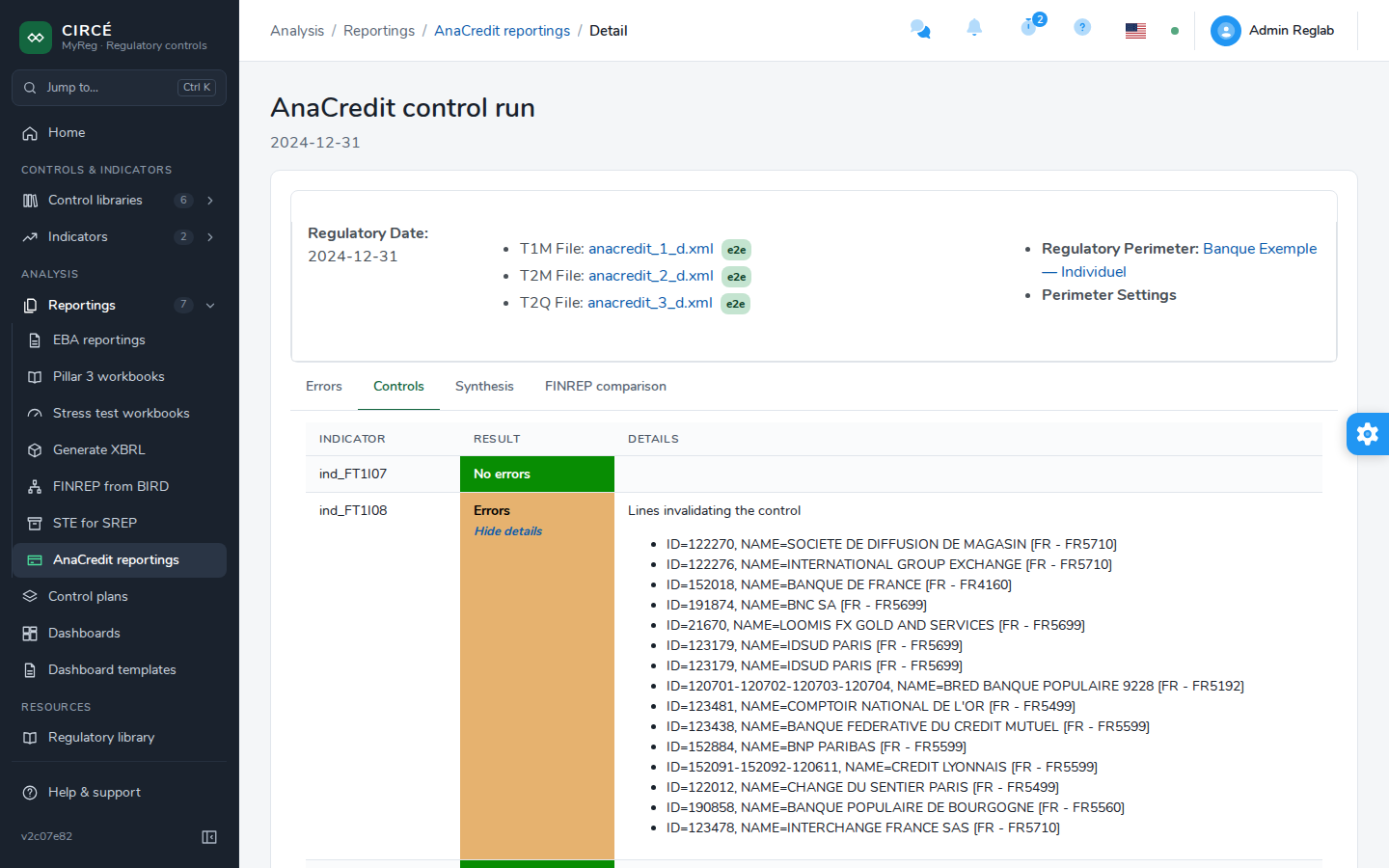
The details of a synthesis, AnaCredit control run, have up to four tabs:
- Errors, if there are any;
- Controls: the result of each AnaCredit control.
- The result is “No errors” or “Errors”.
- Show details lists the rows that fail the control.
- Synthesis: the synthesis tables.
- FINREP comparison: the comparison of the synthesis with the FINREP declaration of the same perimeter and date, following the BCL methodology.
The comparison with FINREP
The platform picks the processed DPM declaration of the same perimeter and date that contains the F 18.00 template. A solo declaration is preferred. A declaration with no stated consolidation is accepted, a consolidated one is not. Among the candidates, the official declaration comes first, then the most recently processed one.
The FINREP comparison tab shows:
- the FINREP declaration: used, with a link to its details and the reason for this choice. If there is none, the No FINREP declaration to compare with: mention gives the reason;
- the Outstanding nominal amount of the observed agent:, the number of Instruments: and the number of instruments Excluded: from the comparison;
- for each comparison rule:
- the Rule, its identifier and its label;
- the AnaCredit amount and the FINREP amount;
- the Gap;
- the DQI, that is, the absolute gap divided by the outstanding nominal amount of the observed agent;
- the Threshold;
- the Status: Within threshold, Above threshold or Not compared. The AnaCredit above FINREP mark flags an AnaCredit amount higher than the FINREP amount.
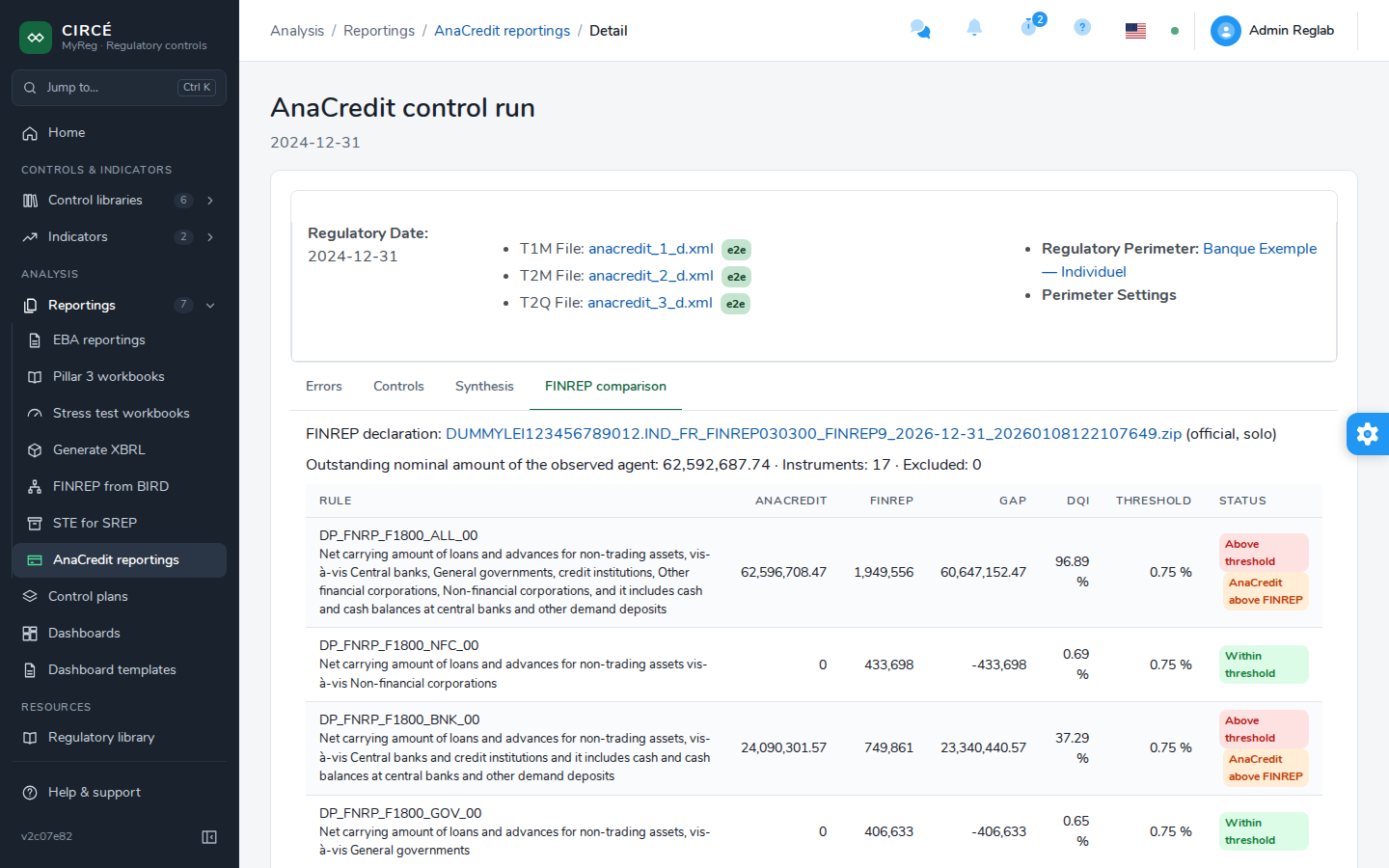
Unreported FINREP cells count as zero. Their number is shown under the rule concerned: “FINREP cells not reported, read as zero”.
AnaCredit controls
The AnaCredit nature of the control library opens the AnaCredit controls page. It lists the AnaCredit validation rules, read-only:
- validation identifier;
- severity;
- definition;
- description.
The list can be filtered by keyword (Search) and by Severity. Export (.xlsx) downloads the list, filtered on the selected severity, in an AnaCredit controls sheet.
Click a control to display its details: the tables, references and attributes compared, and the control query. The results of these controls appear in the AnaCredit summaries.