Support access
You can allow support to view the application with your permissions in the selected tenant. The data and exports visible to your account become accessible to support. The session is read only: modification requests are refused even when their buttons remain visible. Settings stored only in your browser can differ; this is not a live screen share.
Understand the tenant policy
The tenant administrator chooses one of three policies:
| Policy | Effect |
|---|---|
| On request | Initial setting. You must grant a personal, time-limited authorization. |
| Always | Authorized support can view your account without requesting individual consent each time. |
| Never | Support access is refused, even if you previously granted authorization. |
An MLA administrator can also change the policy at the client’s request. MLA support and platform administrators can operate across tenants; tenant administrators can view their own members. Accounts with platform or identity-administration privileges cannot be targets.
This access does not pass through your corporate directory: it bypasses the target account’s identity provider, MFA and conditional-access rules. Support authenticates with its own account, then opens an application session as you. If your organization does not want this capability, its administrator selects Never.
Authorize a consultation
Open Support access from the application in your own session and the relevant tenant. Under On request:
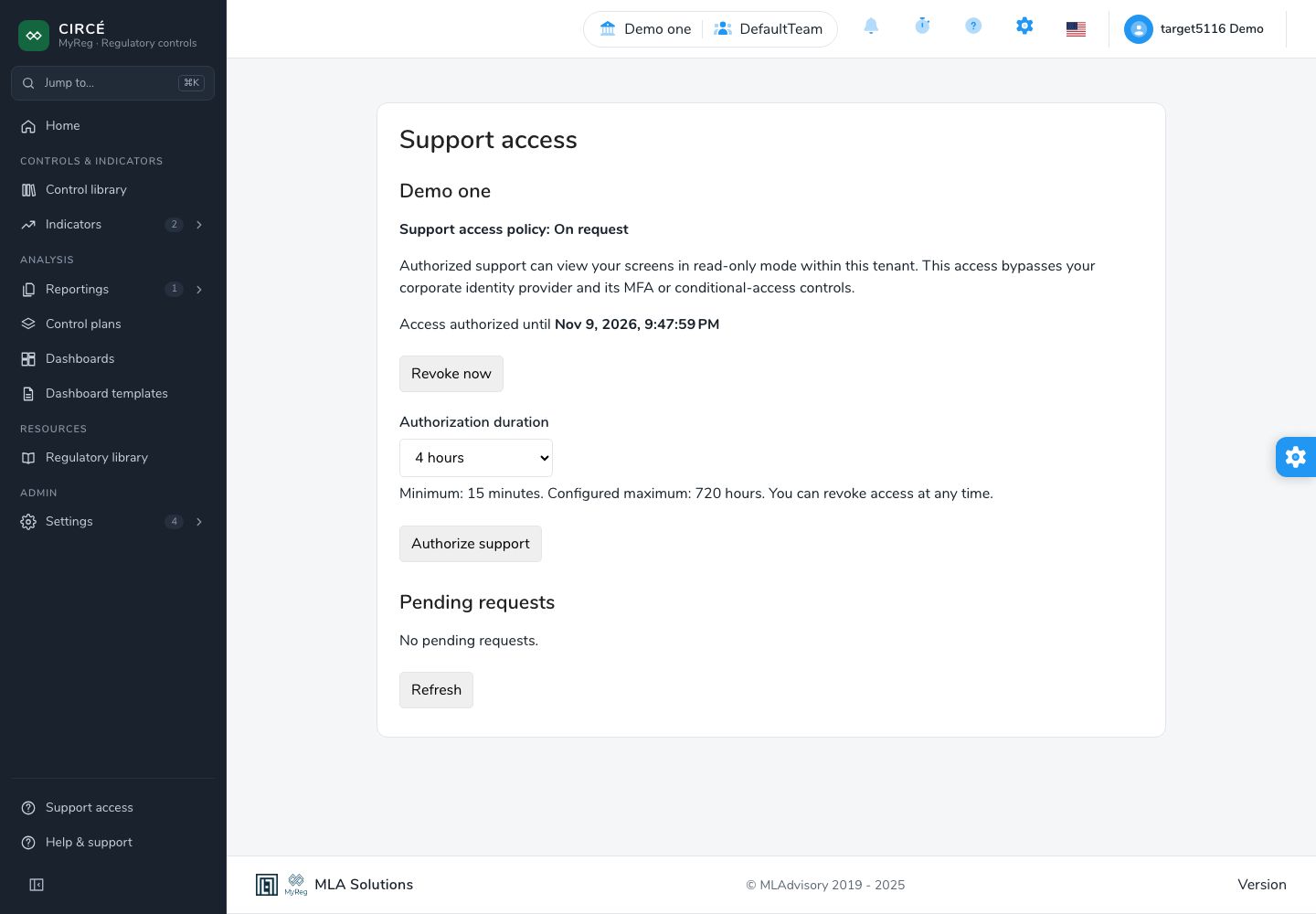
- Review Pending requests, which show the operator, reason and expiry. Select this request takes its suggested duration; you can change it.
- Choose 1 hour, 4 hours, 1 day, 7 days or Custom end date. The page shows the configured limits; the minimum duration is 15 minutes.
- Select Authorize support. The authorization’s end time appears.
An authorization given in answer to a request applies only to the support member who made it: another member must send you their own request. You can also authorize support without a prior request; that authorization then applies to the whole support team. Several authorizations can coexist, and a new authorization replaces only the one with the same scope. Receiving a request or email grants no access until you authorize the consultation yourself.
When a request is addressed to you, a banner announces it in the application, and an orange dot appears next to Support access in the left menu. The banner and the dot update as soon as a request arrives or is handled, without reloading the page. Later hides the banner; the dot stays while the request is pending.
Decline a request
If you do not want to give access, select Decline in the banner or next to the request on the Support access page, then Confirm decline. The support member receives an email telling them you declined, and the decline is recorded in the support journal. They can send you a new request if needed.
Revoke and end access
Select Revoke now to withdraw your authorizations: every current one for this tenant is withdrawn, whether it was given to one support member or to the whole support team. An existing session ends at its next authorization check, within 60 seconds. The authorization expiry and maximum session duration also apply. Extending authorization does not automatically extend an existing session.
During consultation, a banner identifies the target account, tenant and end time. The tenant is pinned: support cannot switch organizations within this session. Exit ends the consultation session. The Consultation ended page requires an explicit login; it does not silently resume the operator’s identity. A consultation does not interrupt your own session: you can keep working during and after it.
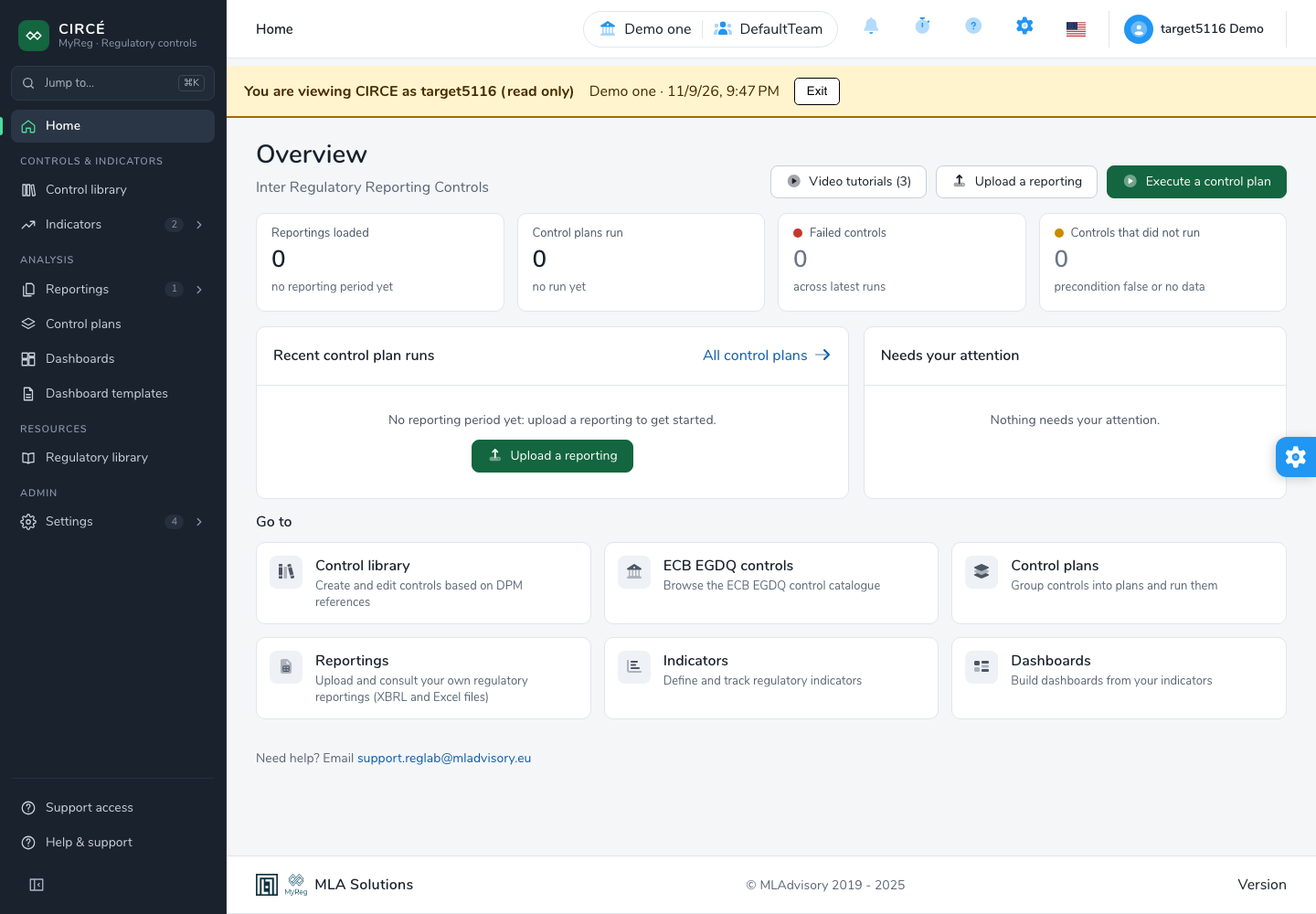
Attempting a modification displays Action unavailable during support consultation. Authorized downloads and exports remain readable, so allowing support access also allows support to retrieve data accessible to your account.
For administrators and support
In the support console, select the tenant, member and product, then View as user. This opens a separate tab and preserves the operator’s console session. If authorization is missing, Request access records a request with a suggested duration and reason. Protected accounts, self-impersonation and chaining are not valid launch actions. Protected accounts are those of platform administrators, support members and directory administrators, including rights obtained through a group.
The console also lists active authorizations and offers policy management to authorized administrators. Its journal can be filtered by user, operator and dates and exported to CSV. It records requests, authorizations, declined requests, revocations, policies, session openings, closures and refusals. The end of a consultation also shows how many actions were blocked during it (read only, another tenant, new consultation). MLA can consult this journal; a tenant administrator can consult only their own tenant’s journal.
An MLA administrator, or an administrator of the consulted tenant, can end a consultation in progress at once: End on the consultation’s line in the journal, then confirm. The support member’s session stops immediately and the journal shows “ended by” followed by the administrator’s name.
The console updates by itself when a user accepts, declines or revokes access, and the support member concerned sees a short notice.
This page describes a feature that your operator must activate. If the entry or service is unavailable, contact your administrator. A recorded authorization does not mean a session is open.