Thresholds
Thresholds are in Admin › Settings › Thresholds. A threshold sets the tolerance of the controls with the Threshold match type (see Thresholds); it is chosen when running a control plan.
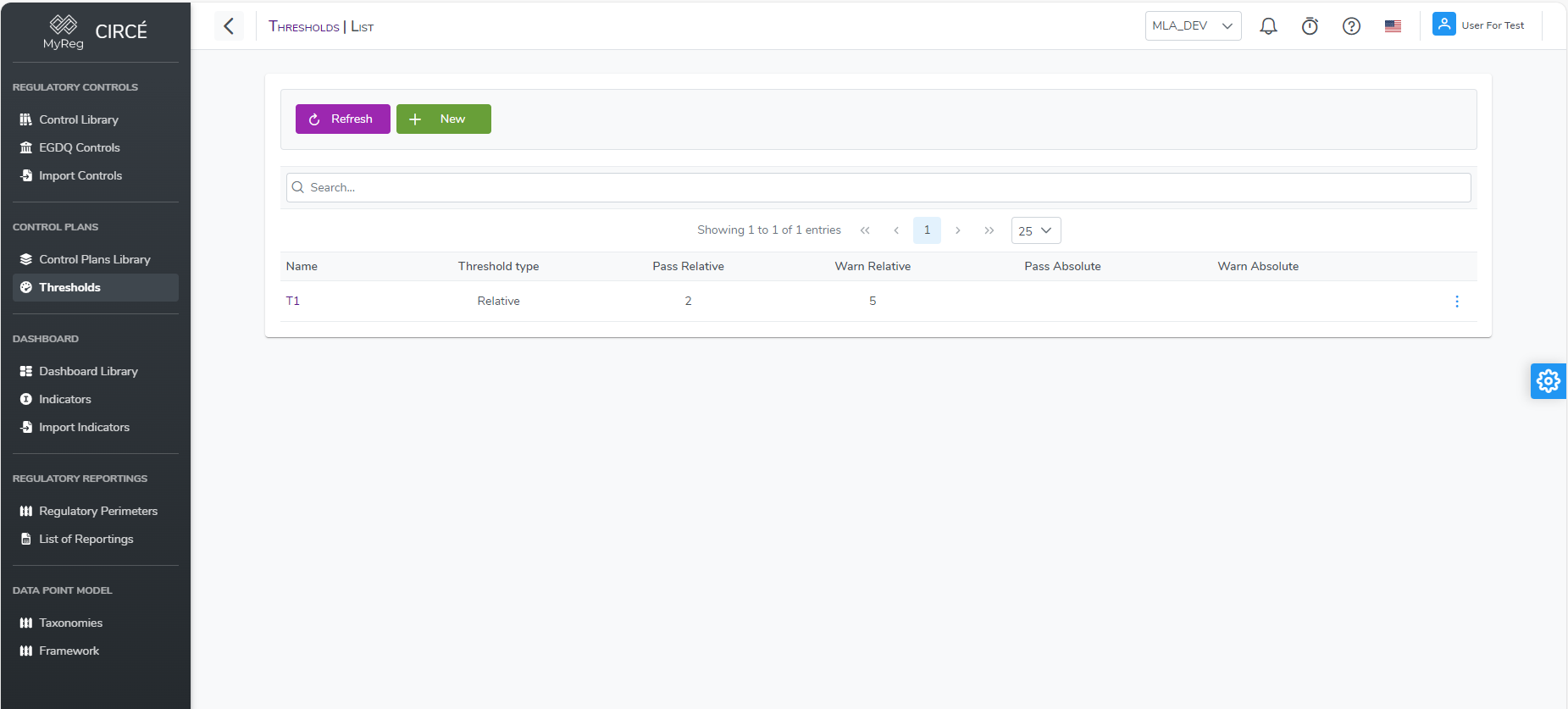
The threshold list
For each threshold set, the Thresholds page lists its name, its type and its relative and absolute pass and warning values. A relative and absolute threshold shows its type as “Relative and absolute” or “Relative or absolute”, depending on its combination. The Search field filters on the name or the type, and the Name and Type headers sort the list. A threshold’s ⋯ menu offers View, Edit, Delete and Permissions (if teams are enabled).
How to create a new threshold
On the threshold list page, click New threshold. The New threshold set page opens.
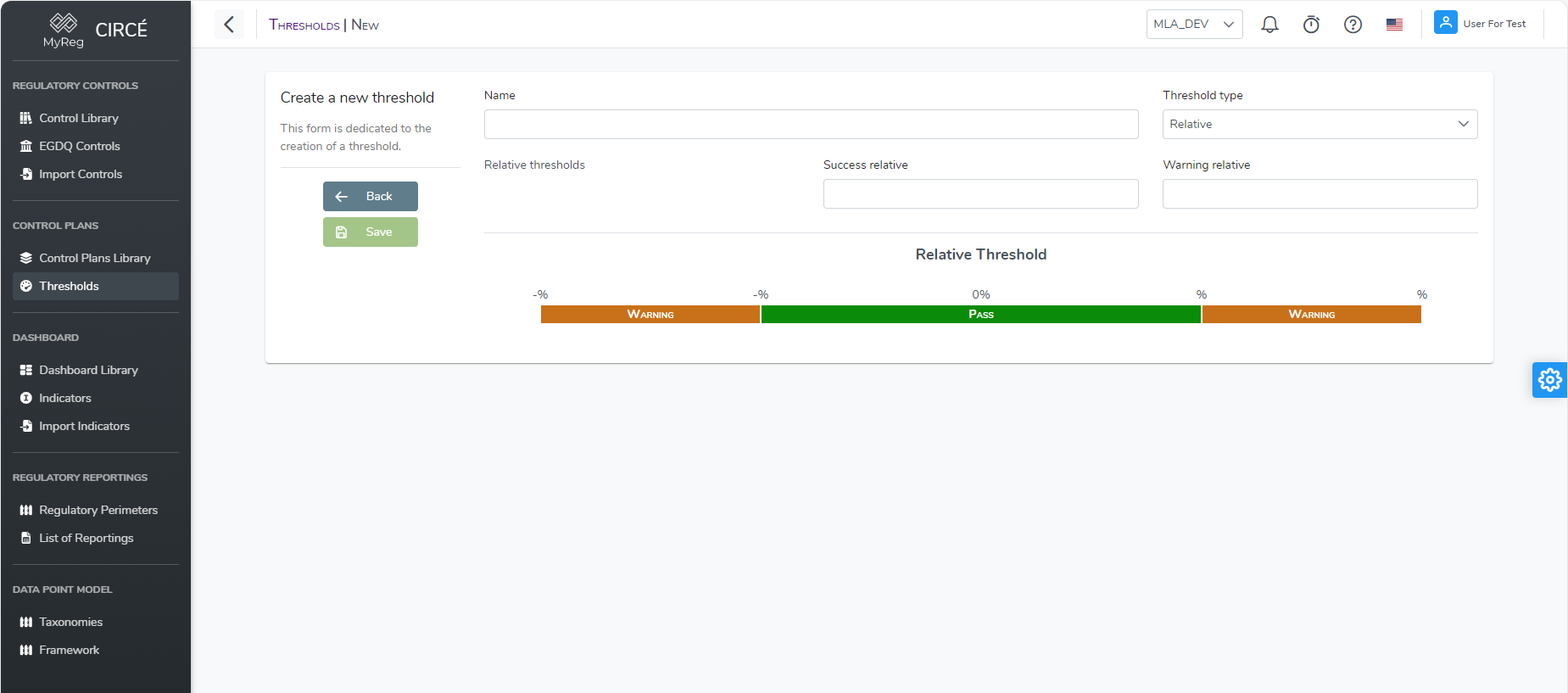
The General card asks for:
- the Name: mandatory and unique;
- the Threshold type: Relative (default), the deviation as a percentage of the reference value; Absolute, the deviation in reporting units; Relative & absolute, both deviations are checked;
- for a relative and absolute threshold, How are the two results combined?: Both must hold (AND), the stricter result wins, or Either is enough (OR), the more lenient result wins (see Thresholds).
A Relative threshold card and an Absolute threshold card, depending on the type, each ask for two limits, Pass up to ± and Warning up to ±, zero or more. The warning limit must be greater than or equal to the pass limit. A scale shows live the Fail, Warning and Pass zones on either side of zero.
The How a result is classified panel sums up the rule applied: pass within the pass limits, warning beyond them and up to the warning limits, fail beyond, then the chosen combination.
Click Save; Cancel returns to the list without saving. The calculation is described in detail in the concepts.
How to edit a threshold
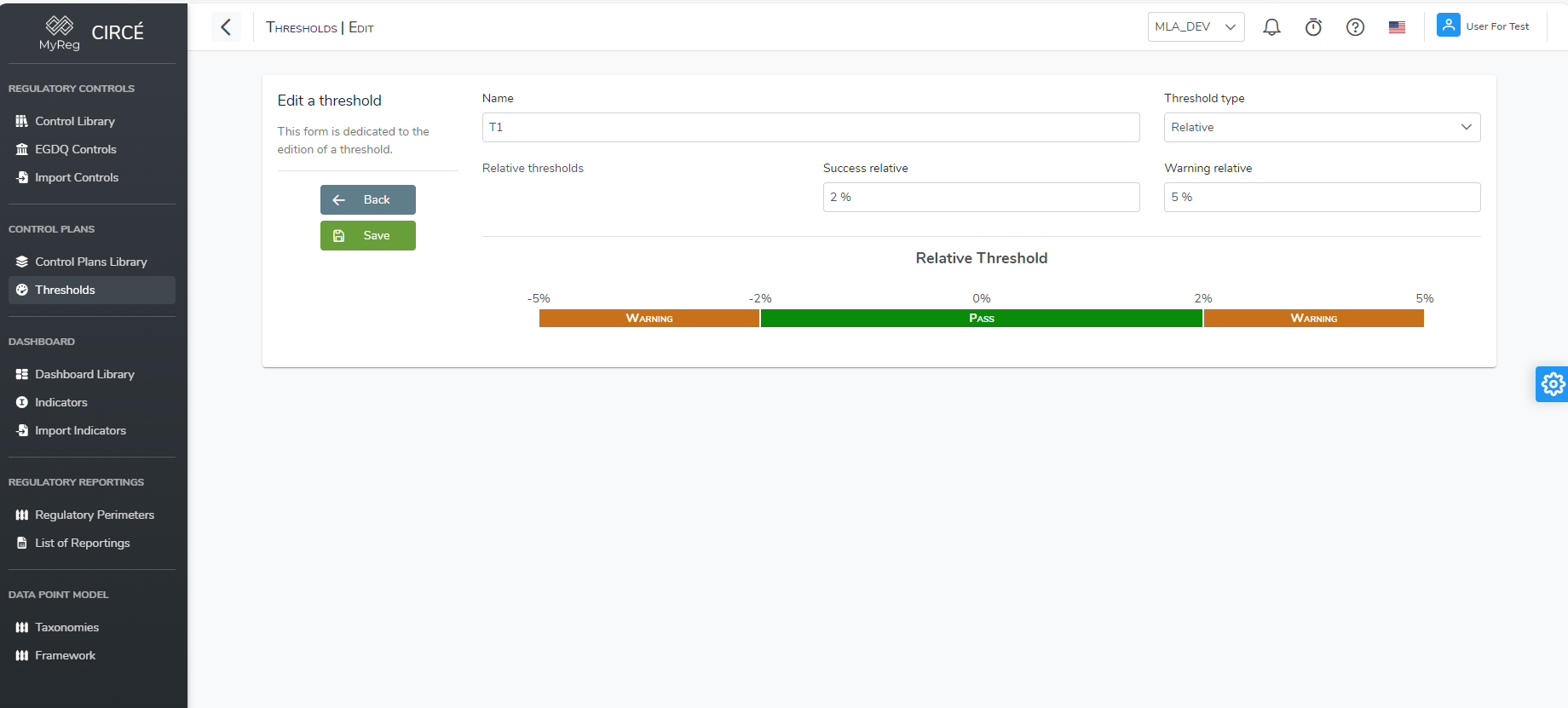
Open a threshold and click Edit, or use the Edit entry of the ⋯ menu on the list page. The Edit threshold set page opens.
Change the name, the type, the combination or the limits, then click Save.
The change applies to future executions, including reruns of past results. Existing results keep the threshold values in force at the time of their execution, for the audit trail.
How to delete a threshold
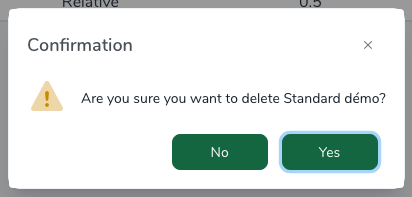
On the list page, use the Delete entry of a threshold’s ⋯ menu.
A dialog lets you confirm or cancel your action.
A threshold used as the preferred threshold by one or more perimeters cannot be deleted. First remove it from these perimeters.
You do not need to delete the results that used it. However, these results can no longer be rerun.